Complete Guide:
Fire TV Cube Downloader Setup
This Fire TV Cube Downloader Setup guide explains how to install the Downloader app, find Developer Options and manage installation permissions on compatible Fire TV Cube models. Menu names and third-party app installation support vary by Fire OS version. Only install APKs from trusted publishers after checking their source and compatibility.
Quick answer: To install Downloader on a compatible Fire TV Cube, search for Downloader by AFTVnews in the Amazon Appstore. If you need to install an APK from outside the store, check whether your Fire OS version provides Developer Options → Install Unknown Apps, then review the app publisher, download URL and requested permissions. Some newer Fire TV software may restrict sideloading.
Fire TV Cube Downloader Installation Steps
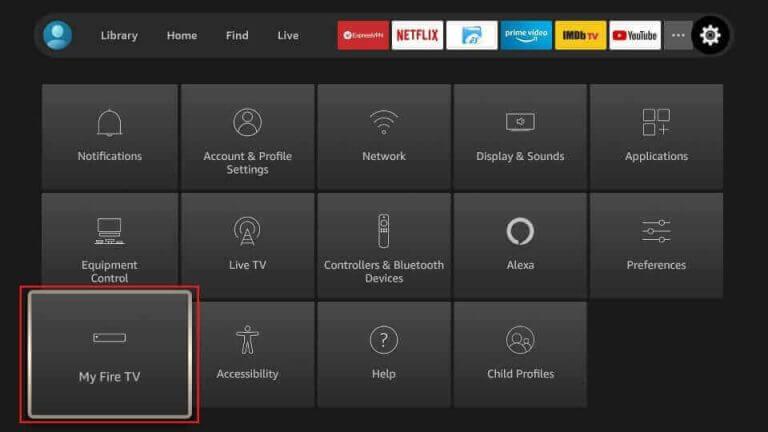
1 Go to Settings
- Press the Home button on your remote to begin the setup process.
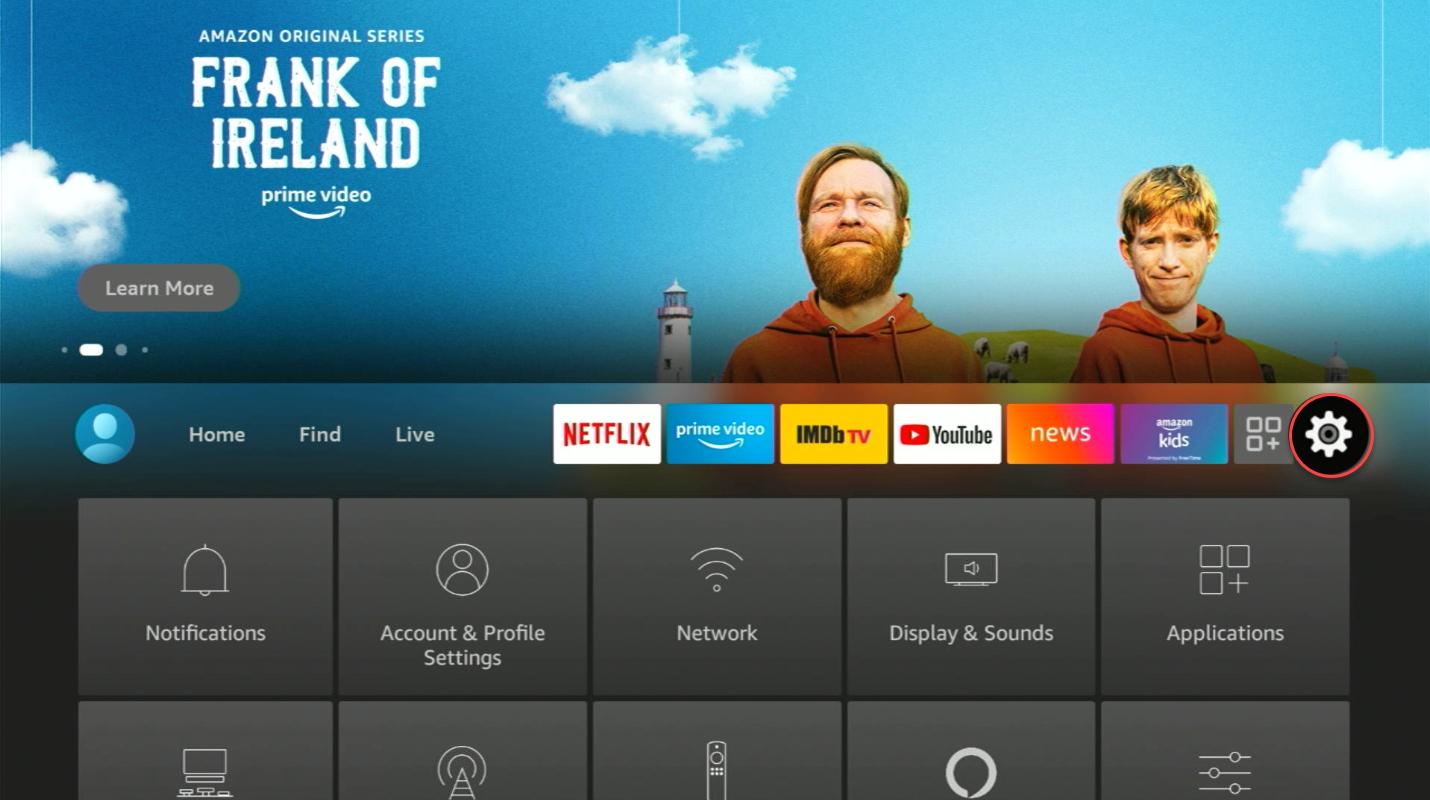
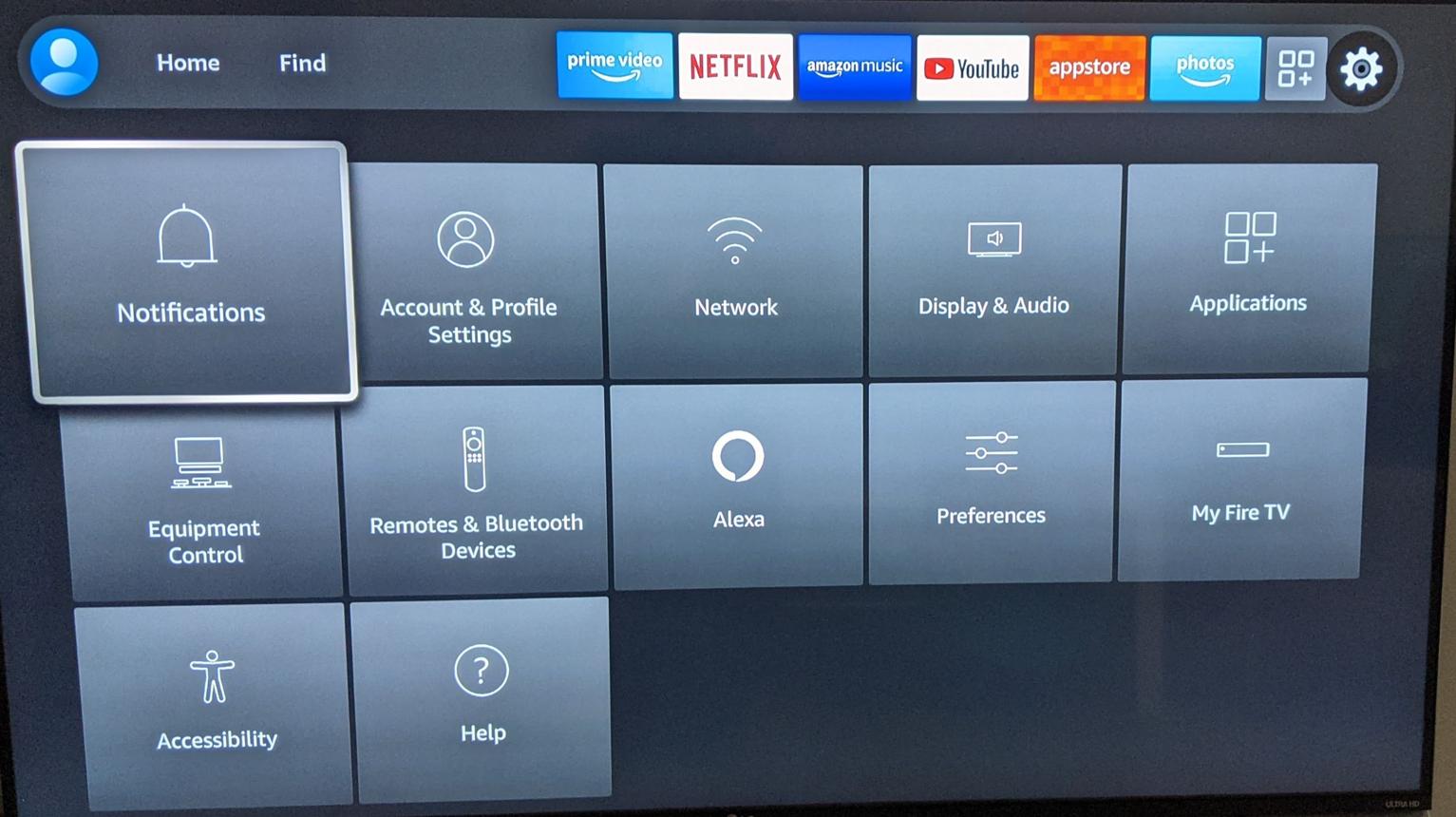
- Navigate to the ⚙️ Settings icon in the far right of the menu.
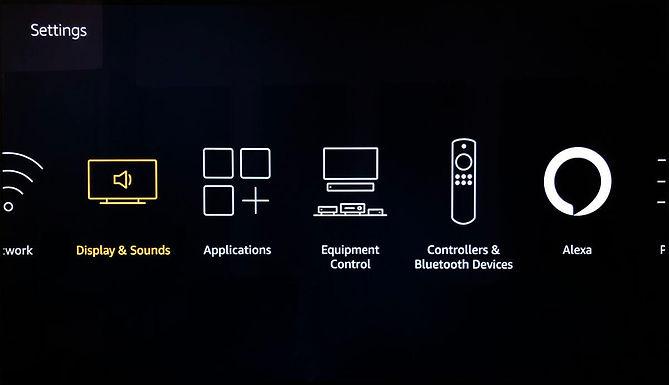
- Select the My Fire TV tile (On some devices, this may be called Device & Software).
2 Unlock Developer Options
To reveal hidden settings:
- Click on the About section inside My Fire TV.
- Hover over the text that says Fire TV Cube.
- Press the OK (Center) button on your remote 7 times rapidly.
- Follow the on-screen confirmation. Depending on your device state, it may say that Developer Options are enabled or that you are already a developer.


3 Search & Install
- Press the Home button to return to the main dashboard.
- Go to the Find > Search tab (magnifying glass icon).
- Type Downloader using the on-screen keyboard.
- Select the orange Downloader by AFTVnews app and click Get / Download.


4 Grant App Permissions
Before opening the app, follow this path:
- Find the Downloader app in the list and click it to turn the permission ON.
- The selected app can request installation of compatible APKs; device security checks still apply.


5 Open & Download Files
Now launch the application:
- Review any storage permission request and allow only the access needed for the download.
- Select the URL box and enter a valid Downloader code or a trusted direct URL. Press Go.
- Inspect the destination and publisher before downloading. If the file is a compatible APK and the system offers an installation prompt, review its permissions before selecting Install.


6 Setup Complete & Cleanup
Setup is complete ✅
After a successful installation, you can delete the downloaded APK file to reclaim space. Keep it only if you have a legitimate reason to retain that installer.

🚀 How to Speed Up Fire TV Cube
If your Fire TV Cube feels slow or playback buffers, check Wi-Fi stability, available storage, app updates and the streaming source. These steps may help identify the cause; no single setting guarantees smoother 4K playback.
- Clear Application Cache: Go to Settings > Applications > Manage Installed Applications. Select your heaviest media players and click “Clear Cache” (Do not click Clear Data).
- Uninstall Unused Apps: Remove unused apps or downloads when storage is low. There is no verified universal 15–20% free-space requirement for Fire TV Cube performance.
- Force Stop Background Processes: Restart the device or close an unresponsive app through system settings. Repeatedly force-stopping background services may not improve performance and can disrupt apps.
Why Optimize Your Fire TV Cube?
Amazon’s Fire OS provides a curated app store. This Fire TV Cube Downloader Setup guide covers the additional installation controls available on some Fire OS versions. Downloading a file does not confirm that it is safe or compatible; check its original publisher and permissions first. For app options and installation instructions, visit our Media Players directory. Hardware capabilities and features differ among Fire TV Cube generations.