Buzz TV P6 PowerStation Downloader Setup Guide (2026)
This Buzz TV P6 PowerStation Downloader guide explains how to find the Downloader app, check Android installation permissions, and install a compatible APK only when necessary. This Buzz TV P6 PowerStation Downloader setup covers six illustrated steps, including device settings, app search, URL entry, and safe installation checks. Menu names can differ by firmware version; prefer the official app store and developer downloads whenever available.
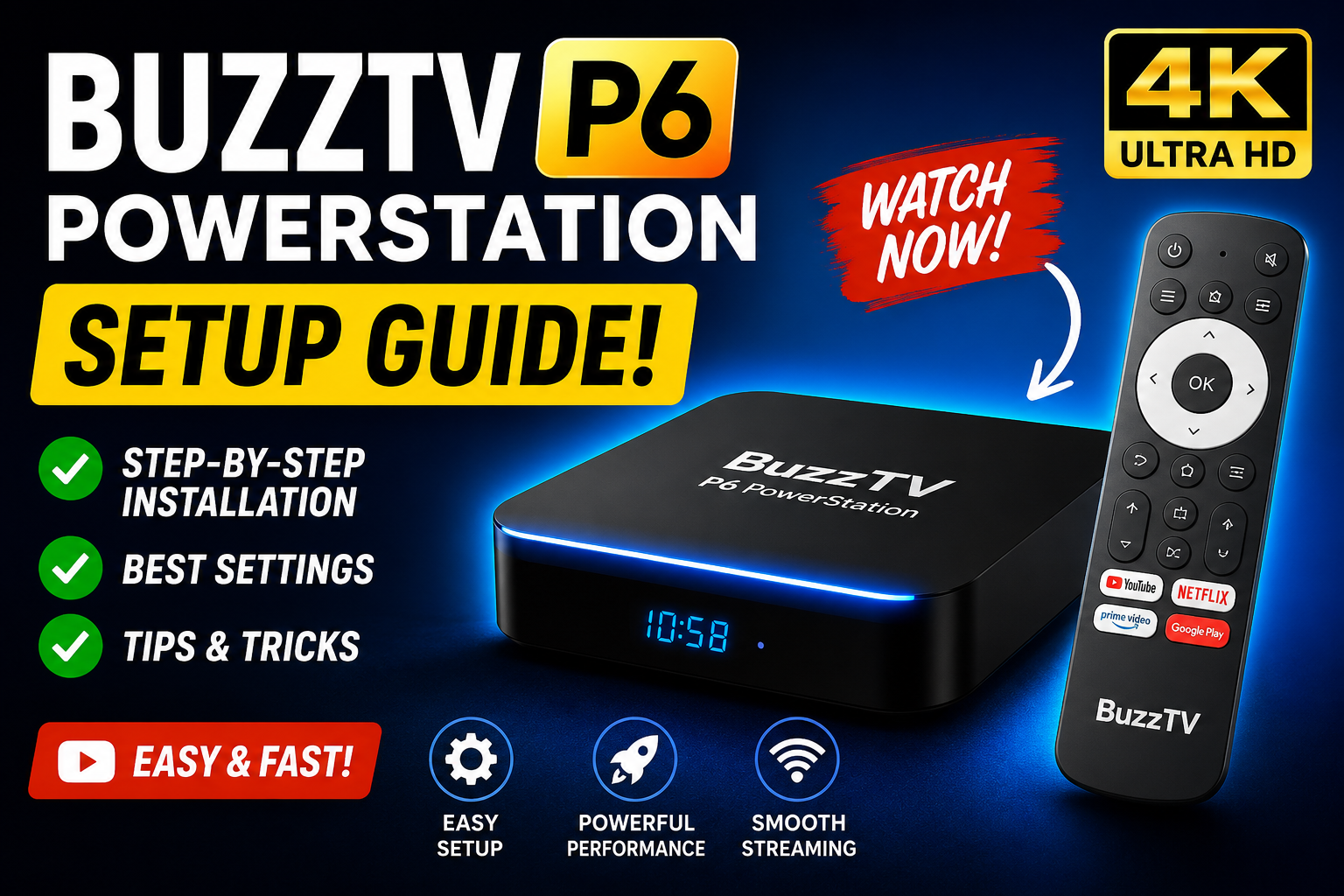
Buzz TV P6 PowerStation Downloader Installation Steps
1 Go to Settings
- Start from the main home screen of your Buzz TV P6 PowerStation.
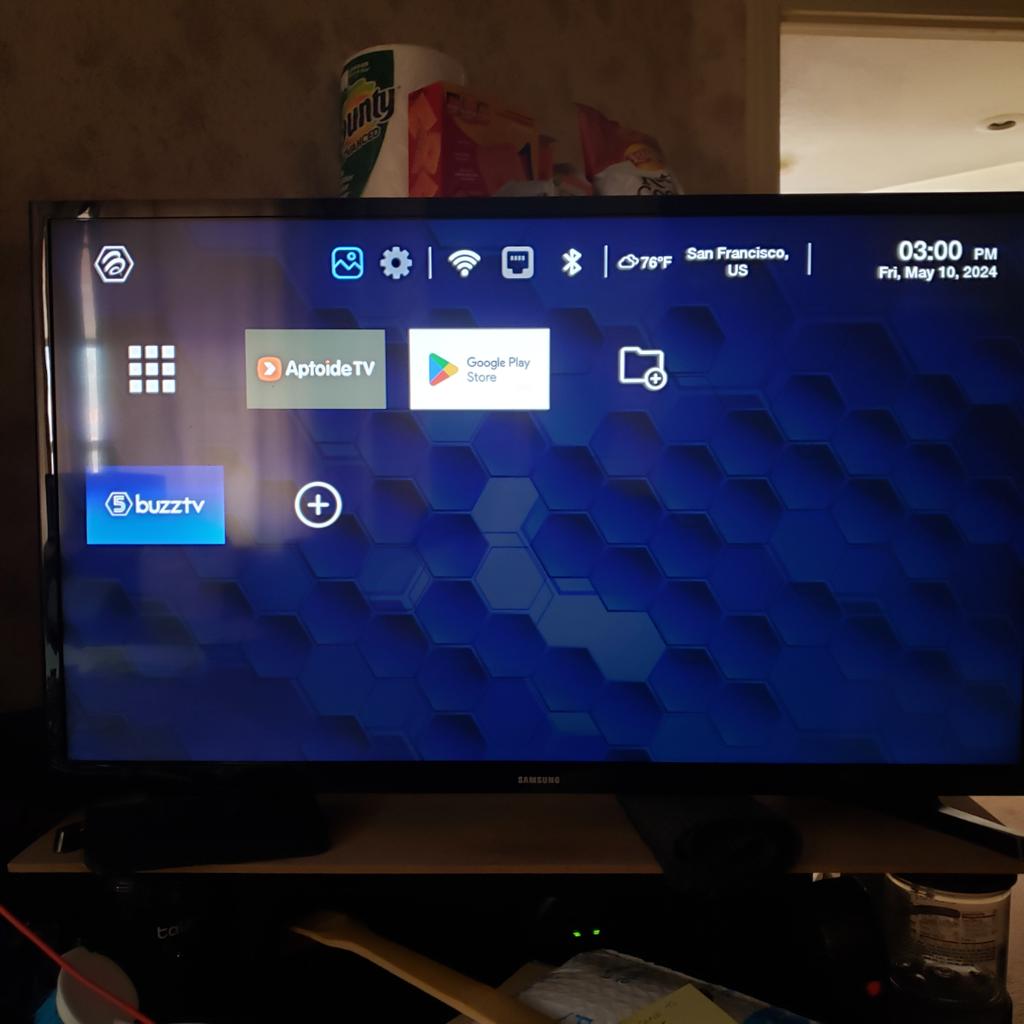
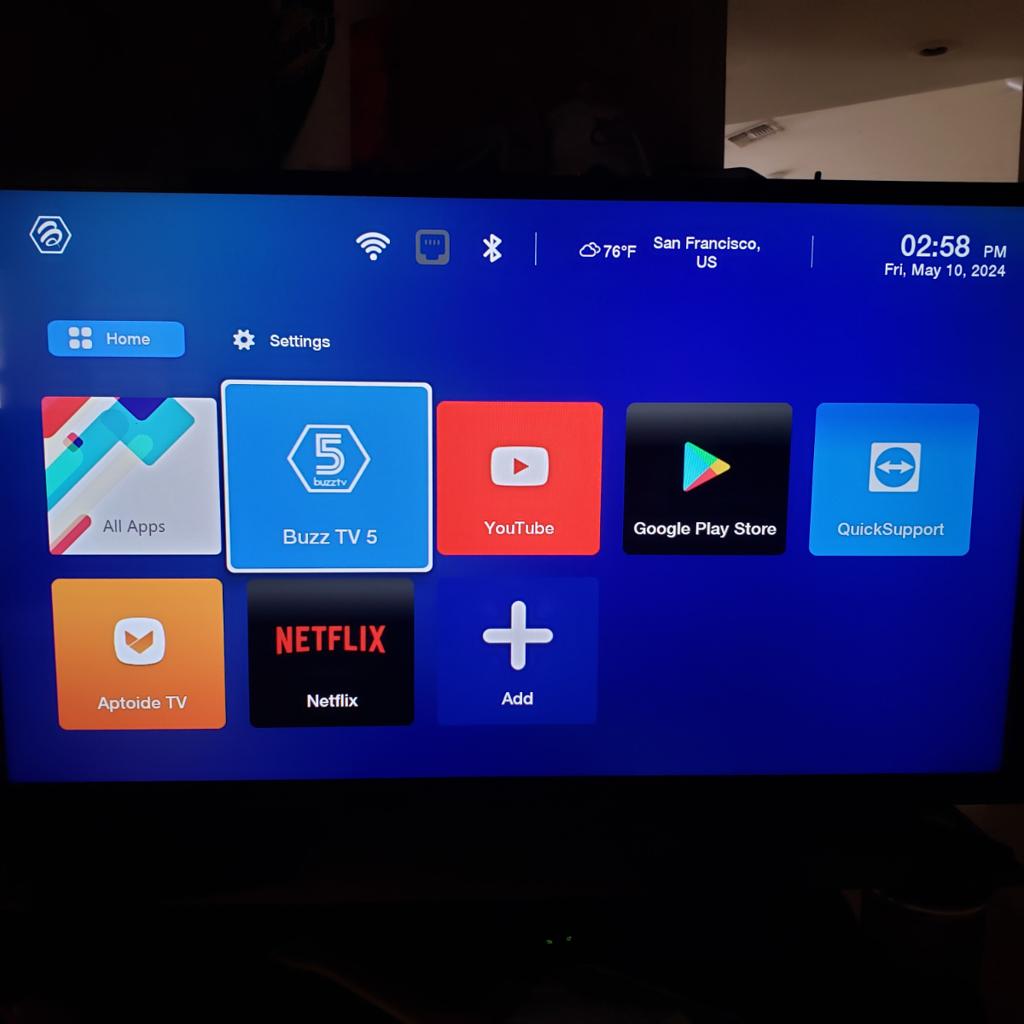
- Navigate through the interface and open the ⚙️ Settings menu.
- Scroll down and select the Device Info or About section.
2 Enable Developer Options
In order:
- First check whether the installation option is already available in your device settings. If developer options are hidden, locate the Build number under About.
- On Android builds that support this method, select the Build number repeatedly (commonly seven times) until developer settings are enabled. This step may not be necessary on your firmware.
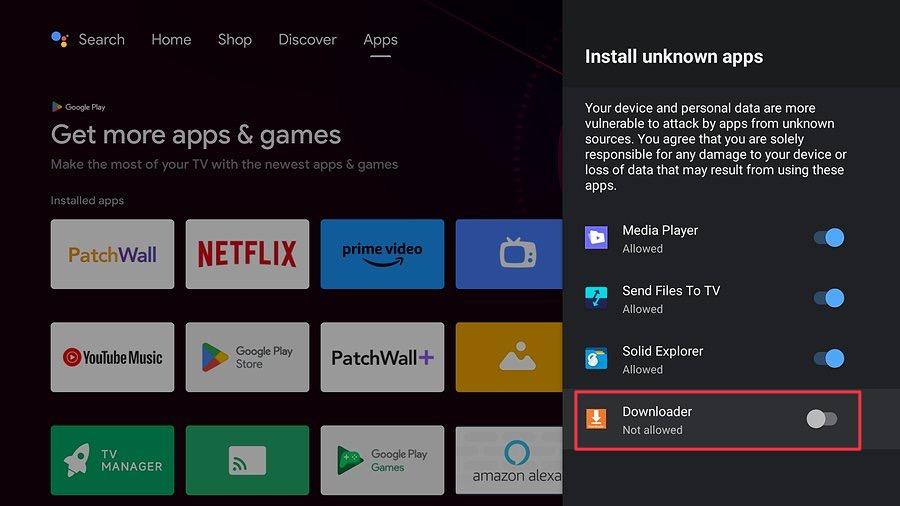
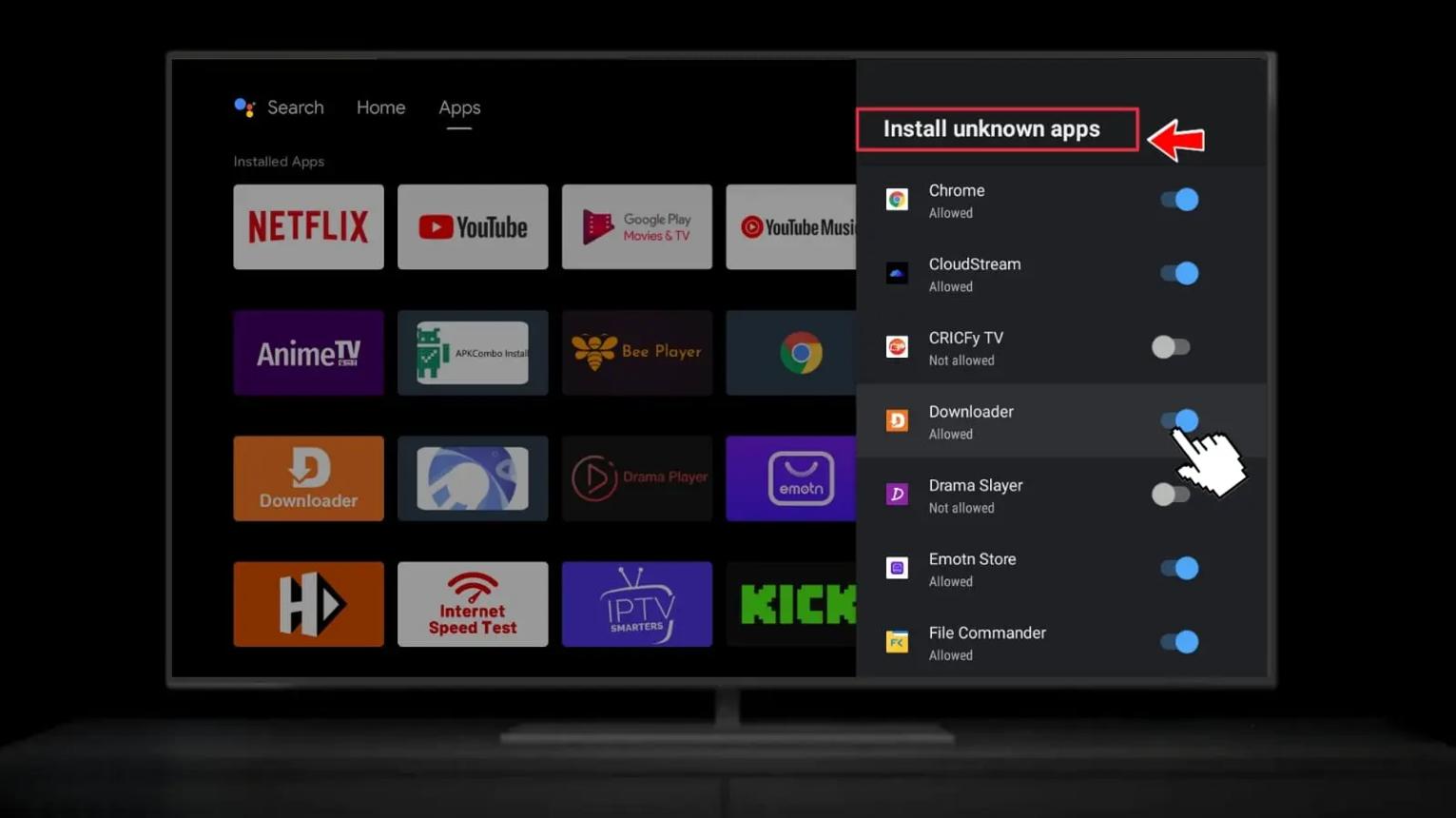
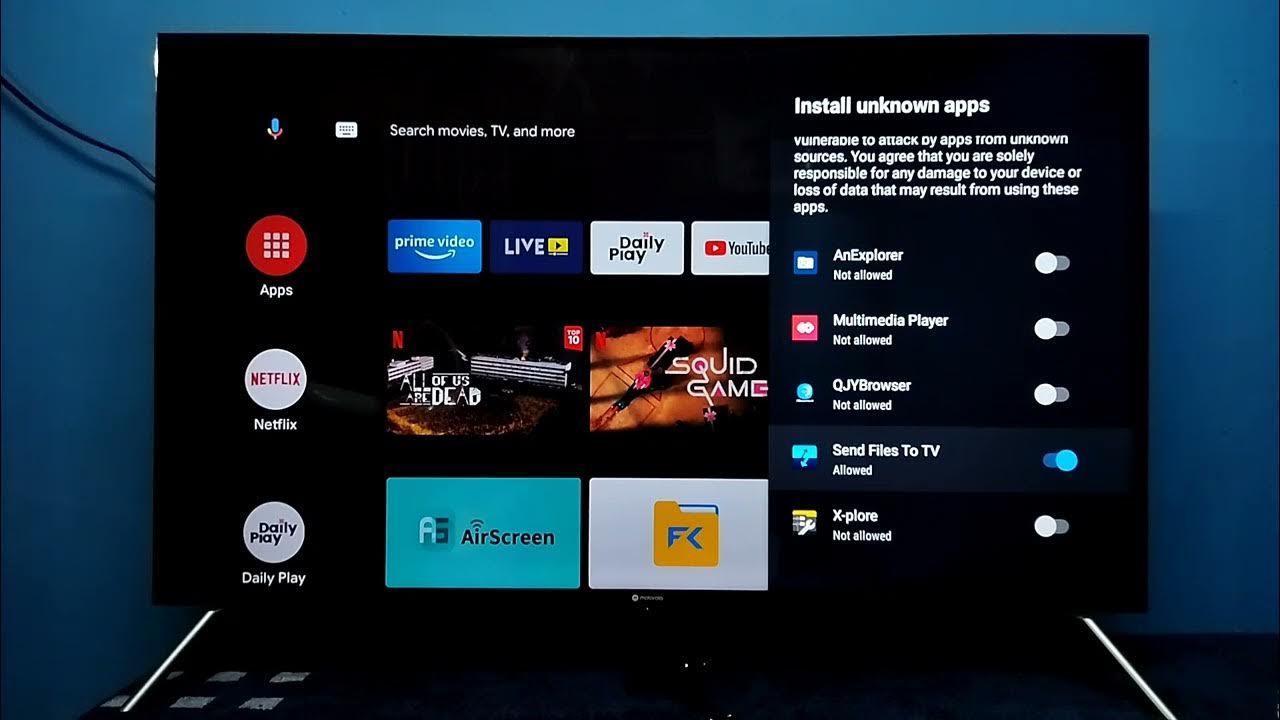
- If installing an APK outside the official store, grant Install unknown apps permission only to the app that needs it. Disable that permission afterward if you no longer need it.
3 Search Setup
- Leave ADB Debugging off. It is not normally required to install an APK using Downloader. Enable it only for a separate, trusted debugging procedure.
- Press the Home button to return to the main screen.
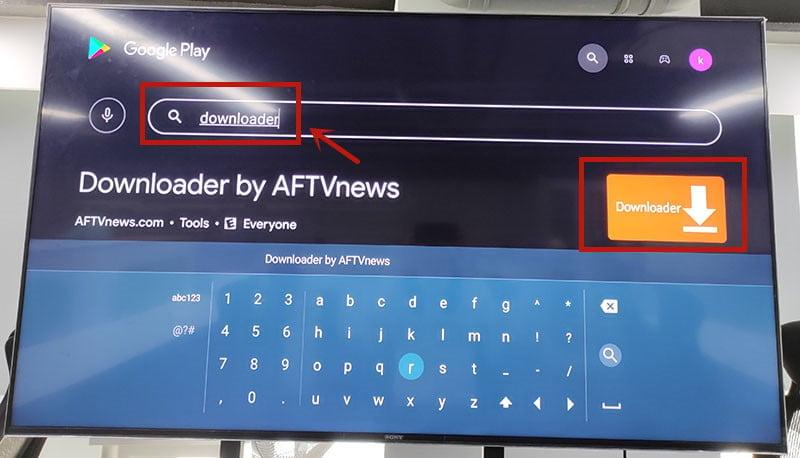
- Open the Search bar located on your dashboard.
4 Find and Open the Downloader App
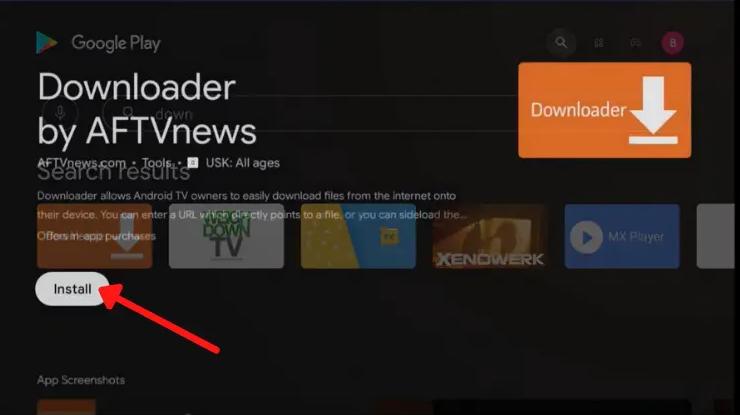
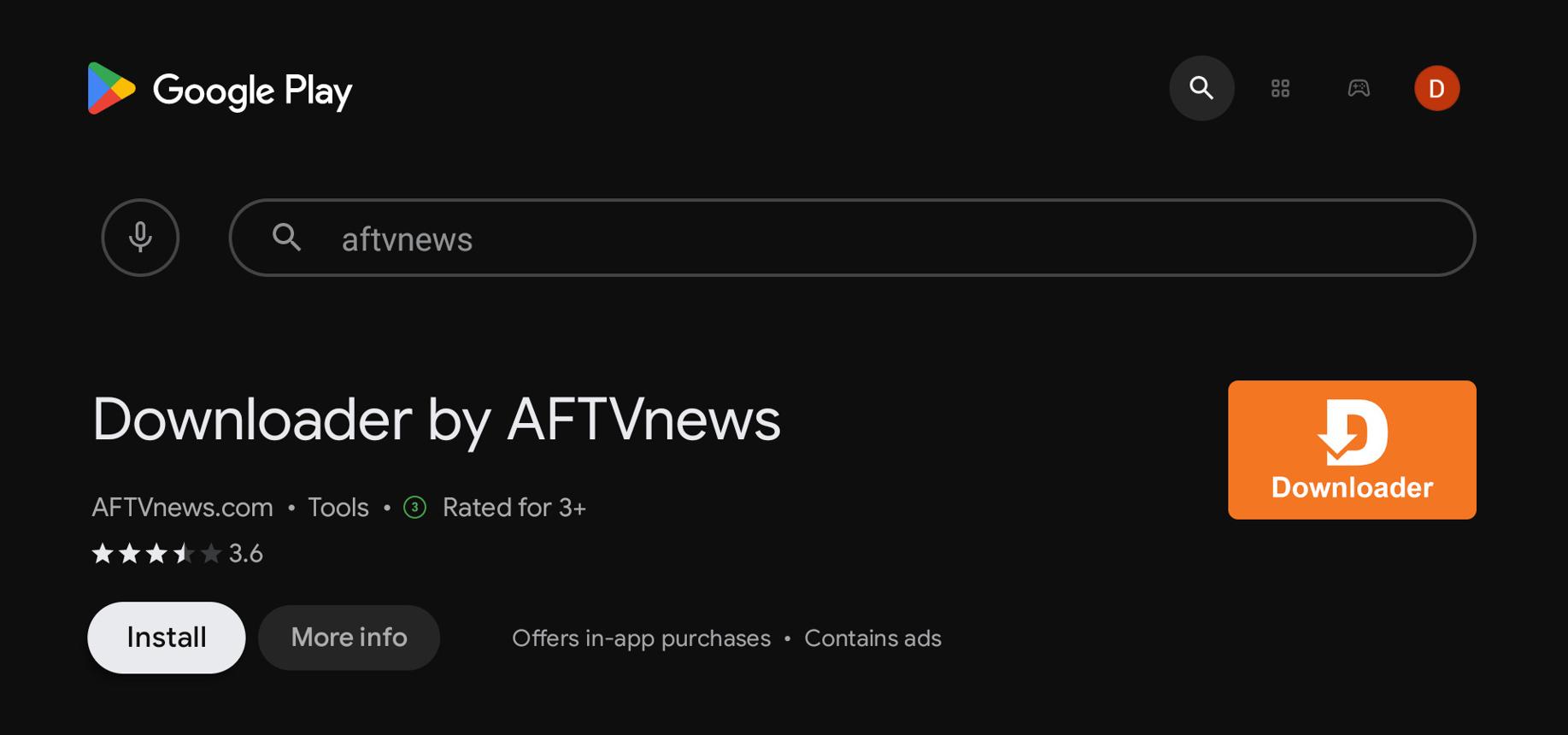
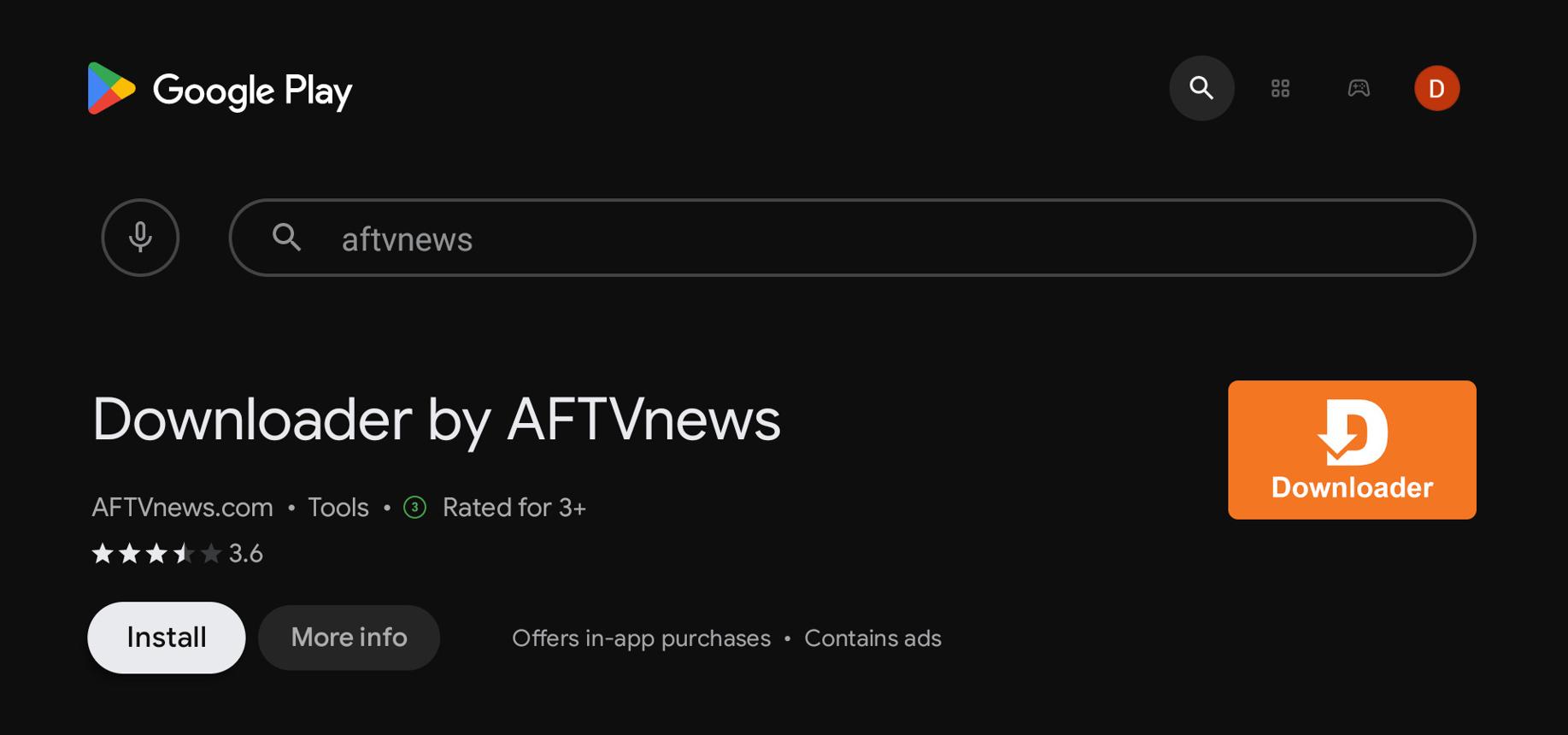
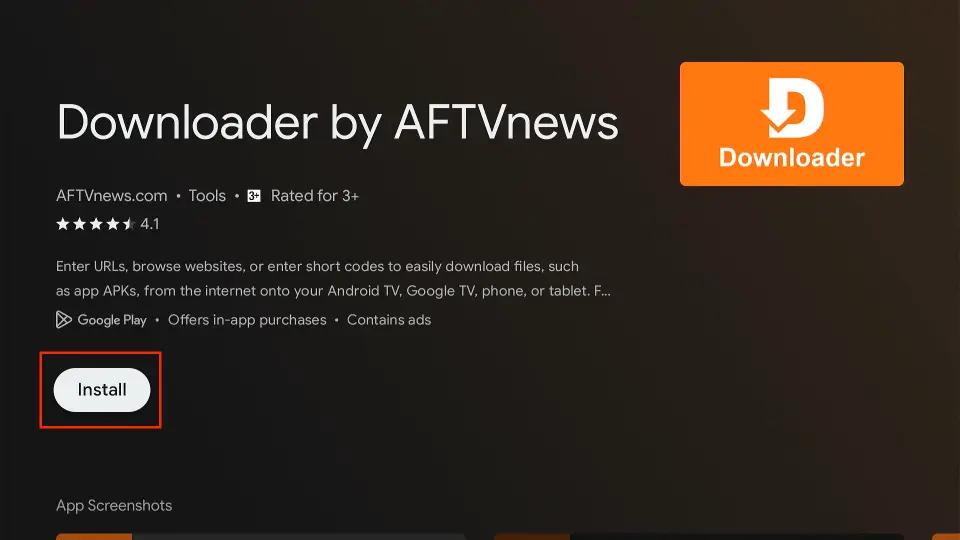
- Type Downloader using your remote’s keyboard interface.
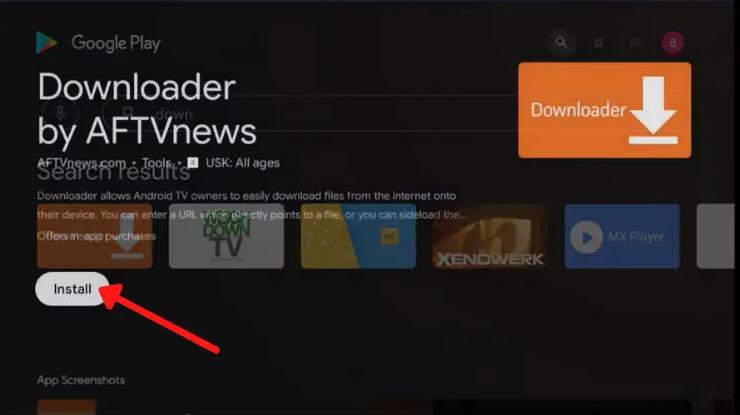
- If the app is listed by a trusted store on your device, check its publisher and select Install. Availability can vary by region and firmware.
- Launch the app for the first time by selecting Open.
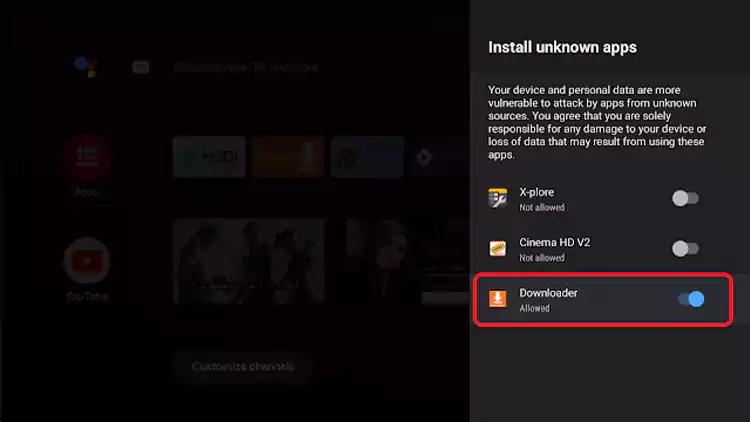
5 Enter URL & Grant Permissions
- If Downloader requests access required to save a file, review the permission and allow only what is necessary for that action.
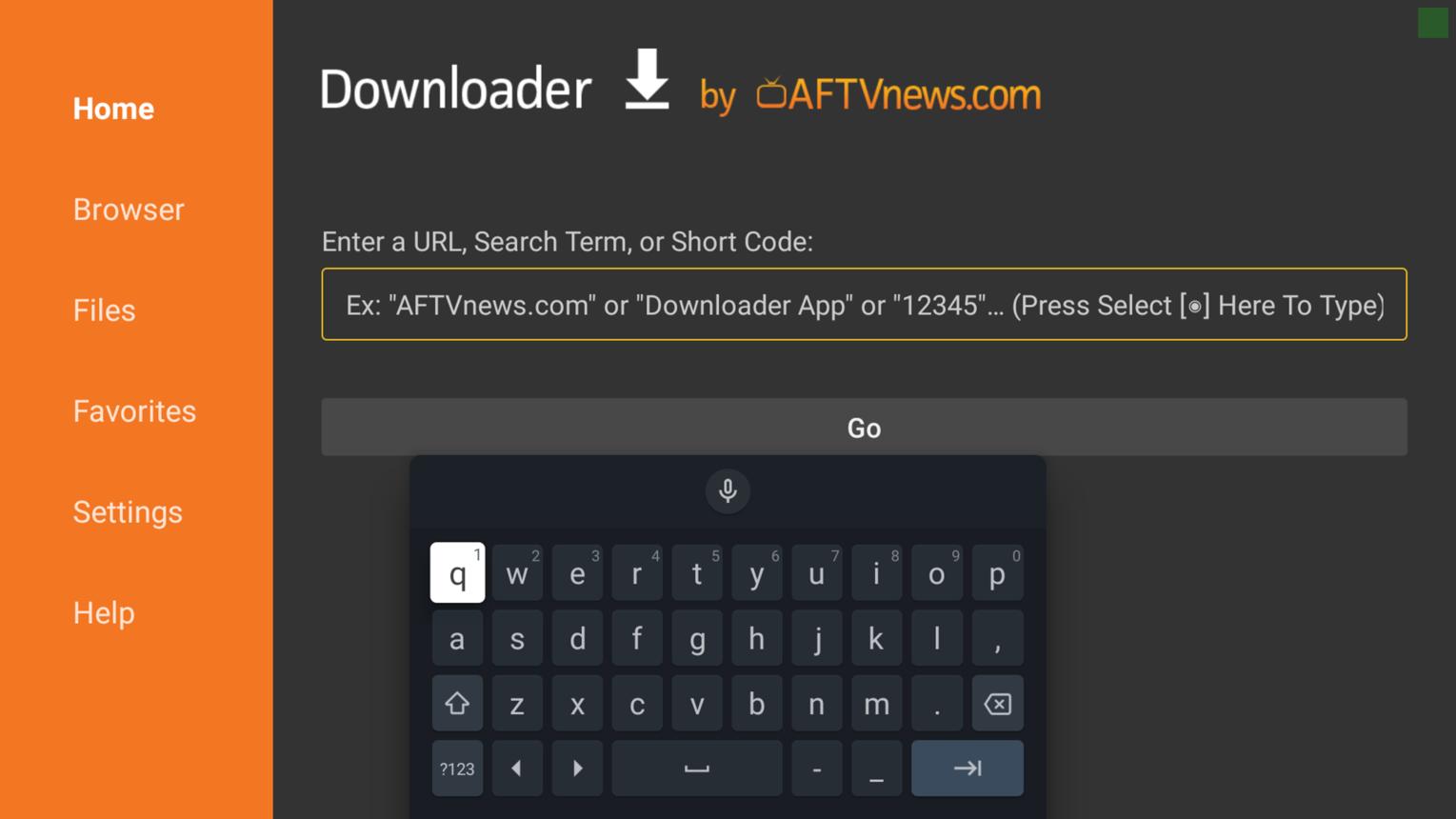
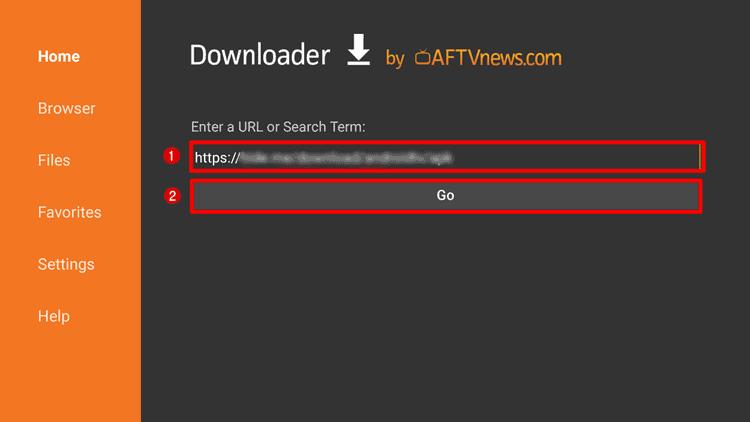
- Select the URL text box on the home screen.
- Enter a URL from the application developer or a Downloader code you have independently checked. Codes can vary in length and do not prove that a linked file is safe.
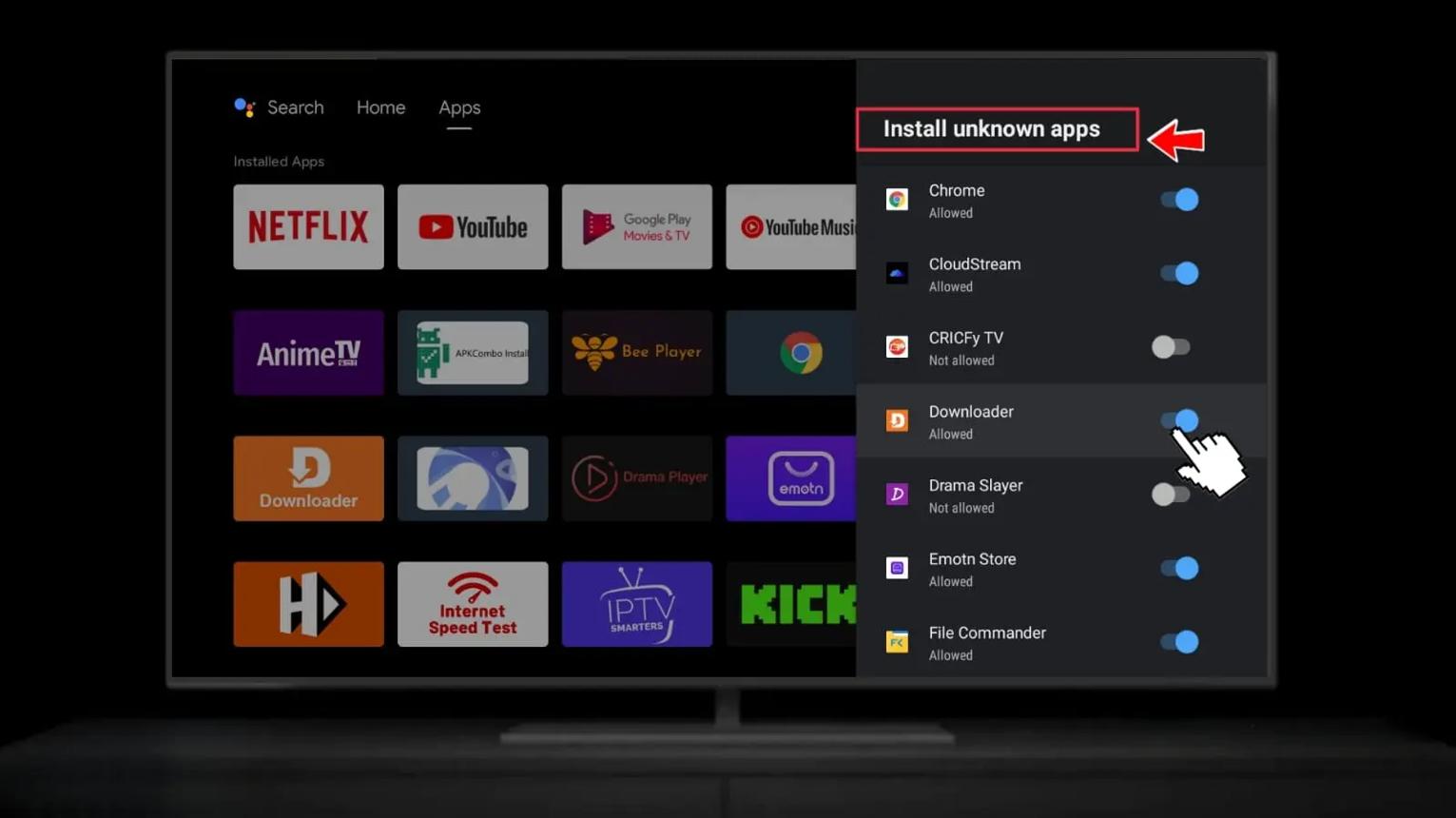
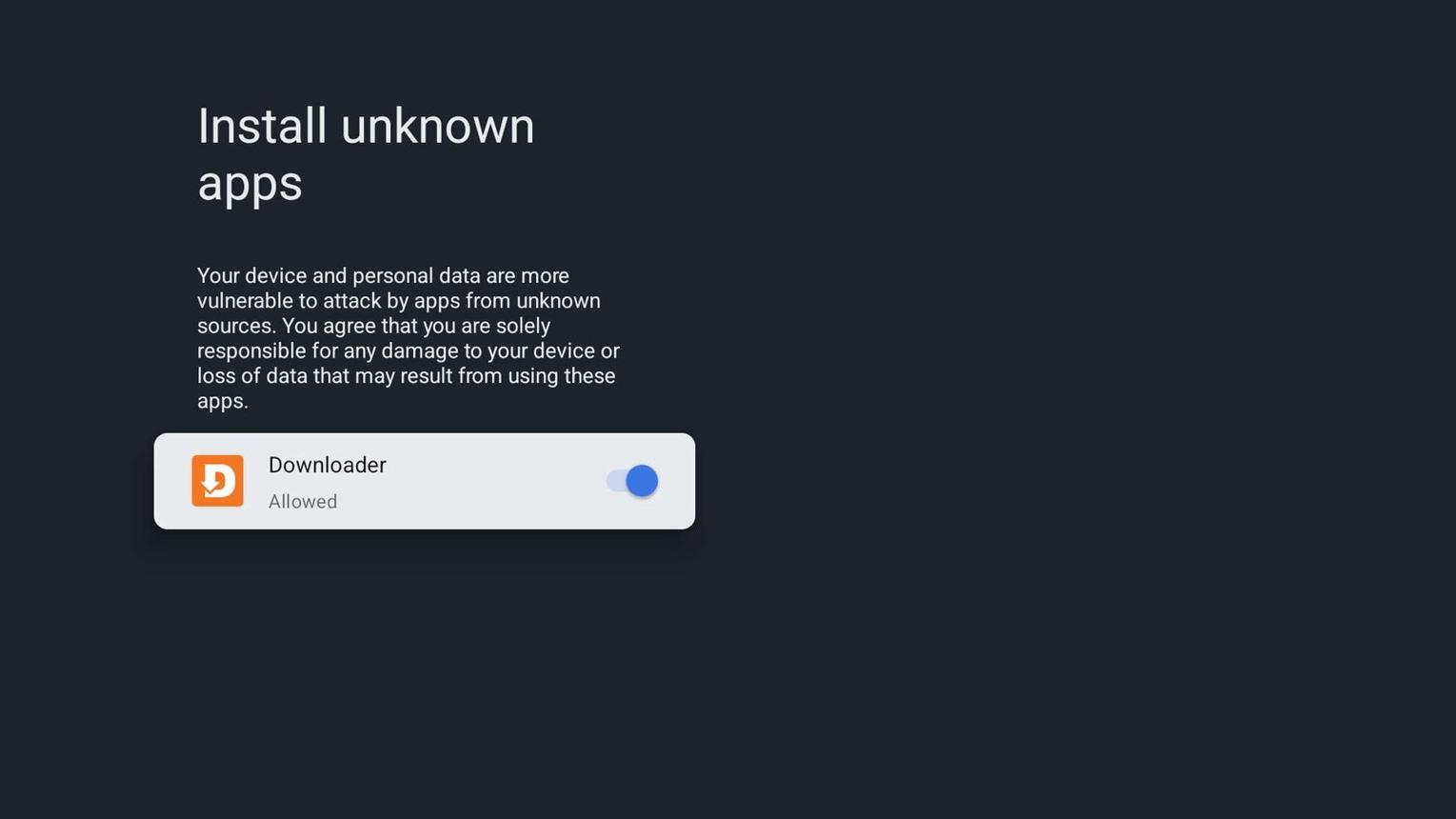
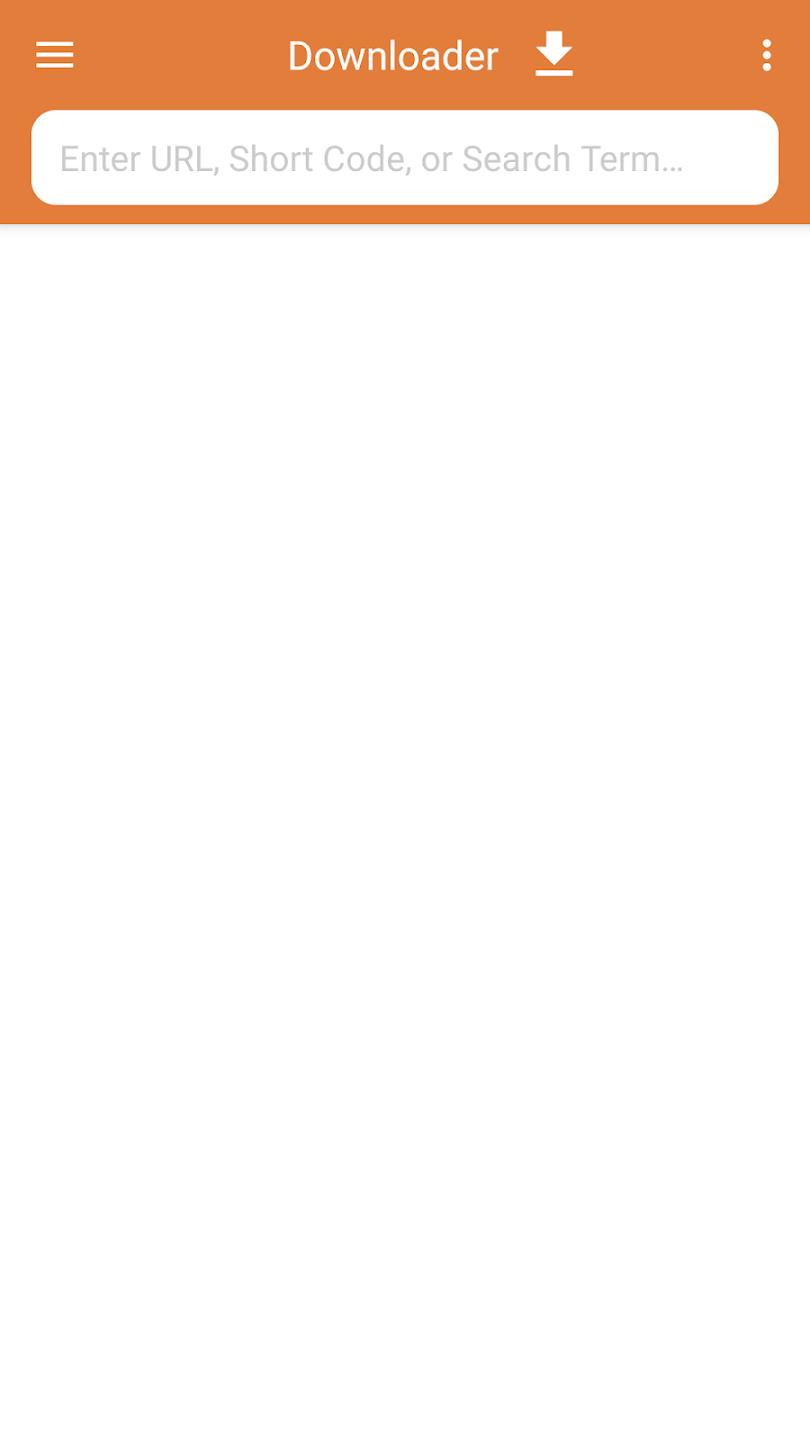
6 Download & Complete Setup
To finish the setup:
- Before downloading, confirm that the destination and publisher match the intended application. Wait for the file to finish downloading.
- If Android displays an installation dialog, review the app name and requested permissions before selecting Install. Cancel if the source or permissions are unexpected; delete the installer afterward if it is no longer needed.
Buzz TV P6 PowerStation Downloader: Compatibility & Safety
The BuzzTV P6 PowerStation runs an Android-based system, so some compatible applications may be installed from trustworthy APK sources where permitted. The Buzz TV P6 PowerStation Downloader procedure depends on the device firmware, application compatibility, and installation permissions. NVMe storage availability and configuration depend on the model and installed drive; downloading an APK does not automatically place it on NVMe storage. See our Media Players directory for related software and the BuzzTV P6 hardware overview for model details. Video performance depends on the file format, network, and application.
For firmware changes or device-specific menus, consult BuzzTV’s official website before adjusting developer settings. The Buzz TV P6 PowerStation Downloader workflow shown here is a general reference, not a guarantee that every model has identical screens.
Buzz TV P6 PowerStation Downloader: Common Questions
Does Buzz TV P6 PowerStation Downloader require ADB debugging?
No. Installing an APK through a standard on-device installer normally does not require ADB debugging. Leave debugging disabled unless you are performing a separate procedure that specifically requires it.
Why is “Install” unavailable for an APK?
Check whether installation from the selected source is permitted, whether the APK supports your Android version and processor, and whether enough device storage is available. Do not override security warnings for files from unknown publishers.
Can I trust a Downloader shortcut code?
A shortcut is a redirect, not a security certificate. Confirm the destination and publisher, and prefer official developer or store links. Avoid files with unclear ownership or excessive permissions.
Will this procedure work on every PowerStation version?
Not necessarily. Menus, built-in app stores, and installer prompts may differ between BuzzTV firmware releases and device configurations. Follow the visible settings on your own device and consult the manufacturer when a screen differs from the illustrations.
Related: Frequently asked questions · Utility tools · BuzzTV P6 overview.