Fire TV Cube review & Downloader Info
Welcome to our comprehensive hardware guide. If you are looking for an honest Fire TV Cube review, you have found the definitive source. Harness the true power of this octa-core processor. In this guide, you will learn the exact fire tv cube downloader method to unlock system developer limits, securely sideload external applications, and configure hardwired network settings for an absolute zero-latency streaming experience.
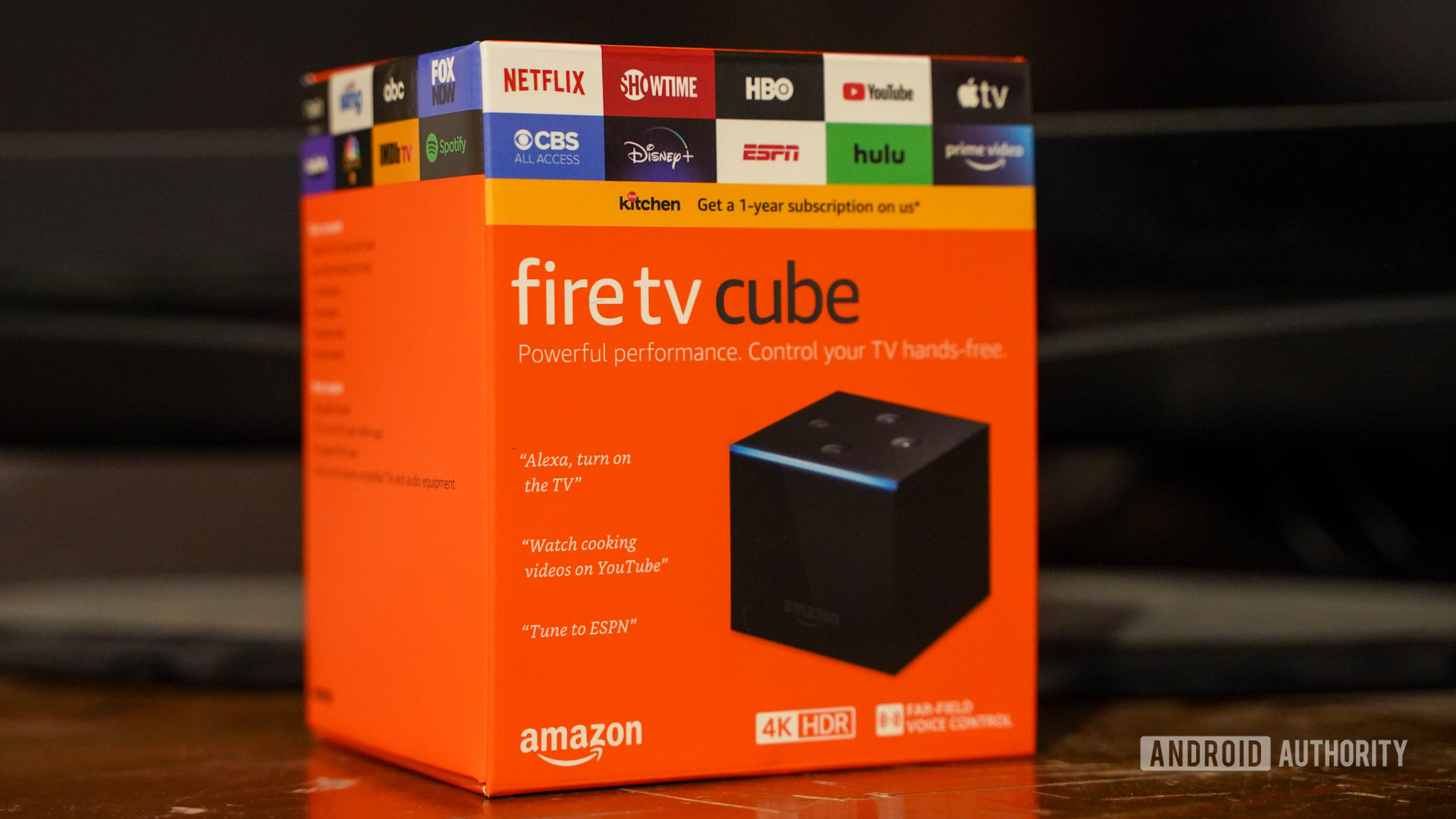
fire tv cube downloader Specifications
Octa-Core Processor
The amped-up multi-core architecture allows the device to decode heavy 4K HDR streams while simultaneously handling complex background applications.
Ethernet LAN Port
Features a direct Ethernet port. A hardwired connection guarantees zero packet loss and a stable ping for flawless live broadcasts.
Hands-Free Alexa
Built-in multidirectional microphones allow you to execute system commands (“Alexa, open Downloader”) from across the room.
Advanced Sideloading
Powered by FireOS 8, giving you complete freedom to sideload standard APK files using the Downloader app once unlocked.
Why the Fire TV Cube is the Ultimate Sideloading Machine
If you demand the absolute pinnacle of home entertainment, this device stands in a league of its own. Any thorough Fire TV Cube review will note that unlike standard streaming sticks, this hybrid device merges the hands-free convenience of an Echo dot with the unmatched processing power of a premium Android TV box.
Maximize Performance with the fire tv cube downloader Setup
The true value of this hardware lies in its ability to run resource-heavy, third-party applications flawlessly. While the official Amazon Appstore is comprehensive, advanced users often utilize the fire tv cube downloader method to sideload custom media players, ad-free streaming hubs, and utility tools found in our Media Players directory. Thanks to its Octa-core processor, the system handles these external APKs with zero interface lag.
To get the most out of your hardware, it is highly recommended to optimize both your network and Fire OS settings:
- Hardwire Your Connection: Always utilize the built-in Ethernet port. Bypassing Wi-Fi eliminates buffering during live 4K streams.
- Unlock Developer Options: FireOS 8 secures the system tightly. You must manually unlock Developer Options (by clicking the device name 7 times in settings) before you can authorize installations from Unknown Sources.
- Manage Background Processes: If you use heavy media players, you can physically mute the Alexa microphones (the red ring will appear) to free up additional RAM for your streams.
By properly configuring your network and utilizing the Downloader tool, this device transforms into the most powerful, lag-free media center available in 2026.
Upgrade Your Setup with Firestick AI
Stop searching forums for the best apps. Our smart AI assistant knows exactly which media players, utility tools, and VPNs work best on the FireOS 8 architecture. Get instant recommendations, troubleshooting help, and safe shortcodes in seconds.
💬 Chat with Firestick AI
Ready to Setup Your Cube?
Do you already own the Fire TV Cube? We’ve prepared a comprehensive, step-by-step visual guide and a YouTube video tutorial showing you exactly how to install the Downloader app and enable developer options on FireOS 8.
▶ Watch Video & Install Downloader