Complete Guide:
Nvidia Shield TV Pro 4K Downloader
Use this NVIDIA SHIELD TV Pro Downloader setup guide to install the Downloader app on your Android TV device, review installation permissions, and troubleshoot common APK issues. Settings and availability can differ by SHIELD software version. Only install apps from sources you trust.
Nvidia Shield TV Pro 4K Downloader Installation Steps
1 Go to Settings
- Start from the main home screen of your Nvidia Shield TV Pro 4K.
- Navigate to the top right corner and open the ⚙️ Settings menu.
- Open Device Preferences or System, depending on your SHIELD software version.
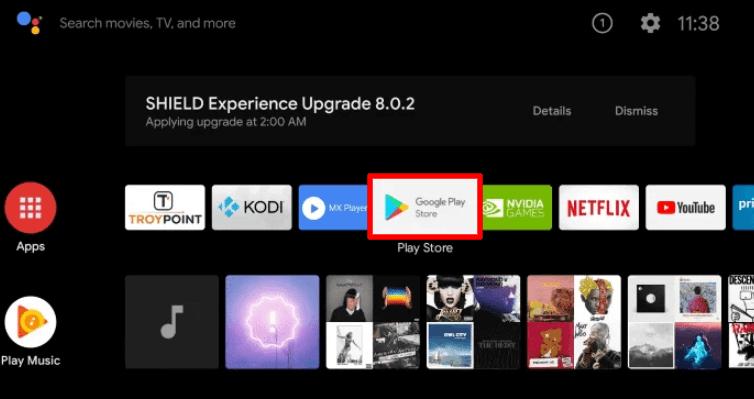
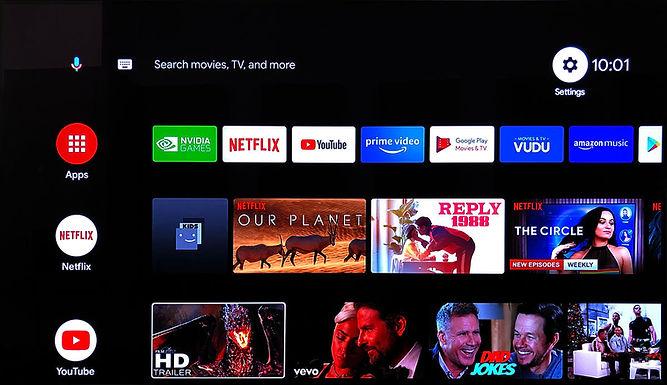
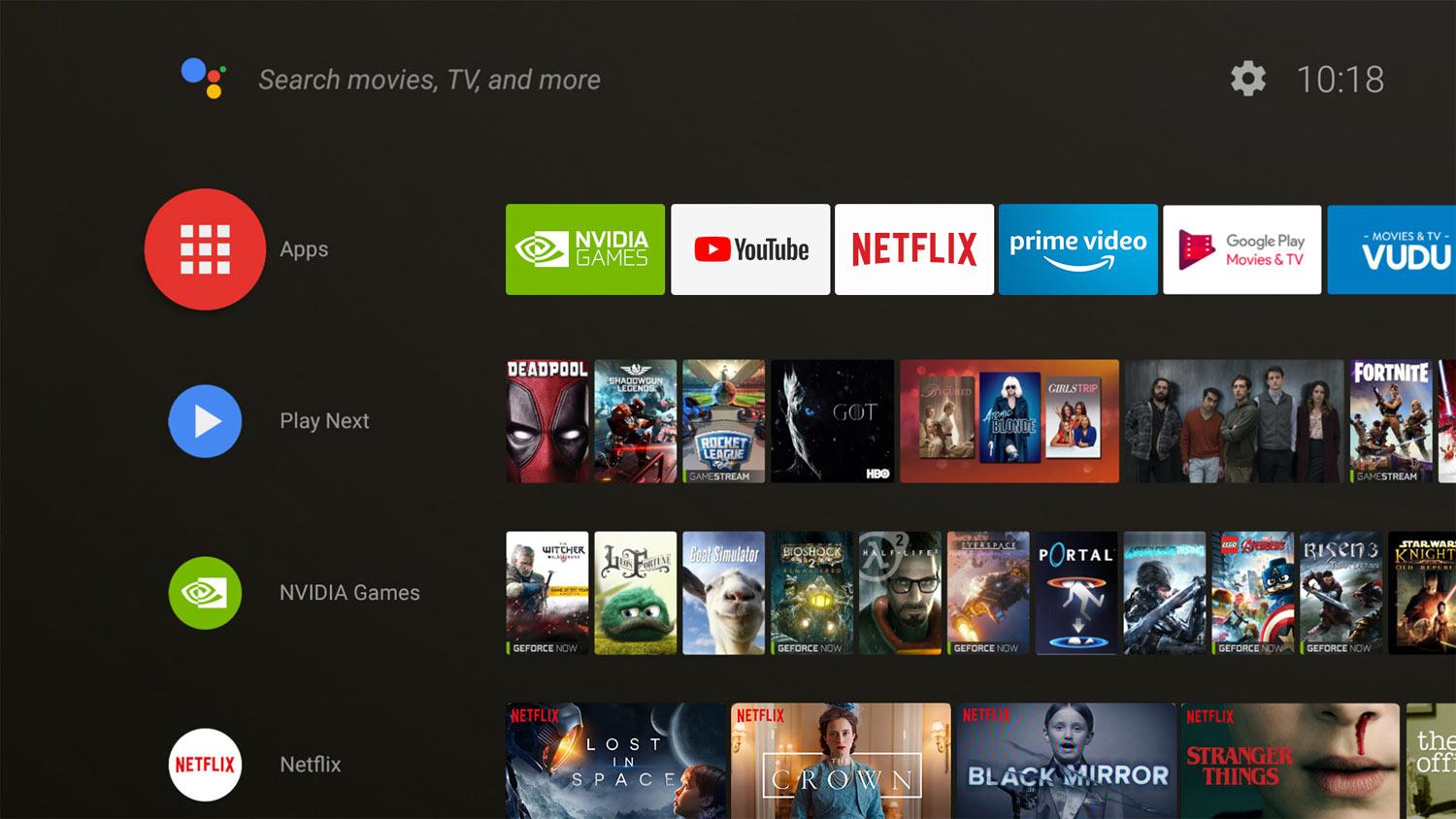
Note: Android TV does not normally require Developer Options to install Downloader. The next section is optional; on most devices you can proceed directly to the app store, then grant app-specific installation permission only when necessary.
2 Unlock Developer Options
- If you need developer tools for troubleshooting, open About in the device settings. Developer Options are not required for normal Downloader installation.
- Find the Build entry if it is available in your Android TV version.
- Selecting the Build entry seven times may enable Developer Options. Skip this optional procedure if you only want to install Downloader.
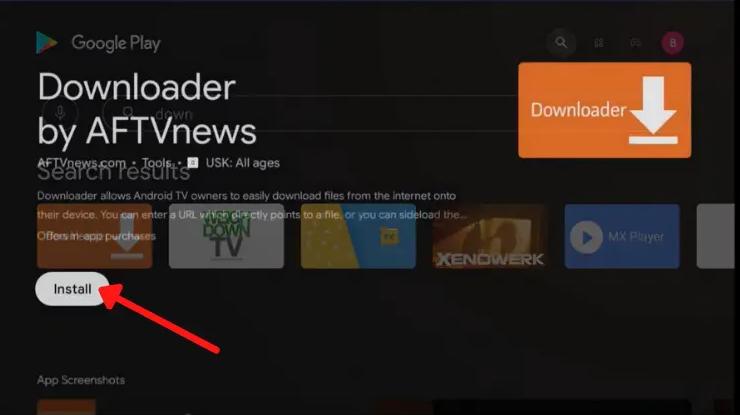
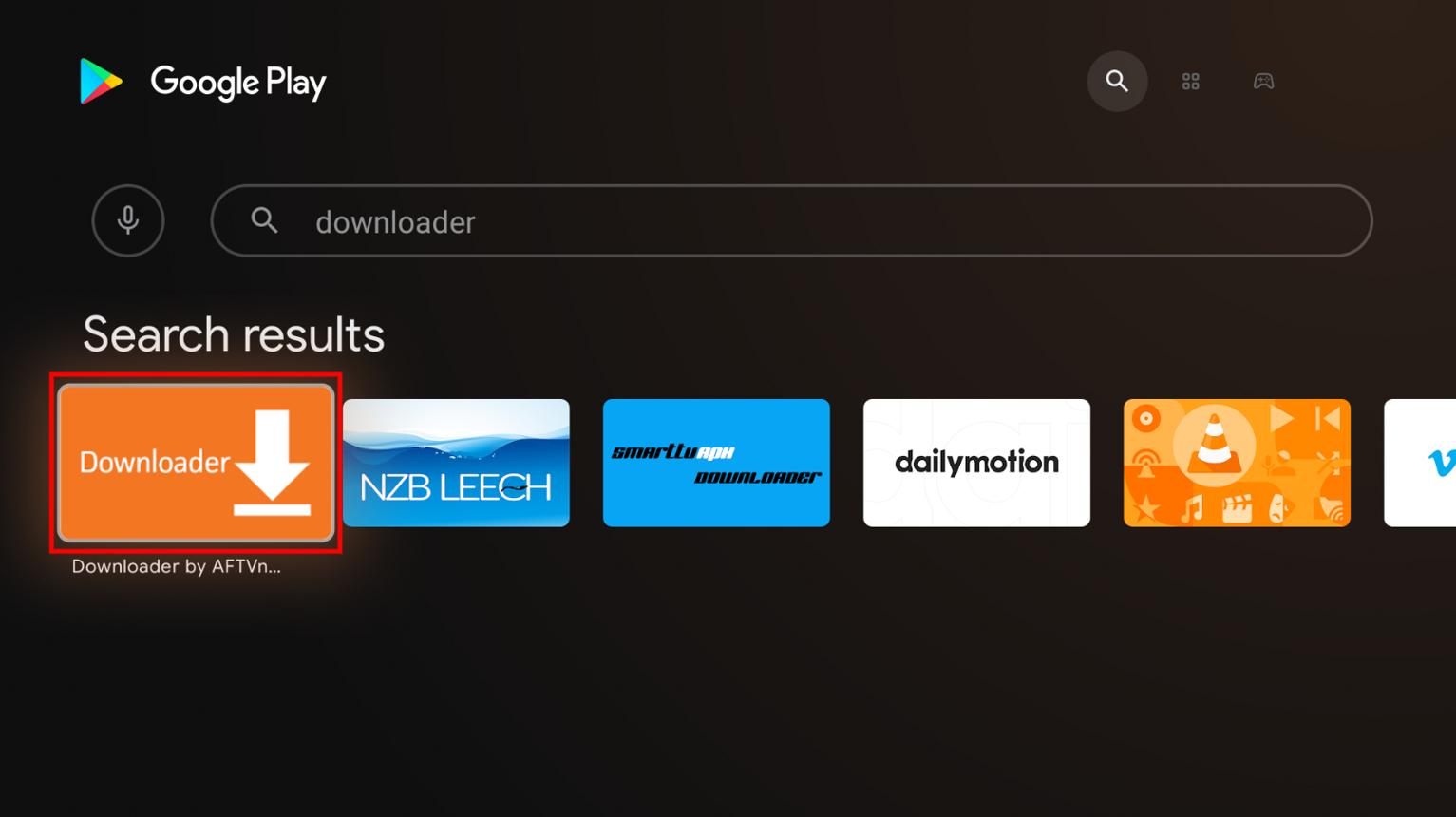
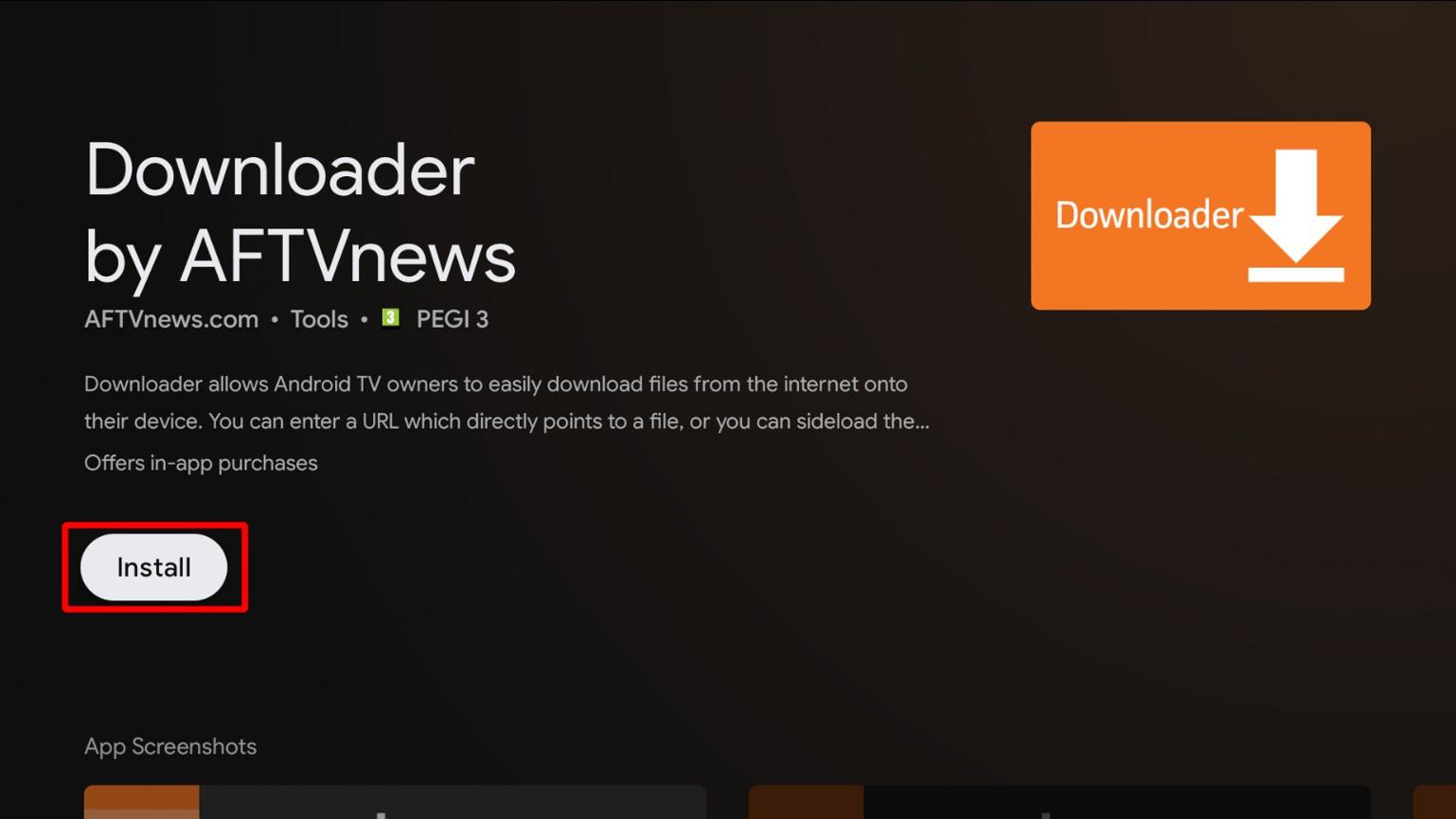
3 Understand Installation Permissions
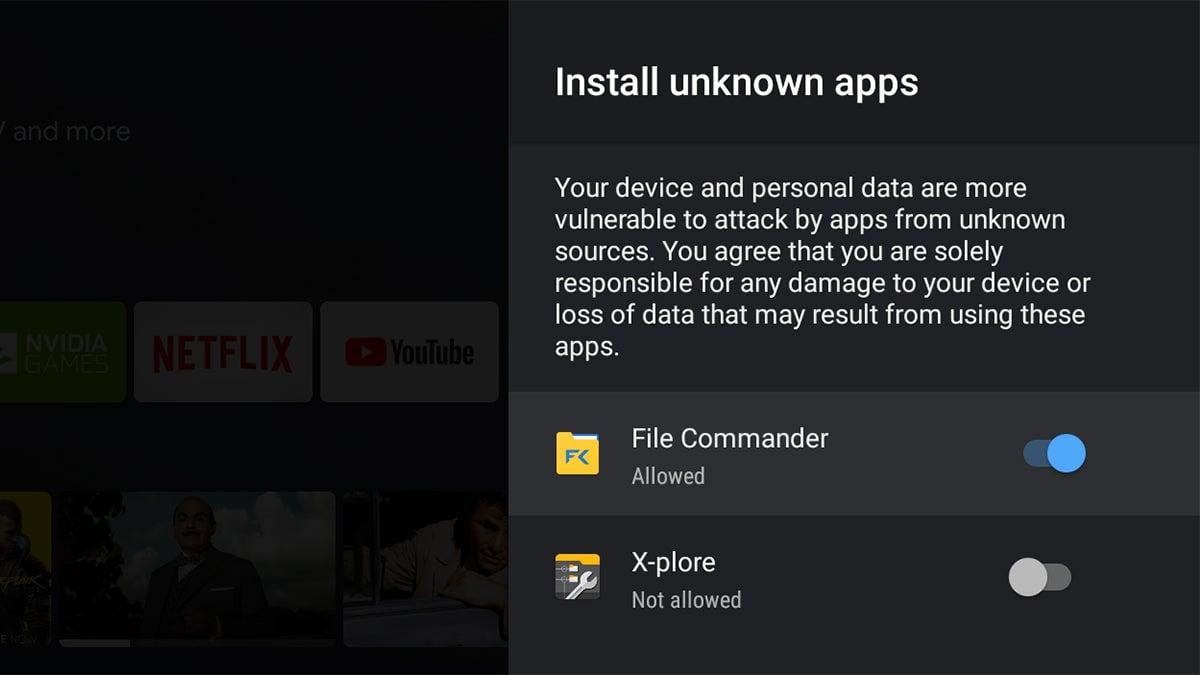
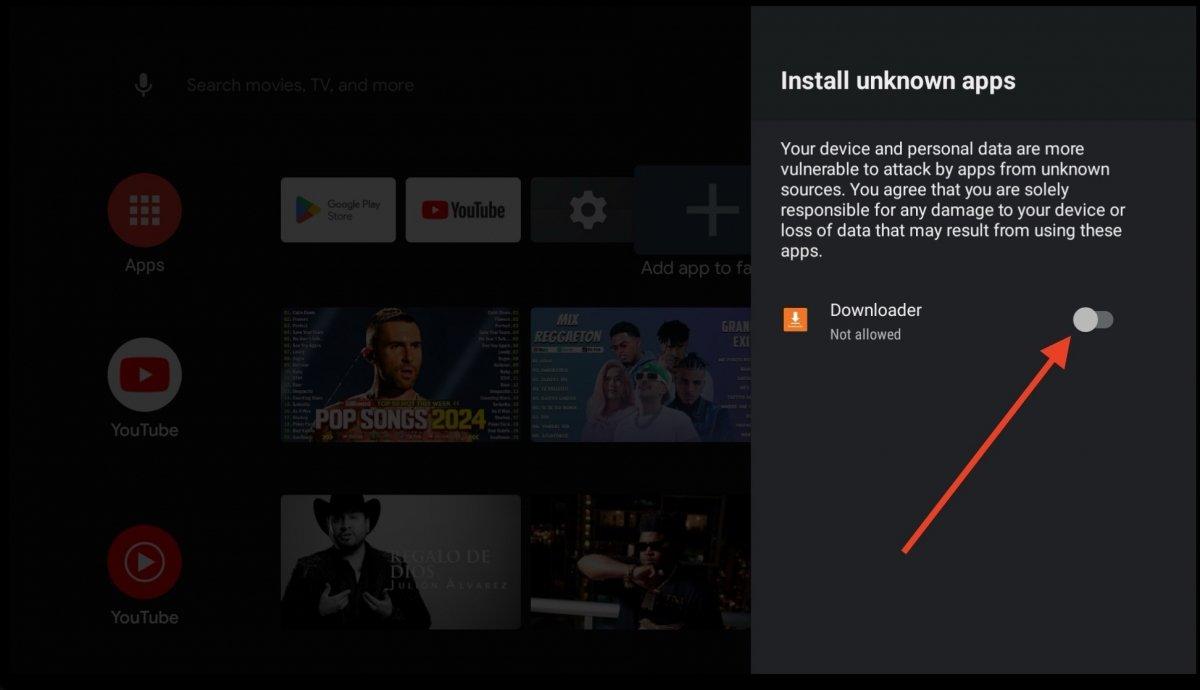
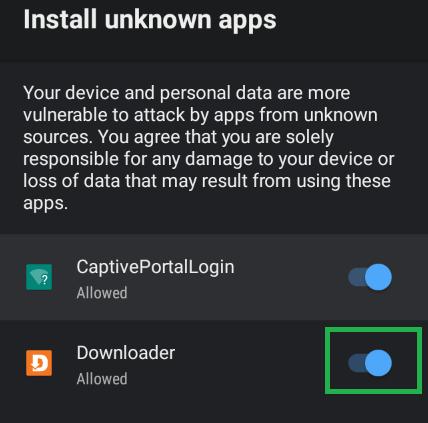
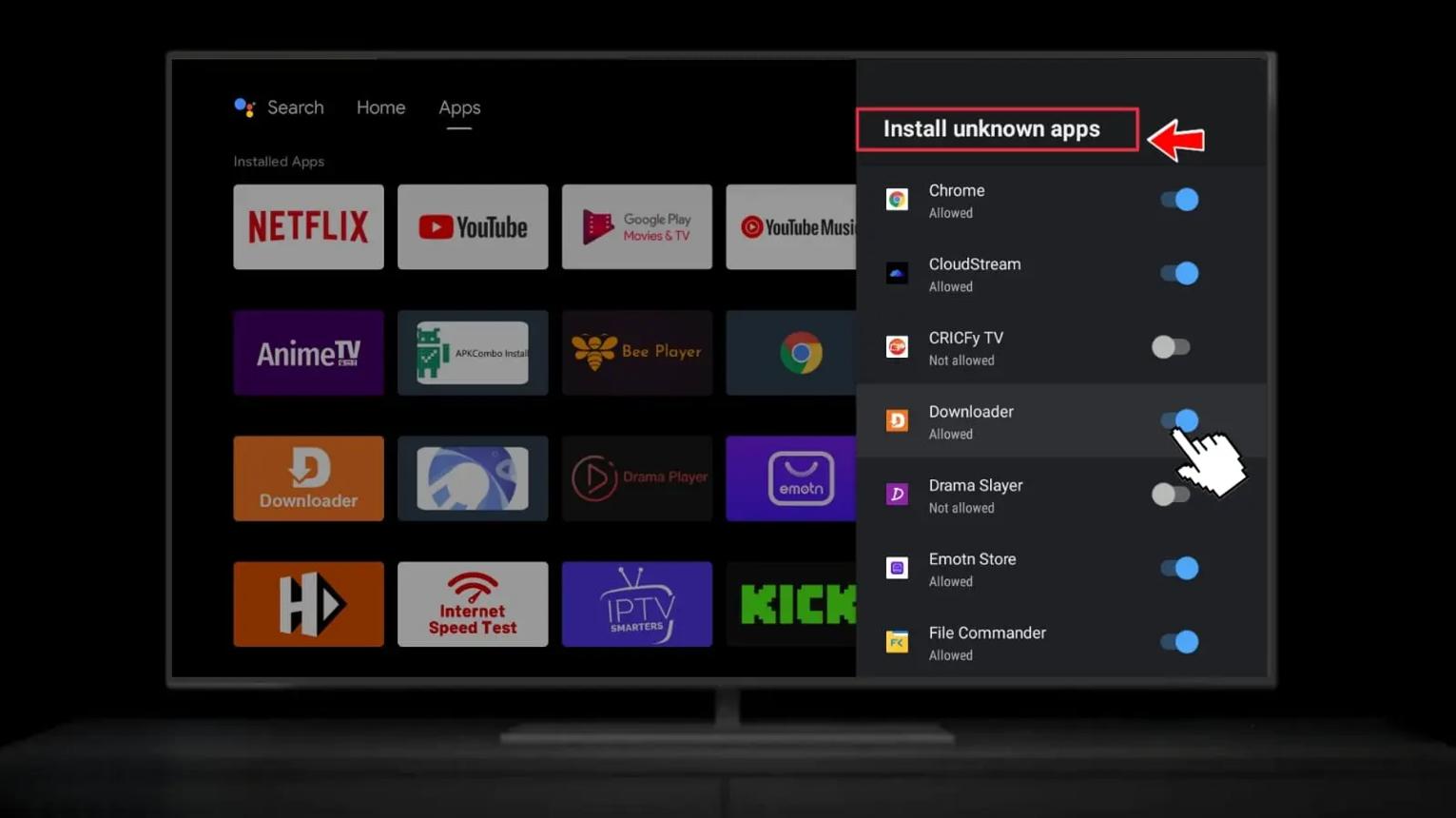
- Android TV normally grants installation permission per app. After installing Downloader, open Settings → Apps → Special app access → Install unknown apps (or Security & restrictions) and allow Downloader only if needed.
- Keep ADB debugging disabled unless a specific, trusted diagnostic procedure requires it.
- Return to the home screen and install Downloader before granting it any app-install permission.
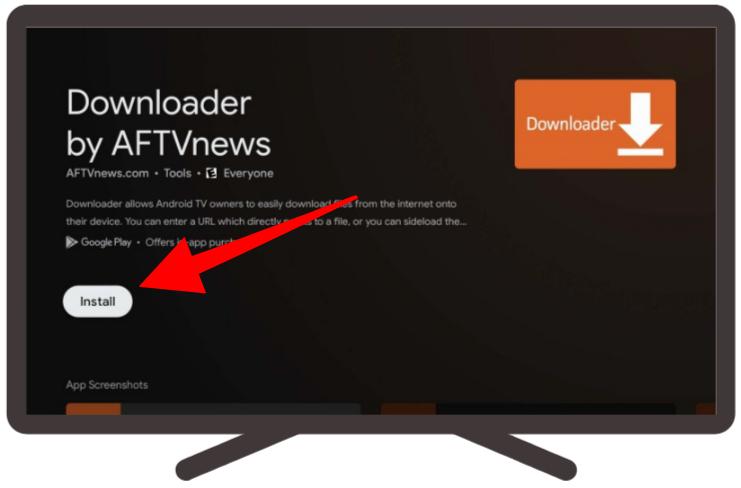
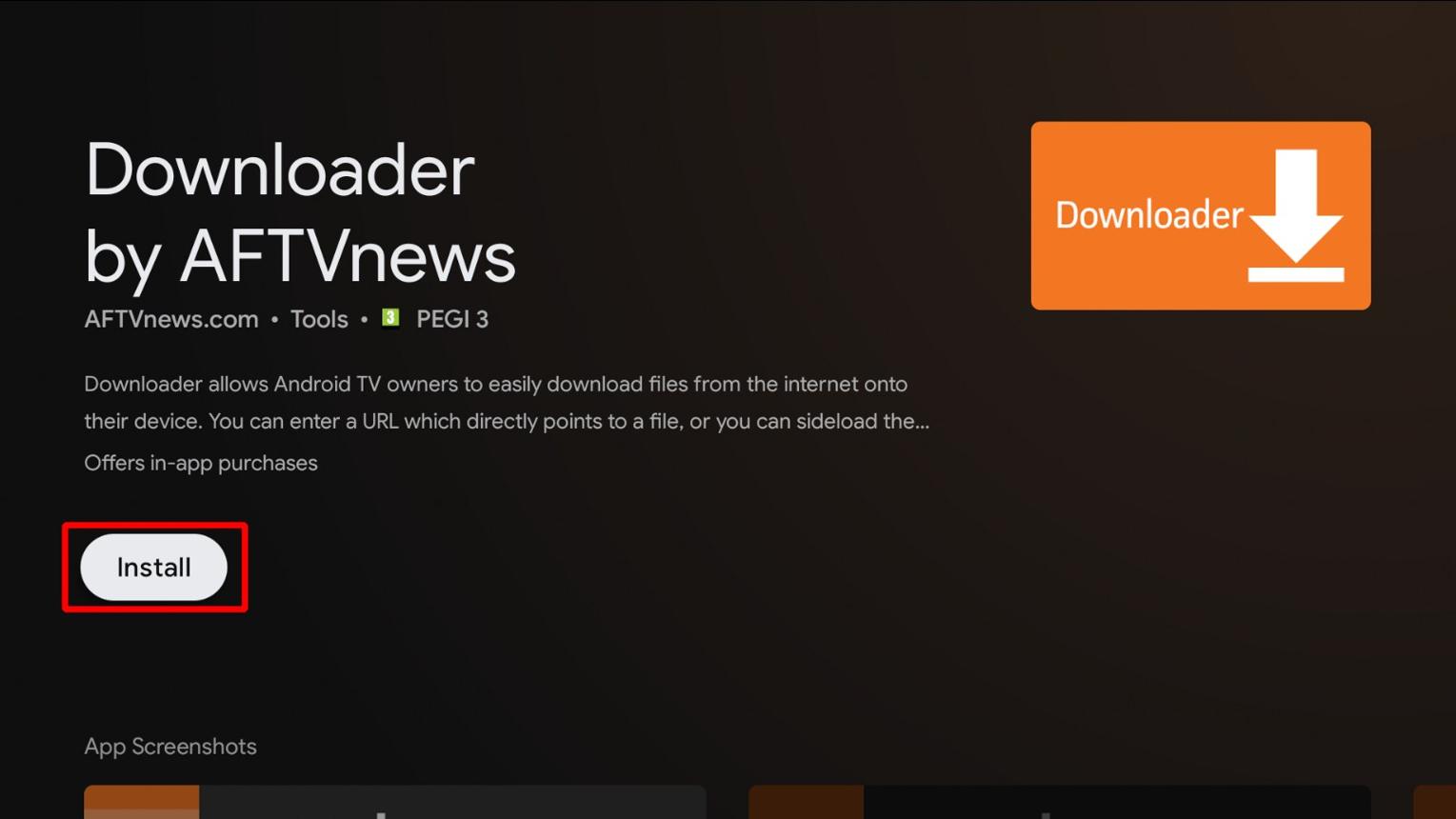
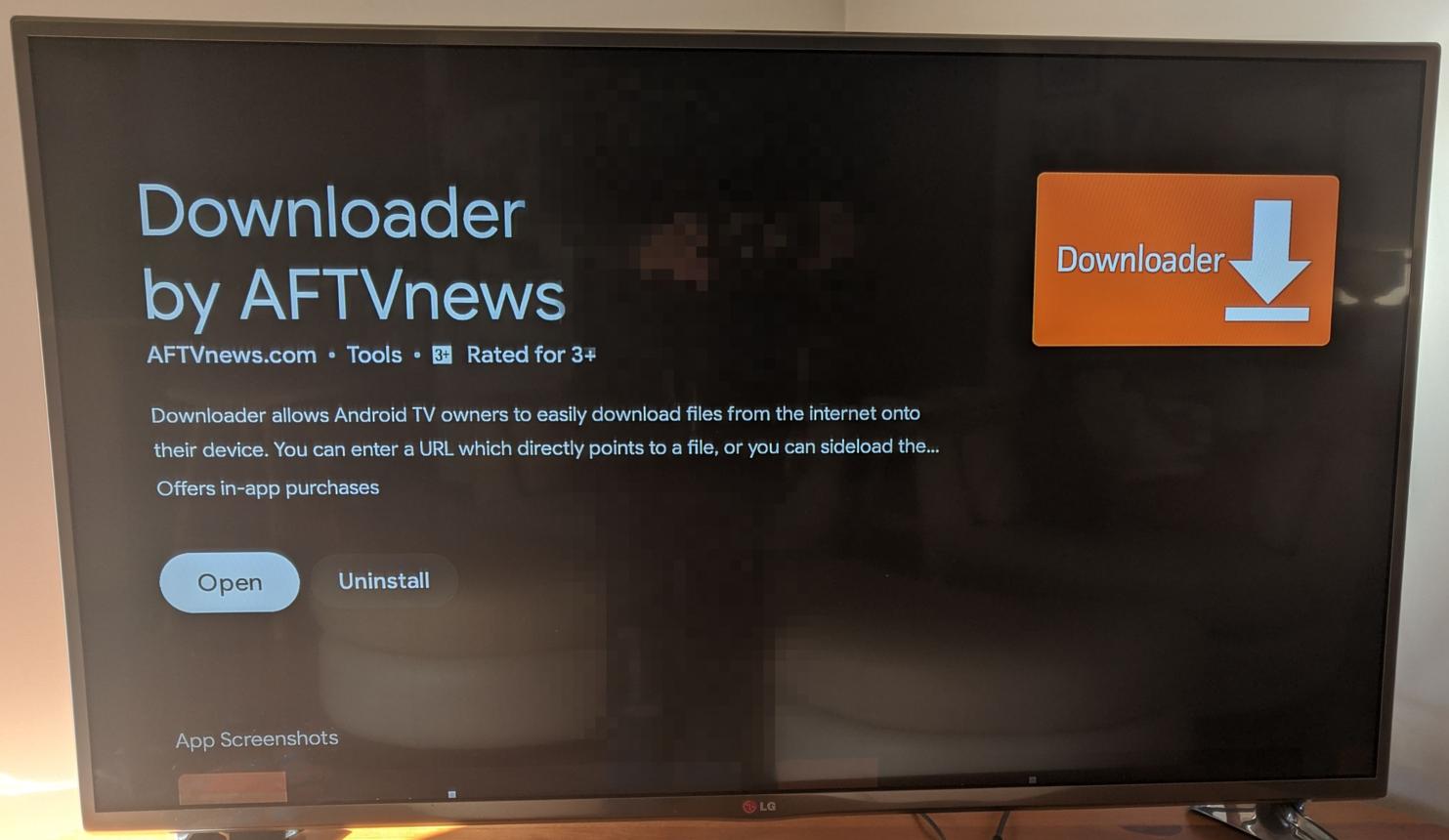
4 Install Nvidia Shield TV Pro 4K Downloader
- Navigate to the top menu and open the Search tab or Google Play Store.
- Search for Downloader. Availability in Google Play can depend on your region and device; confirm the developer is AFTVnews if a listing appears.
- If a verified AFTVnews listing is available, choose Install. Otherwise use only an official publisher-provided source; do not install similarly named unknown apps.
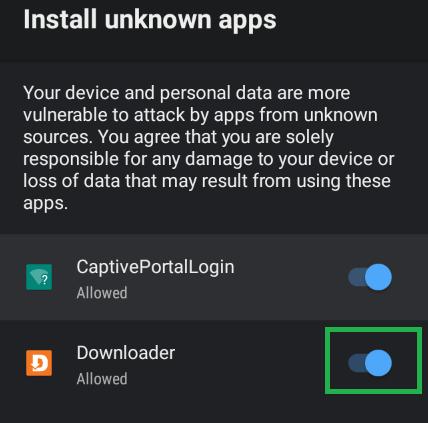
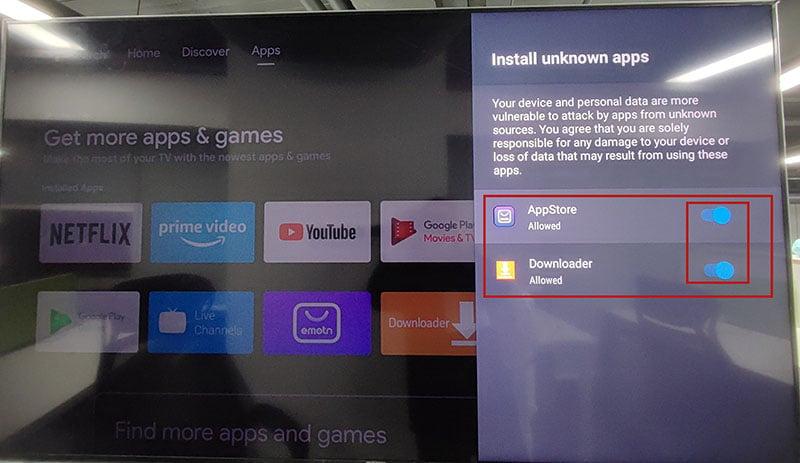
5 Open & Grant Permissions
- Open Downloader and review any permissions requested by the app.
- Grant only necessary file permissions. If an APK installation is blocked, check the Install unknown apps permission specifically for Downloader.
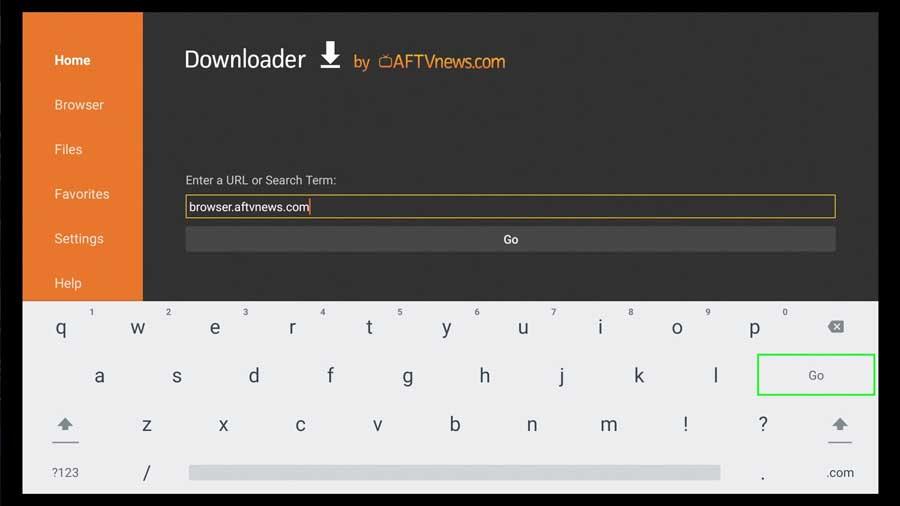
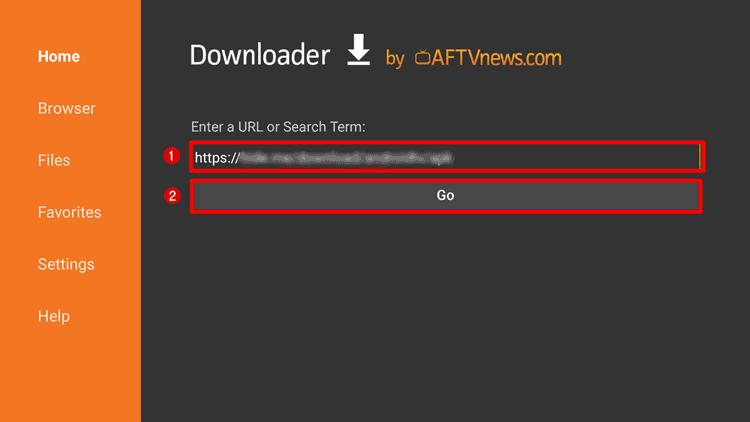
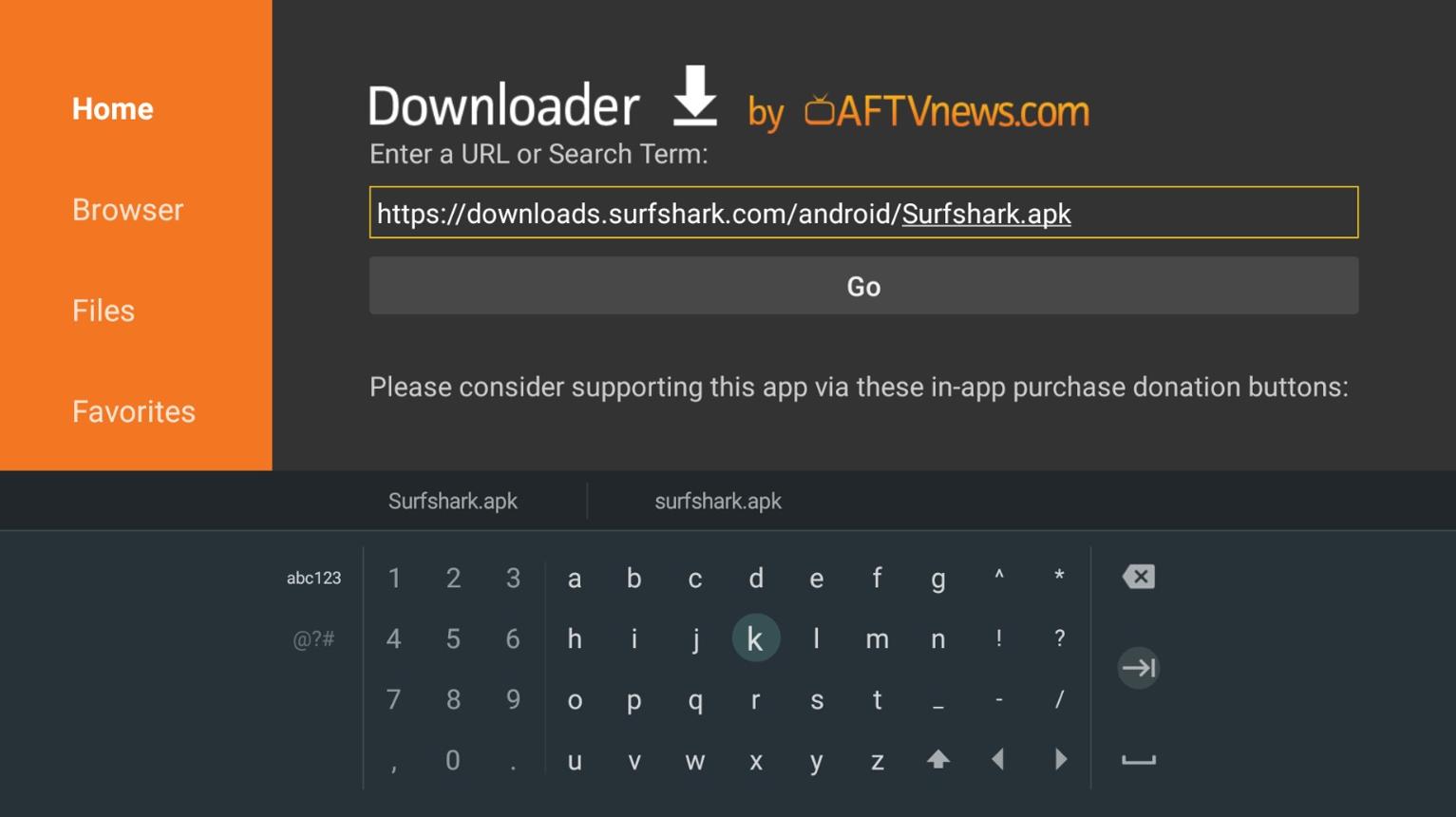
- Enter a trusted direct URL or valid Downloader short code. A working code does not prove the APK is official or safe; check the final source and publisher.
6 Connect, Download & Install
- Select Go to open the destination. Check the domain, file and developer before downloading.
- Wait for the download to finish. Confirm the source and app compatibility; do not proceed if the publisher is unknown.
- If Android presents an installation prompt for a trusted, compatible APK, choose Install. If blocked, review permissions rather than disabling device protections indiscriminately.
⚙️ Nvidia Shield Processor Mode Settings
Some SHIELD software versions provide a Processor Mode setting. Adjusting it may affect performance, power use and temperature, but it cannot guarantee a fix for buffering or app crashes. First check your network and the streaming app.
- Max Performance: Prioritizes performance where this mode is available; it can increase power use or heat and is not necessary for every app.
- Optimized: Balances performance, power and thermal behavior. This is often a sensible default unless a particular task benefits from another mode.
Why Optimize Your Nvidia Shield TV Pro?
On NVIDIA SHIELD devices, the NVIDIA SHIELD TV Pro Downloader setup can help you install compatible apps that are not offered in your device’s store, subject to Android TV permissions and publisher restrictions. Before trying an app from our Media Players directory, check the developer, APK source, Android TV compatibility and storage requirements. Video quality and buffering depend on the app, network and content source; SHIELD AI upscaling also depends on supported content and settings.