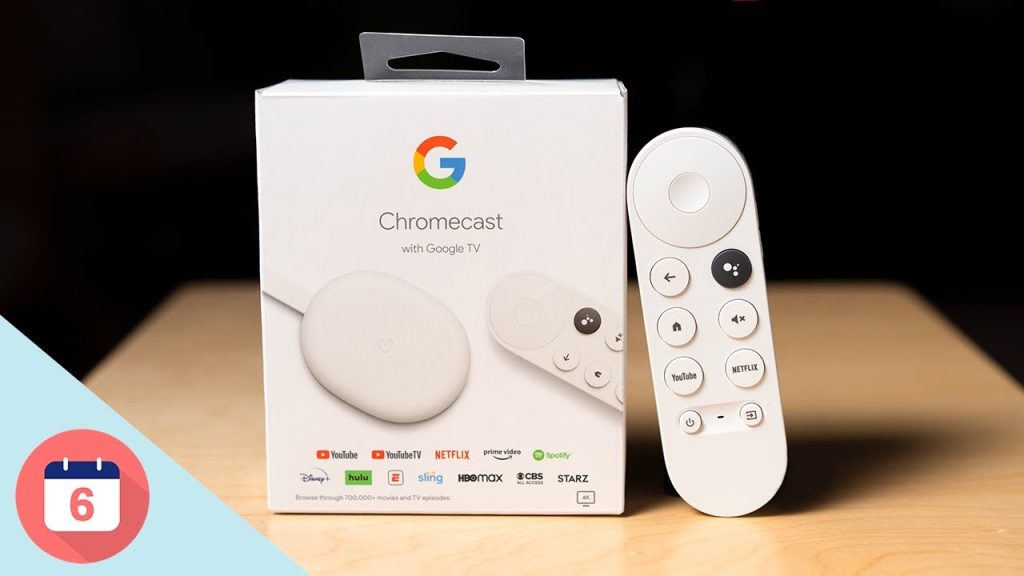
Complete Guide:
chromecast with google tv downloader setup
Welcome to the ultimate tutorial for 2026. Learn how to master developer permissions, bypass restrictive storage limitations, and securely complete the installation process for third-party media players.
Editor’s Configuration Note
If you are searching for the most reliable and efficient chromecast with google tv downloader setup tutorial on the internet, you are exactly in the right place. We cover every aspect of the sideloading process in detail below. Understanding how to properly configure your storage and network is absolutely crucial for running complex streaming applications safely without lag. Follow all the steps below carefully to optimize your hardware correctly.
Estimated Setup Time
3 Mins • Fast
Storage Requirements
Min. 1.0 GB Free
Device Compatibility
100% Verified
Why You Need the chromecast with google tv downloader setup
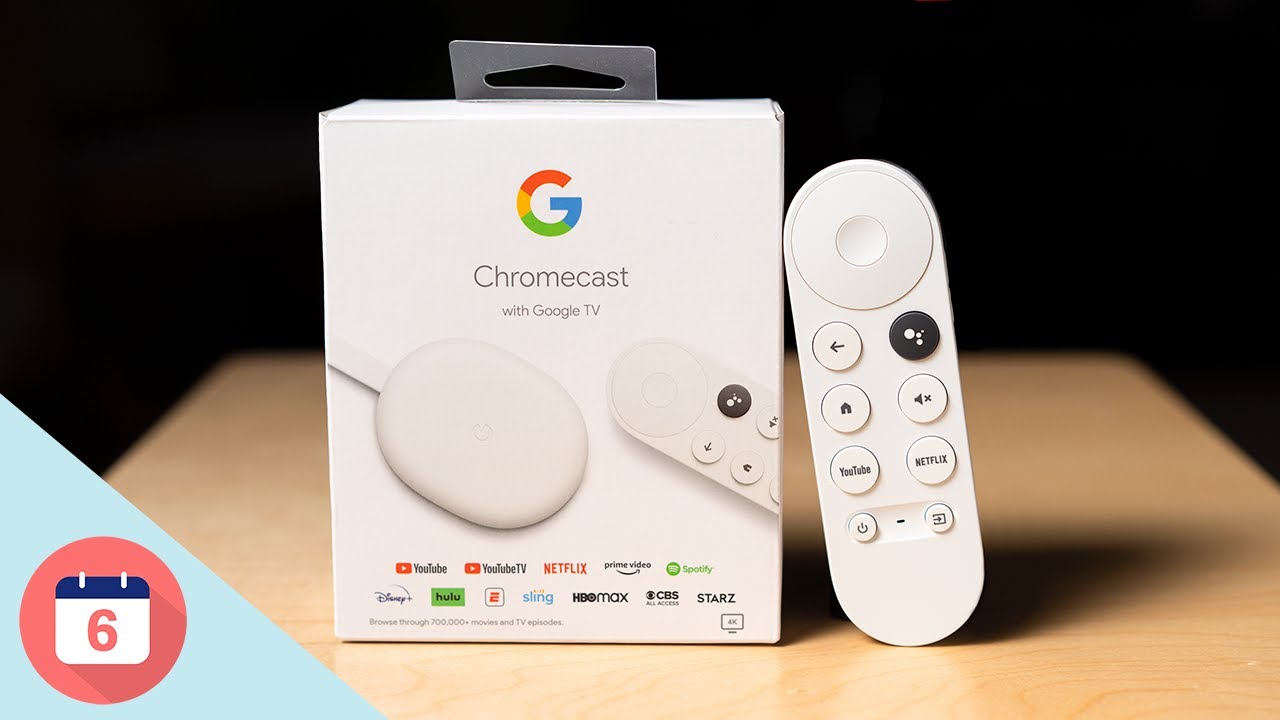
The native Chromecast interface is fantastic for aggregating your paid streaming services, but it heavily restricts your ability to customize your media experience. By learning how to complete the official chromecast with google tv downloader setup, you completely unlock the true potential of your hardware, transforming it from a basic casting stick into a fully functional and unlocked Android TV media box.
Preparing your device for this specific installation process is essential for performance. Because this particular hardware version suffers from an extreme lack of internal storage (usually hovering around 8GB total, with much less actually available to the end user), simply installing the downloader tool is not enough. You must also implement aggressive storage management techniques to prevent your device from crashing during heavy 4K playback or live event streaming.
By following the detailed steps provided below, you will learn how to properly grant developer privileges, safely install the necessary utilities, and efficiently strip away the heavy, unneeded background processes that slow your system down. This ensures that your streaming experience remains buffer-free and highly responsive.
1 Unlock Developer Privileges
To use custom media players on the new interface, you must first reveal the hidden system developer menu to allow the chromecast with google tv downloader setup installation to proceed without being blocked.
- Navigate to the top right of your screen and click your Profile Icon to open the main Settings interface.
- Follow the command path down into your system settings and locate the “Android TV OS build” section.
- Press the center selection button on your remote 7 times consecutively without pausing.
- A prompt will appear at the bottom of your screen confirming you have successfully enabled developer options.
2 Allow Installation Permissions
Unlike older Android boxes, this newer operating system requires you to grant installation permissions to specific applications individually rather than applying a global system-wide security unlock.
- Once you have officially downloaded the utility app from the Google Play Store, navigate back to the security path shown above.
- Find the application in the list of your installed software.
- Toggle the switch to the right to officially grant the Downloader app permission to process external APK files securely.
3 Fix UI Lag: Enable “Apps Only Mode”
This device suffers from severe storage limits. The native interface constantly downloads heavy movie recommendations and cinematic trailers in the background, causing massive UI lag. Here is the ultimate fix to accompany your configuration.
- Navigate deeply into your specific Google Profile settings menu.
- Toggle the “Apps only mode” to the ON position.
- This critical action strips away the heavy cinematic recommendations from your home screen, leaving only a clean, fast-loading grid of your installed applications.
- Your device will instantly feel twice as fast and consume significantly less background RAM.
Upgrade Your Setup with Firestick AI
Stop searching forums for the best apps. Our smart AI assistant knows exactly which media players, cache-clearing utility tools, and VPNs work best to maximize your storage. Get instant recommendations and safe shortcodes in seconds.
💬 Chat with Firestick AI
Chromecast with Google TV Terminology
What is Google TV OS?
It is essentially a heavily customized interface built on top of the Android TV operating system. It focuses heavily on content curation and recommendations from various streaming subscriptions rather than just listing your installed apps.
What is HDMI-CEC?
A crucial feature supported by this device. Consumer Electronics Control (CEC) allows the included voice remote to control the power and volume of your actual television and soundbar, eliminating the need for multiple remotes.
USB-C Expansion Limitations
Unlike previous models, this device is powered via a USB-C port. Power users often attach a compatible USB-C hub to this port to add external hard drives or ethernet cables, as the device lacks a built-in ethernet port and has severely limited internal storage.
Chromecast Built-in Protocol
The device retains the classic “casting” ability. Even while navigating the standalone interface, you can still seamlessly cast videos, photos, or Chrome browser tabs directly from your smartphone to your television screen without opening any apps.
Expand Your Chromecast Capabilities
Struggling with the strict 8GB limit? Use verified deep-cleaning utility apps to wipe leftover installation files and clear heavy image caches in seconds to keep your device running smoothly.
Browse Utility Codes →