Firestick FAQ: Troubleshooting and Solutions
Firestick FAQ with practical guidance for Fire TV, Android TV and Google TV: Downloader codes, app permissions, APK install errors, EPG, buffering and storage troubleshooting.
How to use this Firestick FAQ
Start with the device or app publisher’s official documentation. Record your exact device model, system version and error message. The steps here are general checks, not a guarantee that one fix works on every version.
Firestick FAQ: Quick troubleshooting checklist
- Check the exact Fire TV or Android TV model and system version before following install instructions.
- A Downloader code is a redirect, not proof an APK is safe. Verify the destination and publisher.
- For buffering, compare a second app, test Wi-Fi or Ethernet and check for updates before changing settings.
- To free storage, remove unused apps and installer files; clearing app data can erase logins.
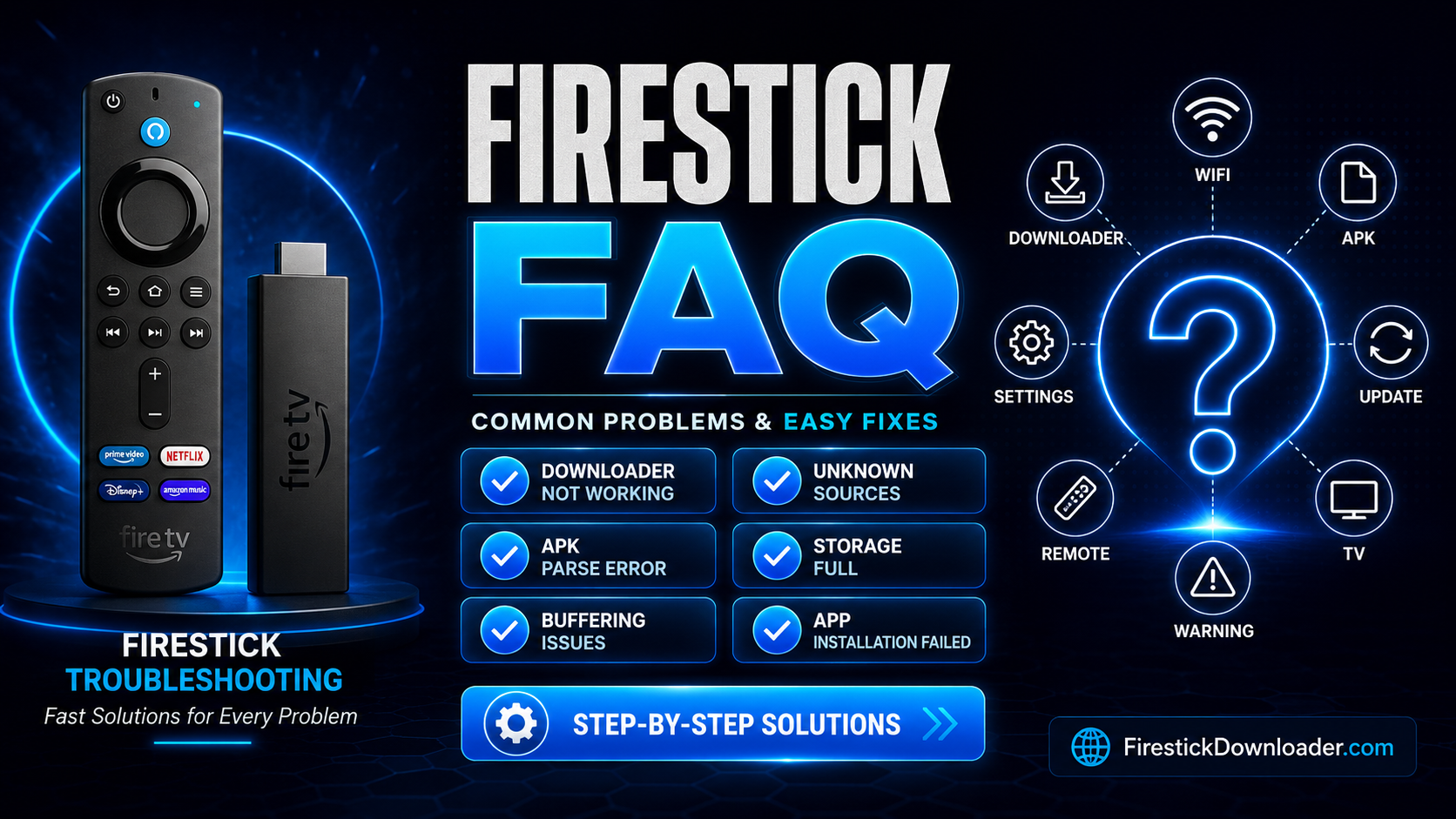
01. Device Setup & Sideloading Errors
How do I fix the “Unknown Sources” or “Permission Denied” error?
First check whether the app is available in your device’s official app store. If a compatible APK must be installed manually, Fire TV may require you to enable installation permission for the specific installer under Developer Options. On some versions, those options can be revealed in Settings → My Fire TV → About by selecting the device name repeatedly. Menu labels vary by model and software version. ADB debugging is not normally needed for Downloader, and permission to install apps does not mean an APK is safe.
What is a Downloader Shortcode?
A Downloader shortcode is a shortcut to a web address, not a certificate of authenticity. The code length can vary, and a redirect may lead to a different destination over time. Check the final website, developer identity, APK compatibility and requested permissions. Prefer official stores or the publisher’s own website. Never assume a code makes an APK verified or malware-free.
Why am I getting a “Parse Error: Problem parsing the package” message?
A package parsing error may indicate an incomplete download, a damaged APK, or incompatibility with your device’s operating system or processor architecture. Delete the failed download, check the app’s official system requirements, and download a compatible version from a trusted publisher. Repeating the same download will not fix a genuine compatibility issue.
02. Media Player Configuration Issues
Why is my Media Player completely empty after installation?
Many media-player apps are supplied without channels, movies, subscriptions or a media library. You must add your own media or connect a legitimately licensed service supported by that app. Follow the developer’s documentation and do not enter subscription credentials into untrusted software.
Should I use an M3U URL or the Xtream Codes API?
M3U is a playlist format or a URL pointing to a playlist. An Xtream-Codes-compatible connection typically uses a server address and account credentials, when supported by a licensed service and your player. Neither method is inherently faster, more secure or more reliable in every case. Choose the method officially supported by your media provider and protect your credentials.
My TV Guide (EPG) says “No Information”. How do I fix this?
An EPG (Electronic Program Guide) displays schedules when your service provides programme metadata. Confirm that the TV box has the correct date, time and time zone, check the EPG source configured in the player and refresh the guide. If no schedule data is provided by the service, the app cannot create it automatically.
03. Streaming Performance & Network Solutions
How can I stop my stream from buffering or freezing?
Buffering may result from weak Wi-Fi, network congestion, an overloaded content server, outdated apps or limited device resources. Restart the router and streaming device, compare performance in another legitimate streaming app, check your connection speed and try Ethernet where available. Change player buffer settings only if the developer documents them. A VPN does not reliably cure buffering and may reduce throughput.
Why does my device say “Critically Low Storage”?
Check storage usage in device settings and uninstall apps you no longer use. Delete leftover installer APKs when they are no longer needed. You can clear an app’s cache if the system offers this option, but avoid Clear Data unless you are prepared to lose settings and sign-ins. Storage capacity differs across Fire TV and Android TV models.
Do I really need a VPN for my Firestick?
No, a VPN is not required for normal playback or for installing Downloader. It can provide connection privacy in some situations, but it does not verify APKs, grant rights to copyrighted material or guarantee better speed. Performance can be slower with a VPN. Follow the rules of the content service and use legitimate sources.
Still Need Technical Assistance?
If you have specific device errors not covered in this FAQ, need a new Downloader code, or want to discuss advanced network optimizations, join our active community of streaming enthusiasts.
Join the Community Forum →