BuzzTV P6 PowerStation Review — Specs, Features & Setup
This BuzzTV P6 PowerStation review explains what the Android 13 streaming box actually offers: the Rockchip RK3588 processor, BuzzTV 6 OS, 8 GB or 16 GB RAM configurations, network connections and an internal NVMe SSD option. We also cover app compatibility, setup, limitations and when the BuzzTV P6 Downloader guide may help. The specifications below are based on BuzzTV’s published product documentation, not independent benchmark testing.
BuzzTV P6 PowerStation: Fast Buying Answer
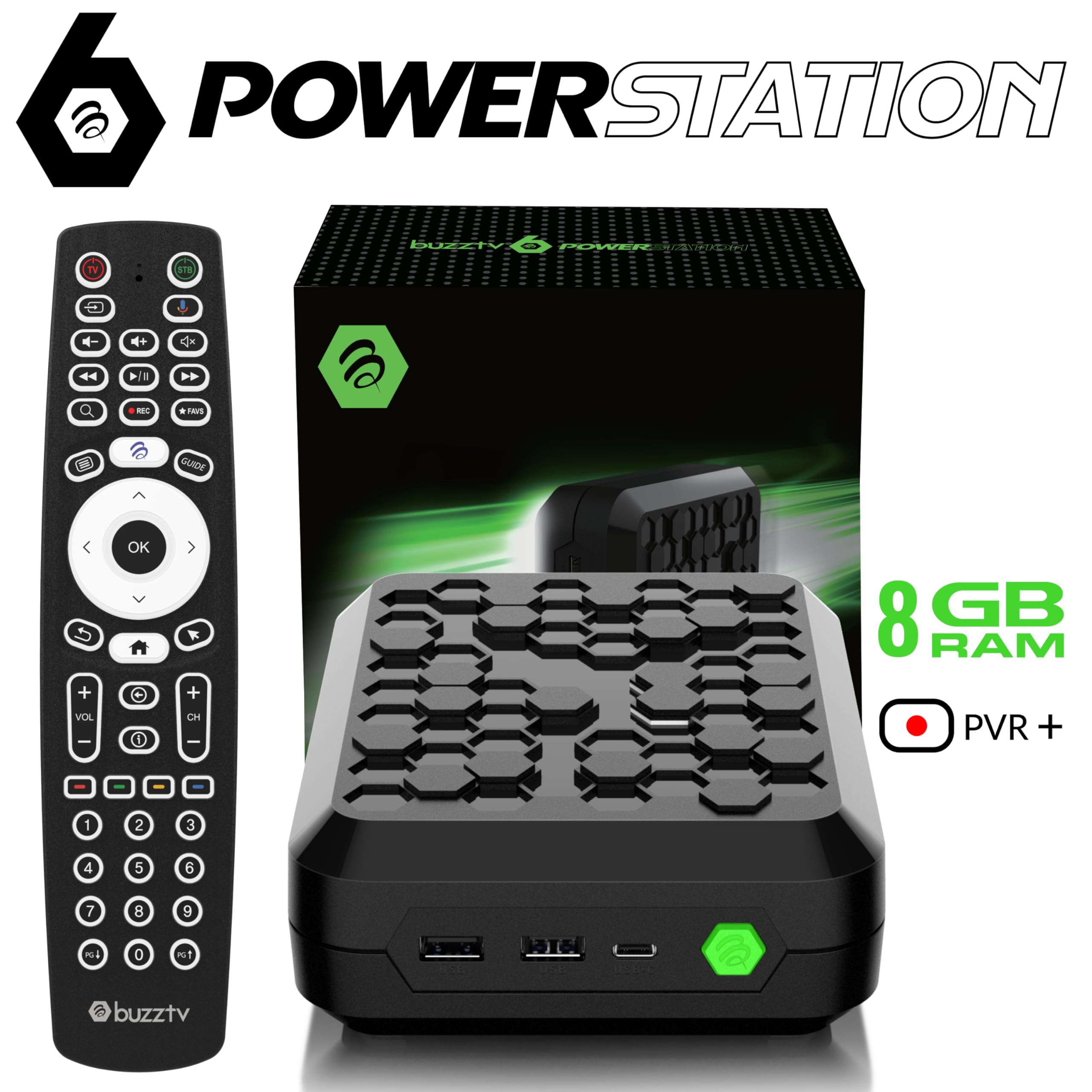
The BuzzTV P6 PowerStation is a premium Android streaming box. This review explains the specifications to verify before purchase, memory and storage configurations, and what to expect from the setup process.
Hardware Specifications
BuzzTV 6 OS
Built-in BuzzTV 6 operating environment for live TV, programme guides, recording and supported services. The box does not include TV channels or a subscription.
8/16 GB RAM & NVMe Support
P6 variants are listed with 8 GB or 16 GB RAM and 128 GB internal storage. An internal NVMe SSD slot supports expansion; check the particular listing for included SSD hardware.
RK3588 & Gigabit Ethernet
Rockchip RK3588 processor, 10/100/1000 Ethernet and dual-band Wi‑Fi 6 connectivity. Wired Ethernet can help in congested wireless environments.
Android 13 & BT‑500 Remote
The manufacturer lists Android 13 and a BT‑500 voice remote. Availability of individual Android apps can depend on compatibility, firmware and app-store support.
BuzzTV P6 PowerStation: What Stands Out and What to Check
The BuzzTV P6 PowerStation targets viewers who need more local resources, recording features and connection options than a basic streaming stick offers. BuzzTV identifies the P6 as an Android 13 device running built-in BuzzTV 6 OS, rather than a separate BuzzTV 5 app. These are manufacturer specifications, not claims based on hands-on testing. Read the official P6 specifications and model comparison before purchasing.
Optimizing Your Sideloading Ecosystem
The optional BuzzTV P6 Downloader setup can help install an APK when an app is not offered through a supported store. Prefer official stores and developer websites whenever possible. An APK may not run correctly merely because the device uses Android. See our Media Players directory for application comparisons, and verify each app’s developer, version and source.
For safe app installation and reliable day-to-day use, pay attention to these points:
- Use trusted app sources: Start with the supported app store. Enable installation permissions only for the specific installer when needed; menu names can differ by firmware.
- Keep debugging disabled: ADB debugging is not generally required for a normal on-device APK installation. Do not enable it unless troubleshooting instructions specifically require it.
- Choose a suitable connection: Gigabit Ethernet can offer more consistent performance than busy Wi‑Fi, but it cannot fix problems originating at the internet connection or content server.
Buying advice: Check the 8 GB versus 16 GB variant, included storage, device certification and the apps you actually need. BuzzTV says that its G‑Series, rather than P6, is its Google TV and Netflix-certified line, so do not assume identical support for every mainstream streaming service.
BuzzTV P6 PowerStation: Quick Answers
Which Android version does the BuzzTV P6 use?
According to BuzzTV, the PowerStation P6 runs Android 13 with its built-in BuzzTV 6 OS interface. It is not a BuzzTV 5 / Android 11 model.
Does every P6 include a high-capacity NVMe SSD?
The P6 supports an internal NVMe SSD and lists 128 GB of internal storage. Check the selected retailer’s package and storage configuration before assuming an additional SSD is included.
Is the P6 a certified Google TV or Netflix device?
BuzzTV identifies its G-Series as the Google TV and Netflix-certified line. Check compatibility and certification for each service you want to use on P6 before buying.
Does the BuzzTV P6 include TV channels?
No. The manufacturer says its boxes do not come with channels, playlists or a streaming subscription. Use services and content for which you have the necessary rights.
Sources: BuzzTV official P6 specification · BuzzTV model guidance.
Upgrade Your Setup with Firestick AI
Tell Firestick AI your exact P6 model, firmware and the app or network issue you are facing. Use its suggestions as troubleshooting guidance, then verify any download source and compatibility details with the developer.
💬 Chat with Firestick AI
Ready to Setup Your BuzzTV P6?
Already own the PowerStation P6? Follow our illustrated Downloader walkthrough and video. Settings can vary by firmware, so check your device before changing installation permissions; ADB debugging is not normally needed.
▶ Watch Video & Install DownloaderBuzzTV P6 PowerStation Review: Who Should Consider It?
This BuzzTV P6 PowerStation review focuses on hardware configuration, streaming-app installation and practical ownership questions rather than claiming that one device is best for everyone. The P6 range offers different memory and storage configurations. Check the exact seller listing and official specifications before buying, especially when comparing onboard memory with an optional or installed NVMe SSD.
What matters before purchase?
- Software: confirm the operating system, BuzzTV interface and available firmware updates for the specific model.
- Storage: distinguish NVMe support from the capacity and inclusion of a physical SSD.
- Apps: check individual streaming service compatibility, DRM requirements and app-store availability; an Android-based system does not guarantee every subscription app runs in its highest resolution.
- Connection: compare wired Ethernet with your existing Wi-Fi setup and available router ports.
Editorial note: This is a specifications-based buying and setup guide, not a claim of hands-on laboratory testing or a verified customer rating. For hardware details, check the manufacturer’s website. For installation steps, use our BuzzTV P6 Downloader guide.