Strong LEAP-S3 Pro Downloader
Installation Guide (2026)
This Strong LEAP-S3 Pro Downloader installation guide explains how to find the Downloader app, review Android TV installation permissions, and troubleshoot common setup issues. Availability and menu names can differ by firmware and region. Use trusted app sources, verify the publisher, and remember that a Downloader code is a URL shortcut—not proof that an APK is safe.
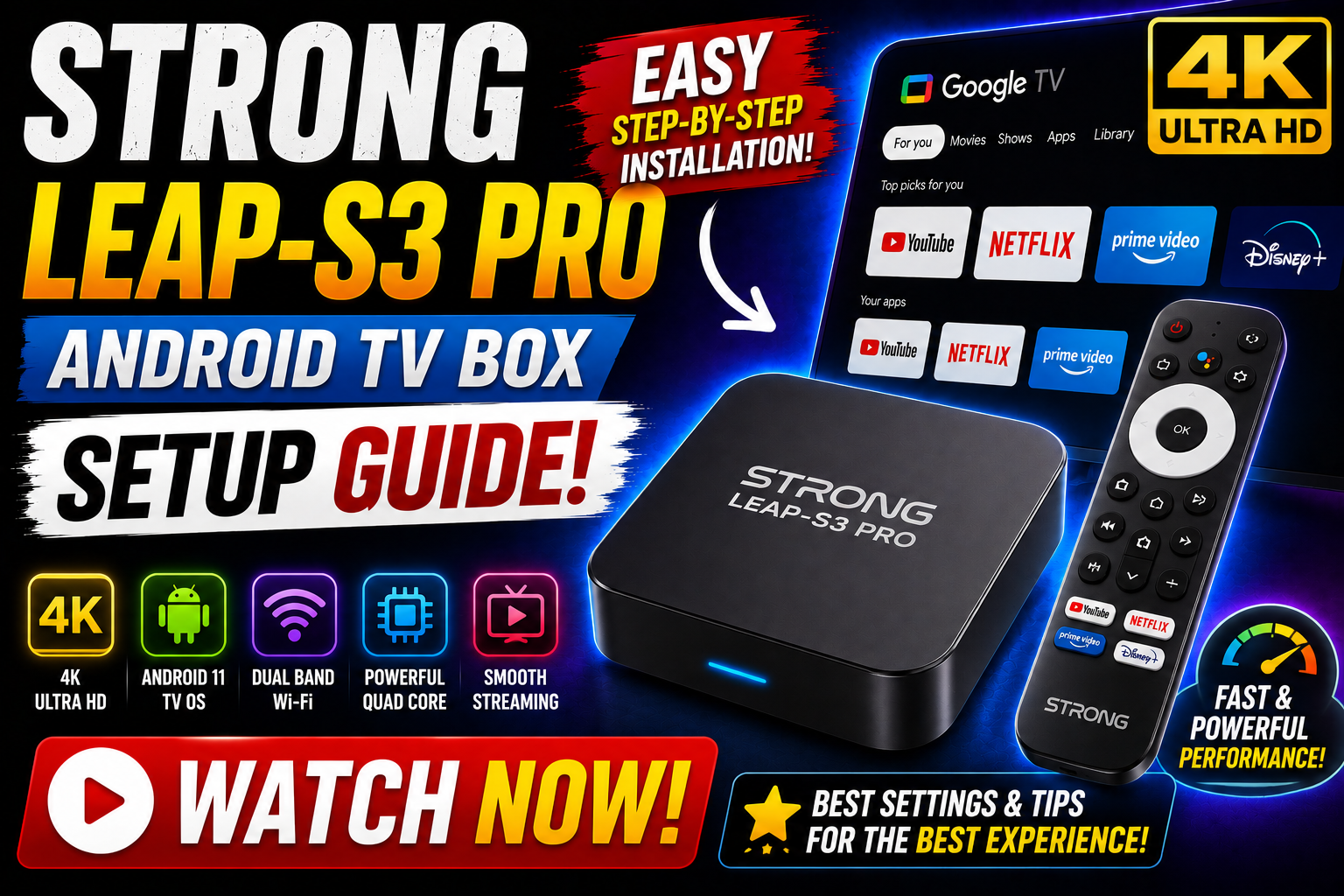
Get Setup Help with Firestick AI
Tell Firestick AI which firmware and app you use to get step-by-step suggestions for installation, device compatibility, and common playback issues. Verify app sources and critical settings before proceeding.
Strong Leap S3 Pro Downloader Steps
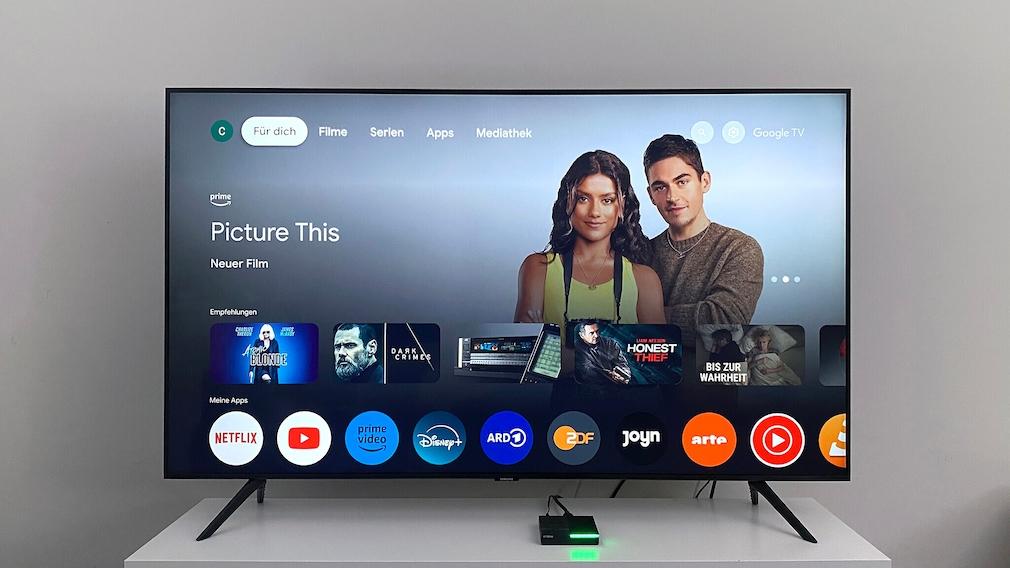
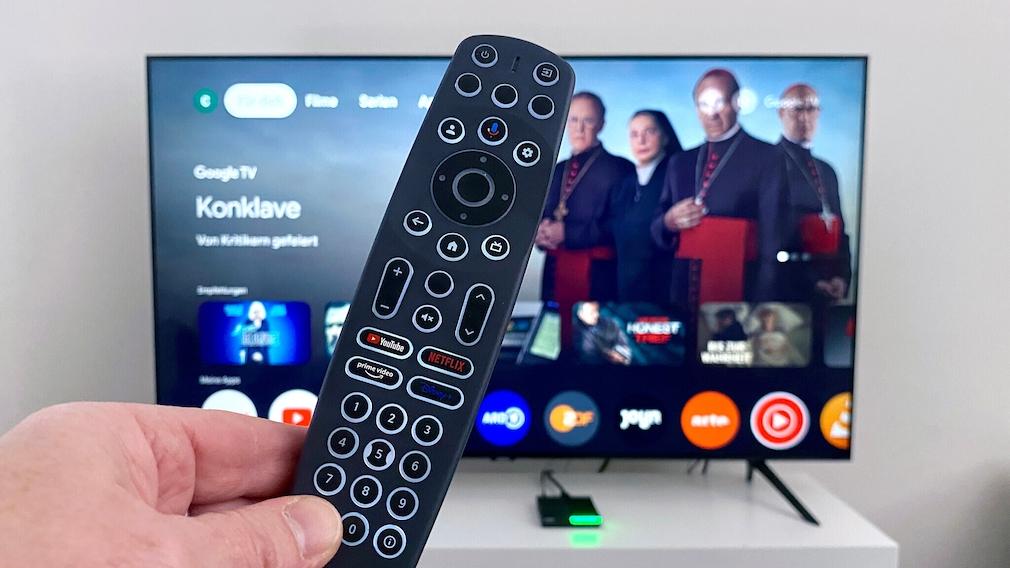
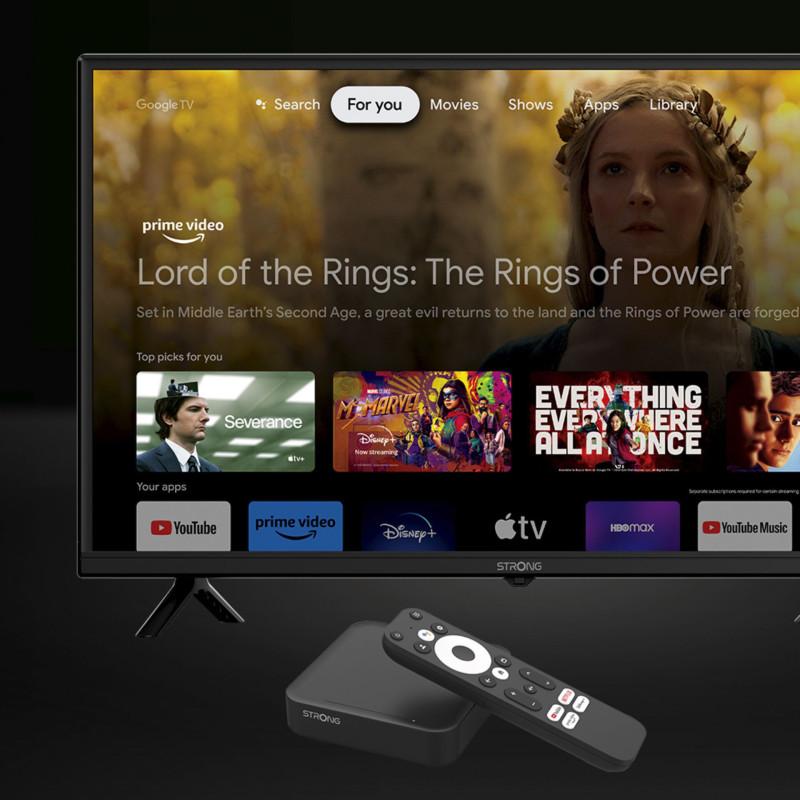
1 Go to Settings
- Start from the main home screen of your Strong Leap S3 Pro.
- Open the ⚙️ Settings menu. Its location may differ with your launcher version.
- Open Device Preferences, System or About, depending on the software version.
2 Check Installation Permissions
- Developer Options are not required just to install Downloader from Google Play. If you need them for a separate troubleshooting task, the Build entry is generally found under Settings > Device Preferences/System > About; press it repeatedly until the developer prompt appears.
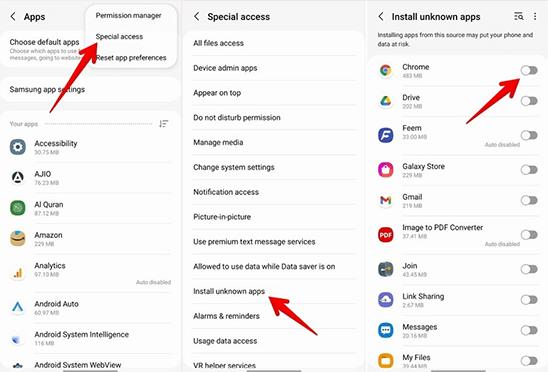
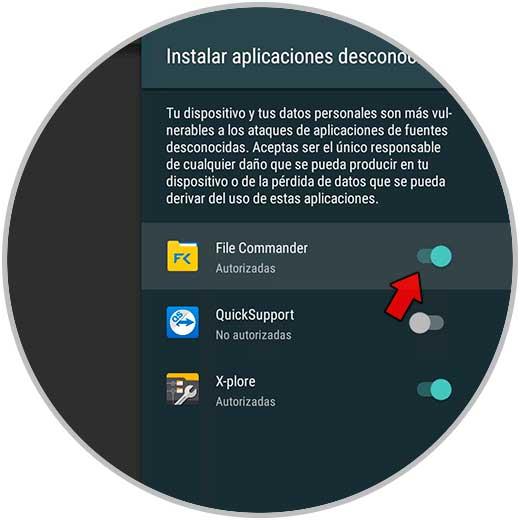
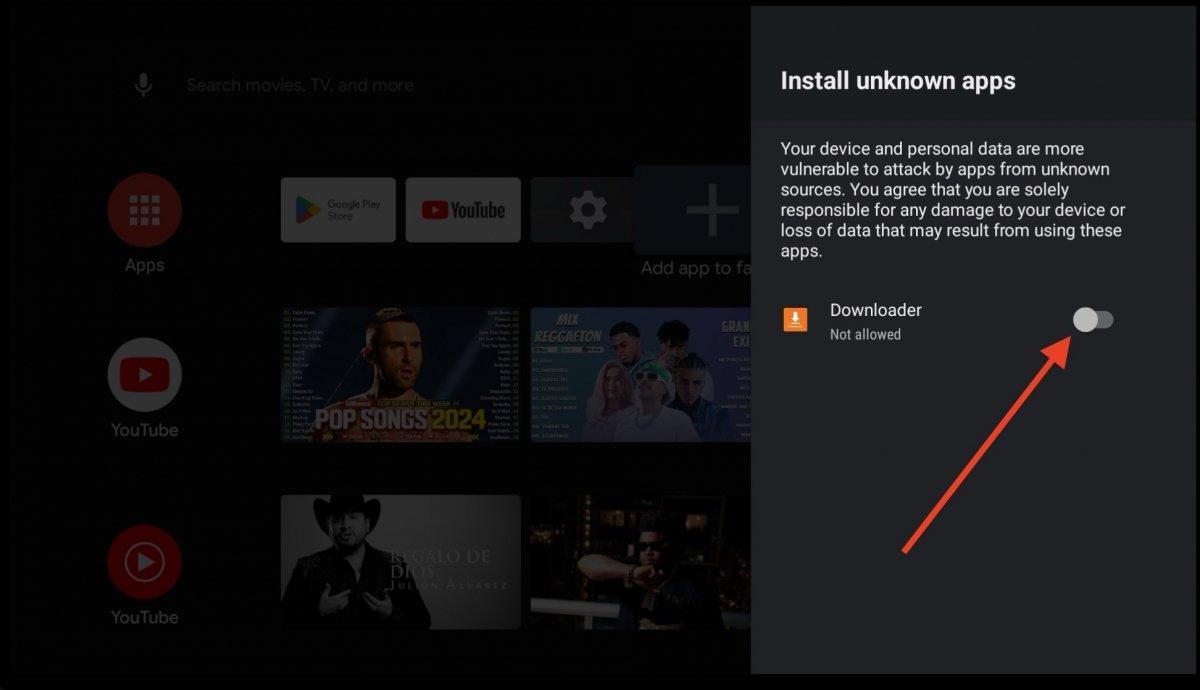
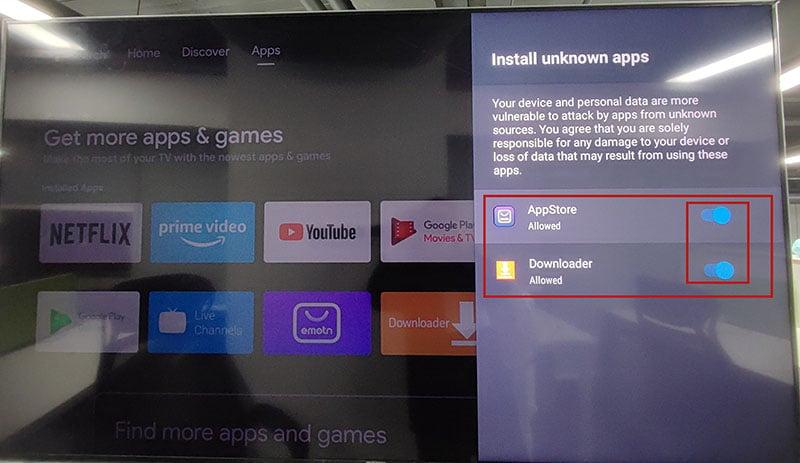
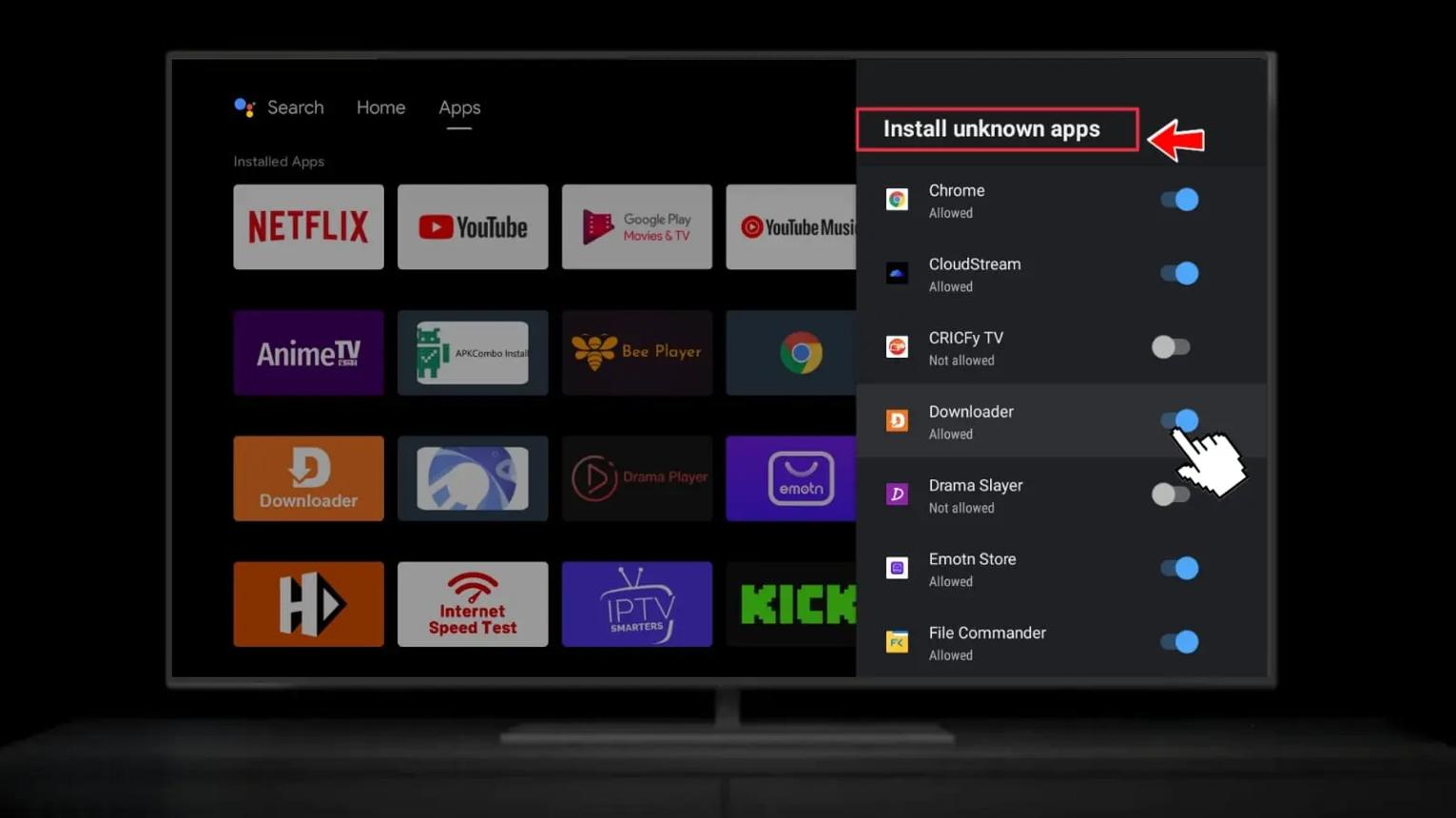
- For a later APK installation outside Google Play, Android TV may ask you to allow Install unknown apps for the specific installer. Enable it only for an installer you trust, when prompted.
- Keep ADB Debugging OFF for normal Downloader use; it is not required for installing apps.
3 Search Setup
- Press the Home button to return to the main screen of your Strong Leap S3 Pro.
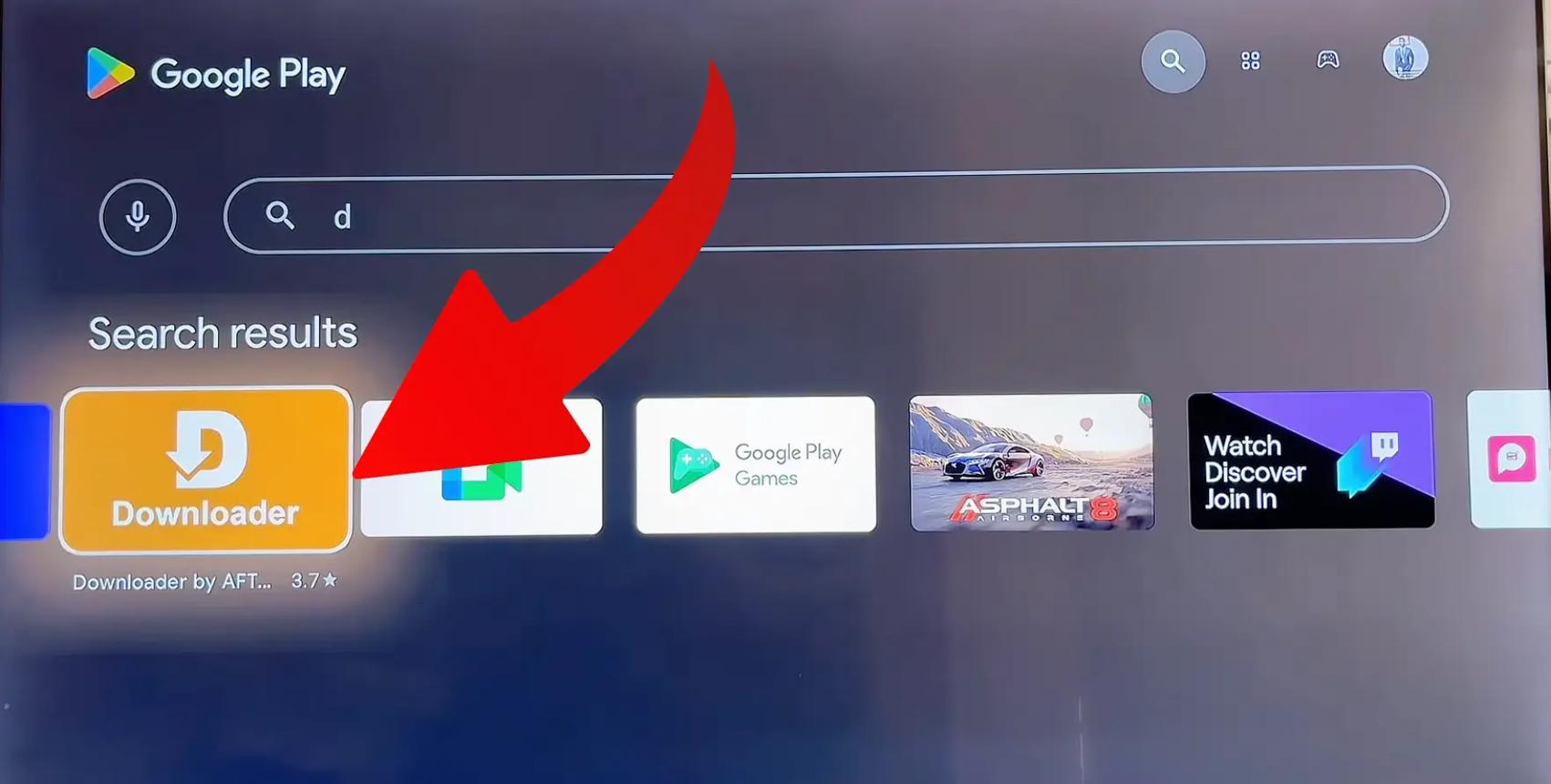
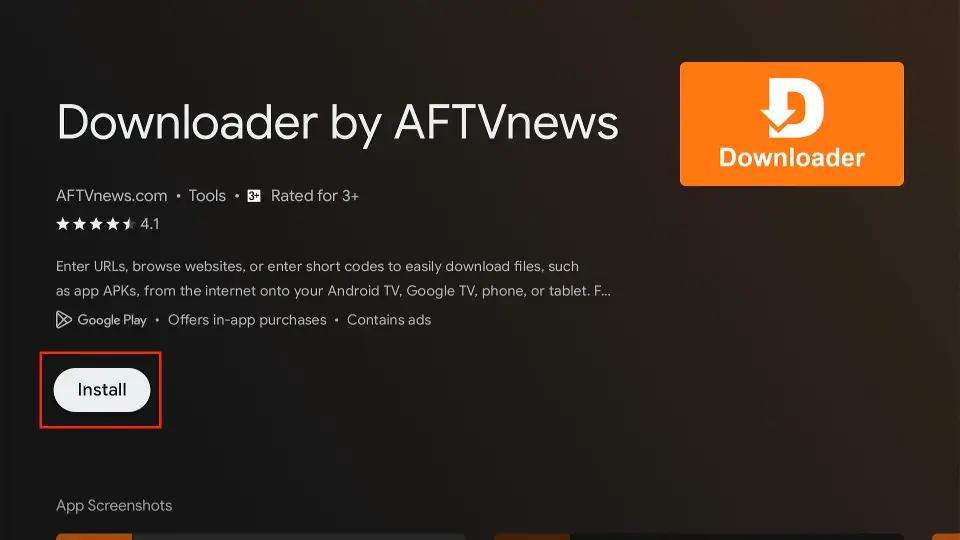
- Open the Search bar or Google Play Store application.
- Type Downloader using the on-screen keyboard.
4 Install Strong Leap S3 Pro Downloader
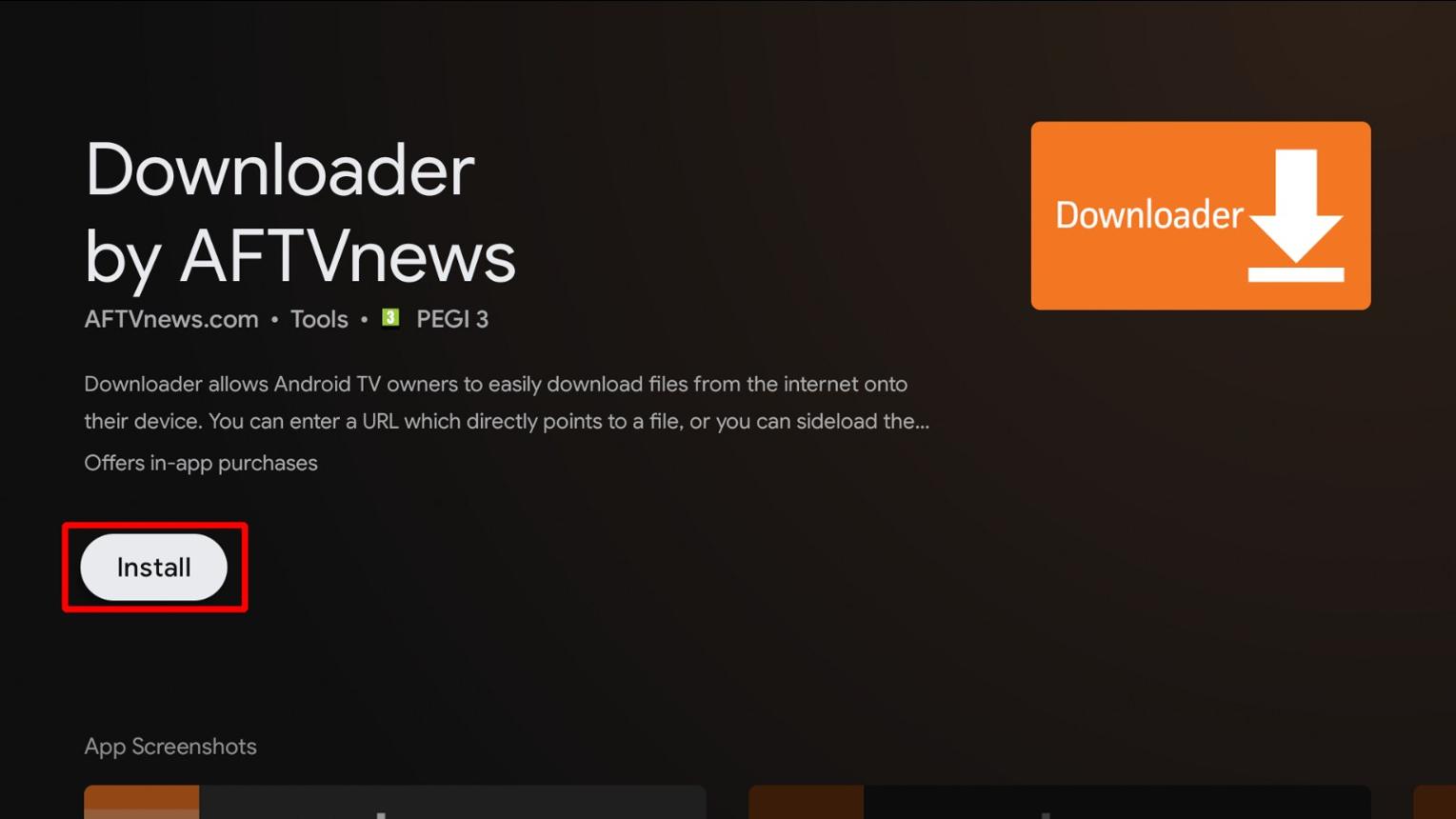
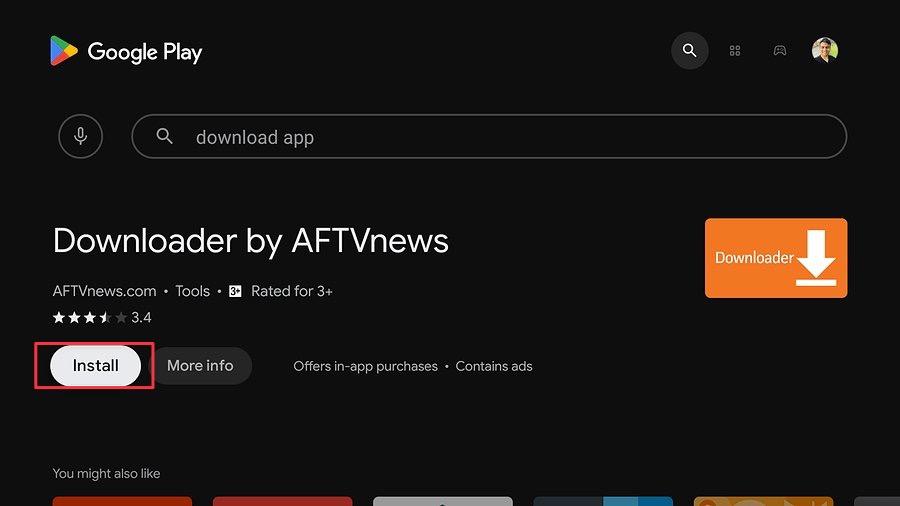
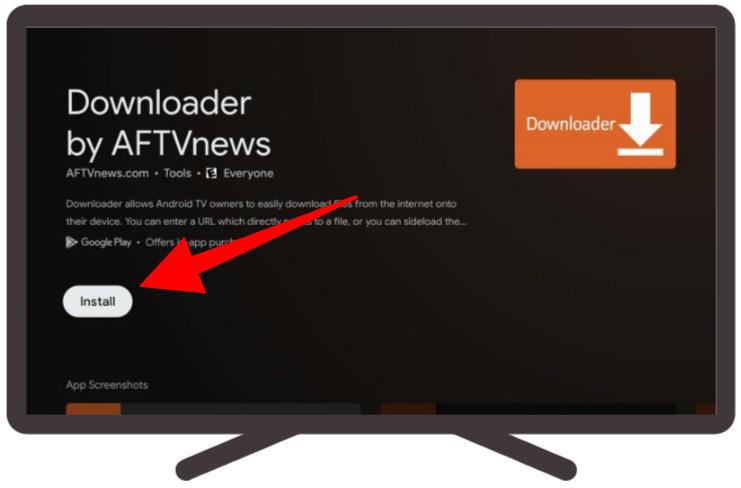
- Select the official app by AFTVnews and click Download / Install.
- Once installed, select Open to launch the application.
- Review any requested file permissions and grant only what is needed. Android TV permission prompts vary by version.
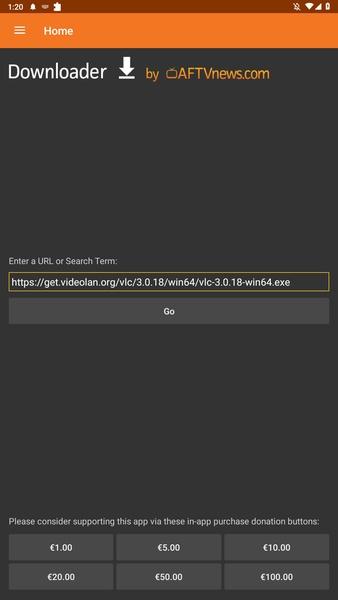
5 Enter URL & Download
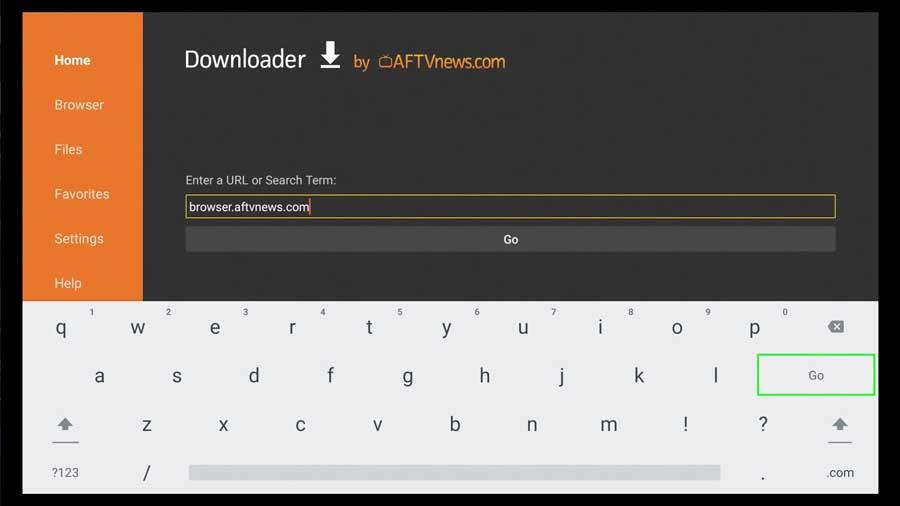
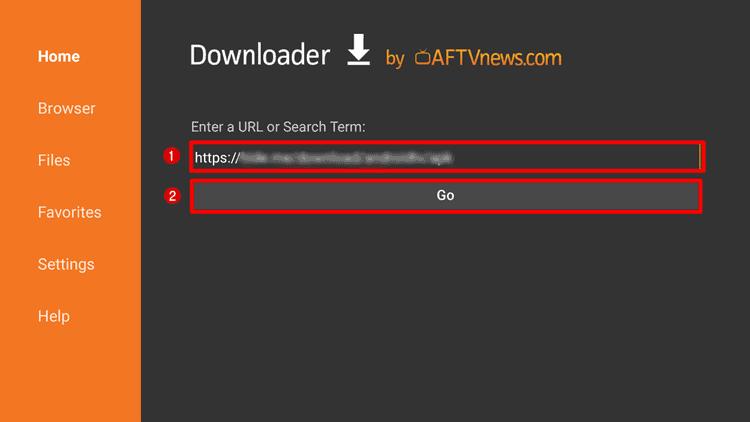
- Select the URL field and enter a trusted direct APK URL or Downloader code. Codes can have different lengths and do not verify the destination or publisher.
- Select Go and inspect the destination before downloading. A URL may open a webpage or download a file; it does not always start an APK download.
6 Complete Setup
- If an APK download completes, confirm that its publisher and source are trustworthy. Then follow the Android installation prompt if the device supports the app.
- When installation succeeds, open the app and check whether it works on your firmware. Delete the downloaded APK if it is no longer needed.
Hardware Architecture Overview
The Strong LEAP-S3 Pro is an Android TV / Google TV class device, but available menus and app permissions depend on firmware. If an app freezes or installation fails, restart the device, verify internet access, check available storage, and try an official app-store release first. Free space can help with downloads and updates, but it does not guarantee smooth 4K playback or eliminate all system errors.
Strong LEAP-S3 Pro Downloader: Common Questions
Can’t find Downloader? Search for the publisher AFTVnews in Google Play and check whether the app is available in your region. Do not assume all Android TV models display the same store results.
Installation blocked? Review the device’s app-specific “Install unknown apps” setting if you are using a trusted APK installer. Google Play installations normally do not require this permission.
App won’t open? Confirm that the APK is compatible with your device and Android TV version; try the official store version where available. Avoid enabling ADB Debugging merely to fix installation errors.