How to Install Downloader on
Xiaomi Mi Box
Welcome to the complete Xiaomi Mi Box Downloader setup guide. Learn how to navigate the Android TV OS, unlock developer options, enable unknown sources, and securely sideload apps directly to your device.
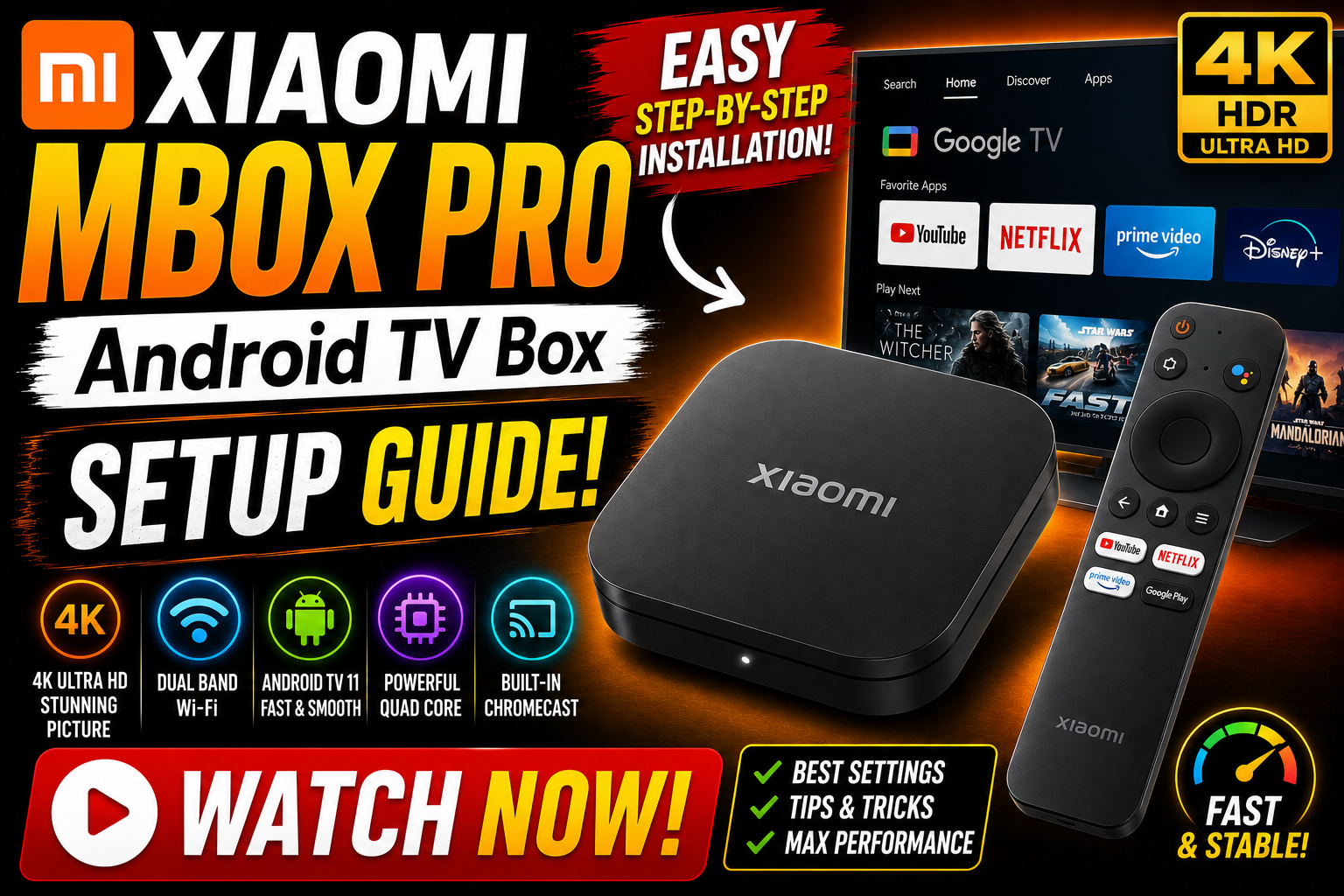
Unlock Your Mi Box’s Potential
Having trouble navigating the Android TV settings menu? Tell our AI Assistant what exactly is on your screen, and get instant instructions to unlock developer mode.

Xiaomi Mi Box Installation Steps
1 Go to Settings
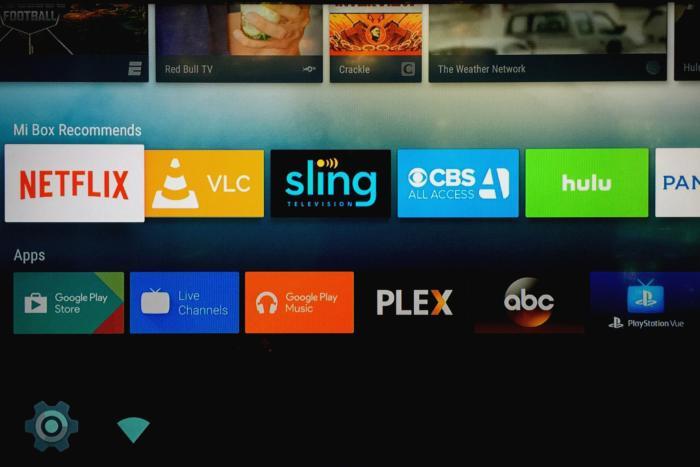
- Start from the main home screen of your Xiaomi Mi Box or Mi TV Stick.
- Navigate to the top right corner and select the ⚙️ Settings gear icon.
- Scroll down through the settings options and click on Device Preferences or System.
2 Unlock Developer Options
- Enter the About section inside your device settings.
- Navigate down to the Build number.
- Press the OK button on your remote 7 times rapidly until you see the “You are now a developer!” message appear.
3 Enable Security Settings
- Press back and go into your newly unlocked Developer Options menu. Enable Unknown Sources.
- Leave ADB Debugging disabled; it is not required for Downloader installation.
- Press the Home button to return to the main Android TV screen.
4 Install Downloader App
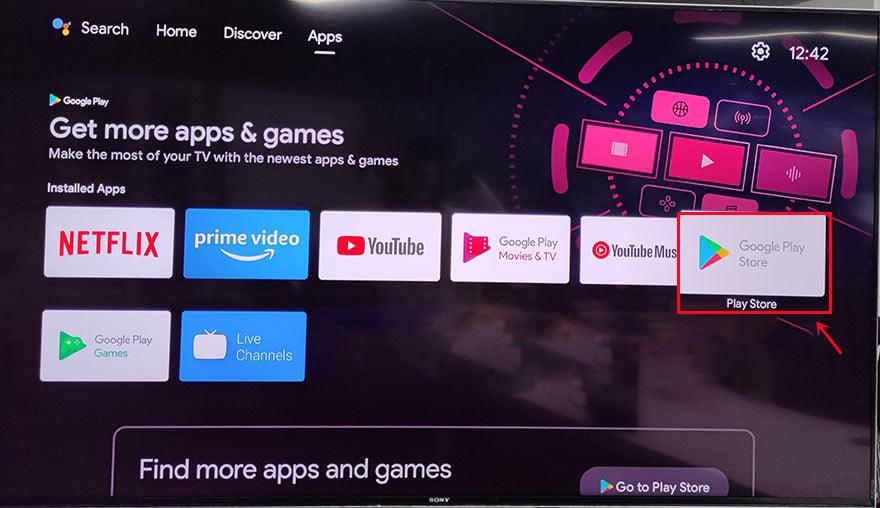
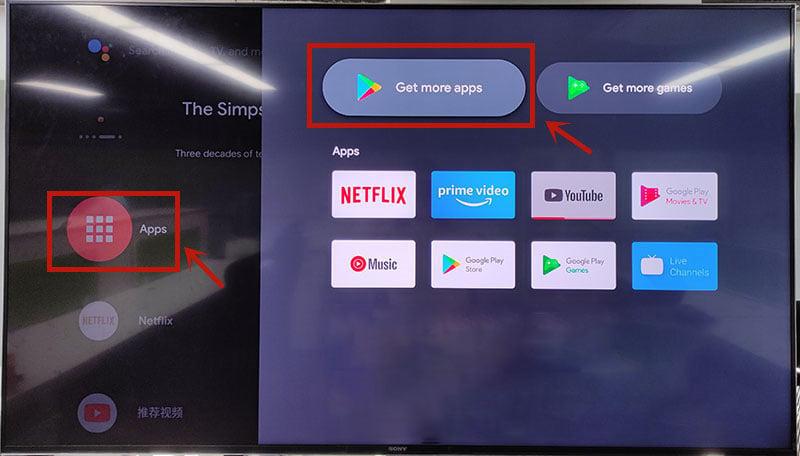
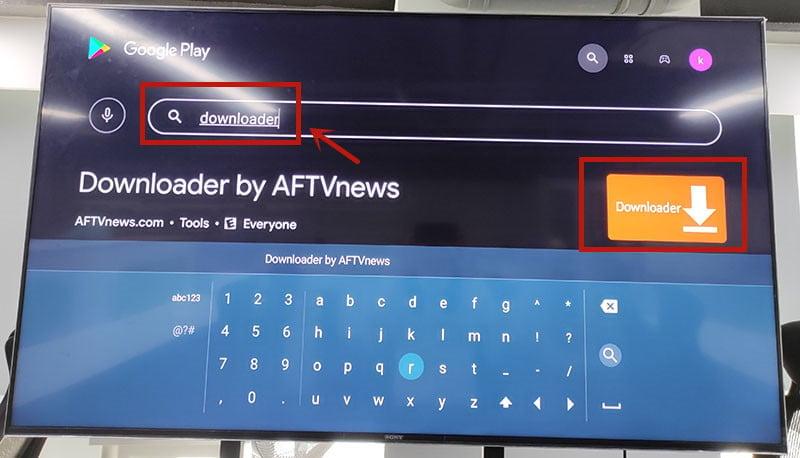
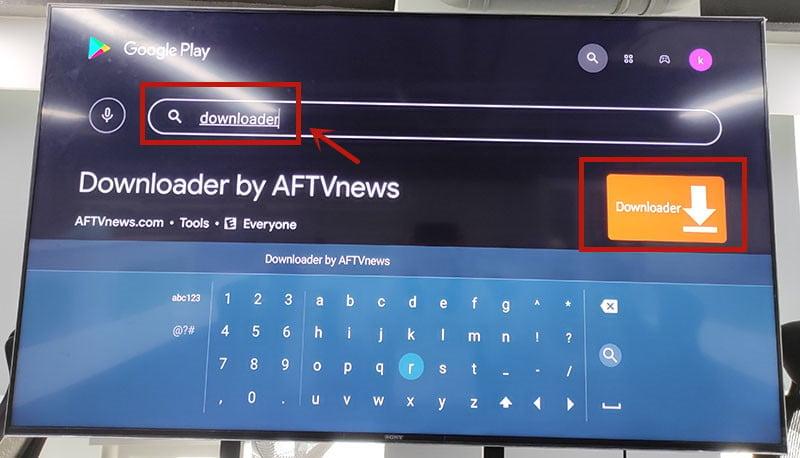
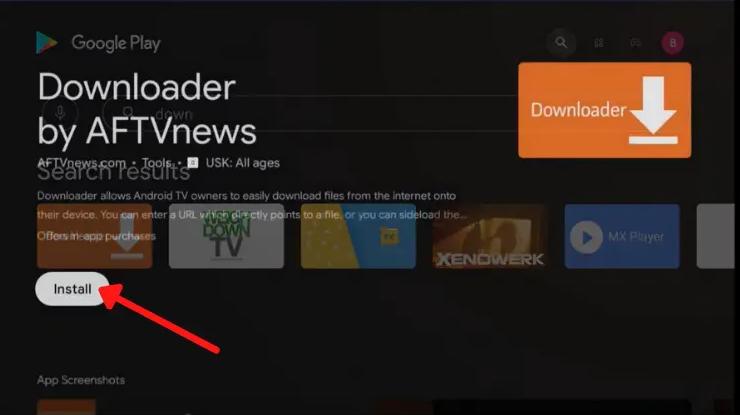
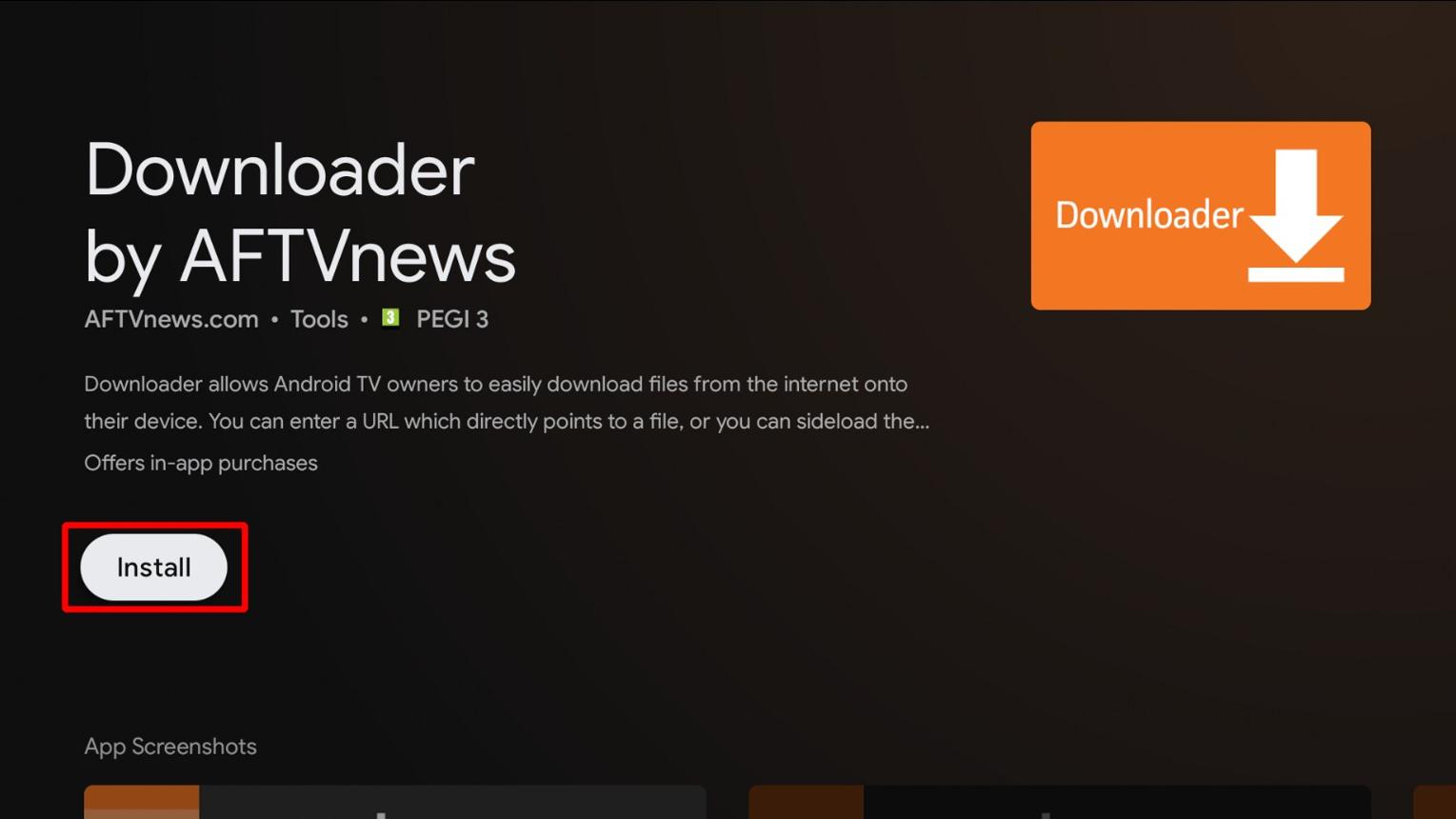
- Navigate to the top menu and click on the Search icon or Voice Search.
- Type Downloader using the on-screen keyboard.
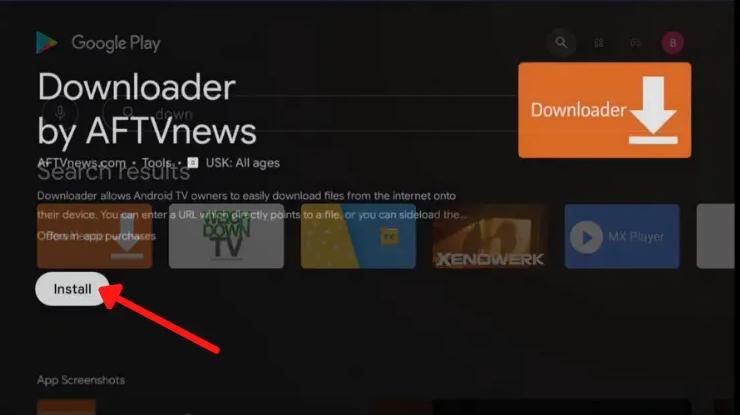
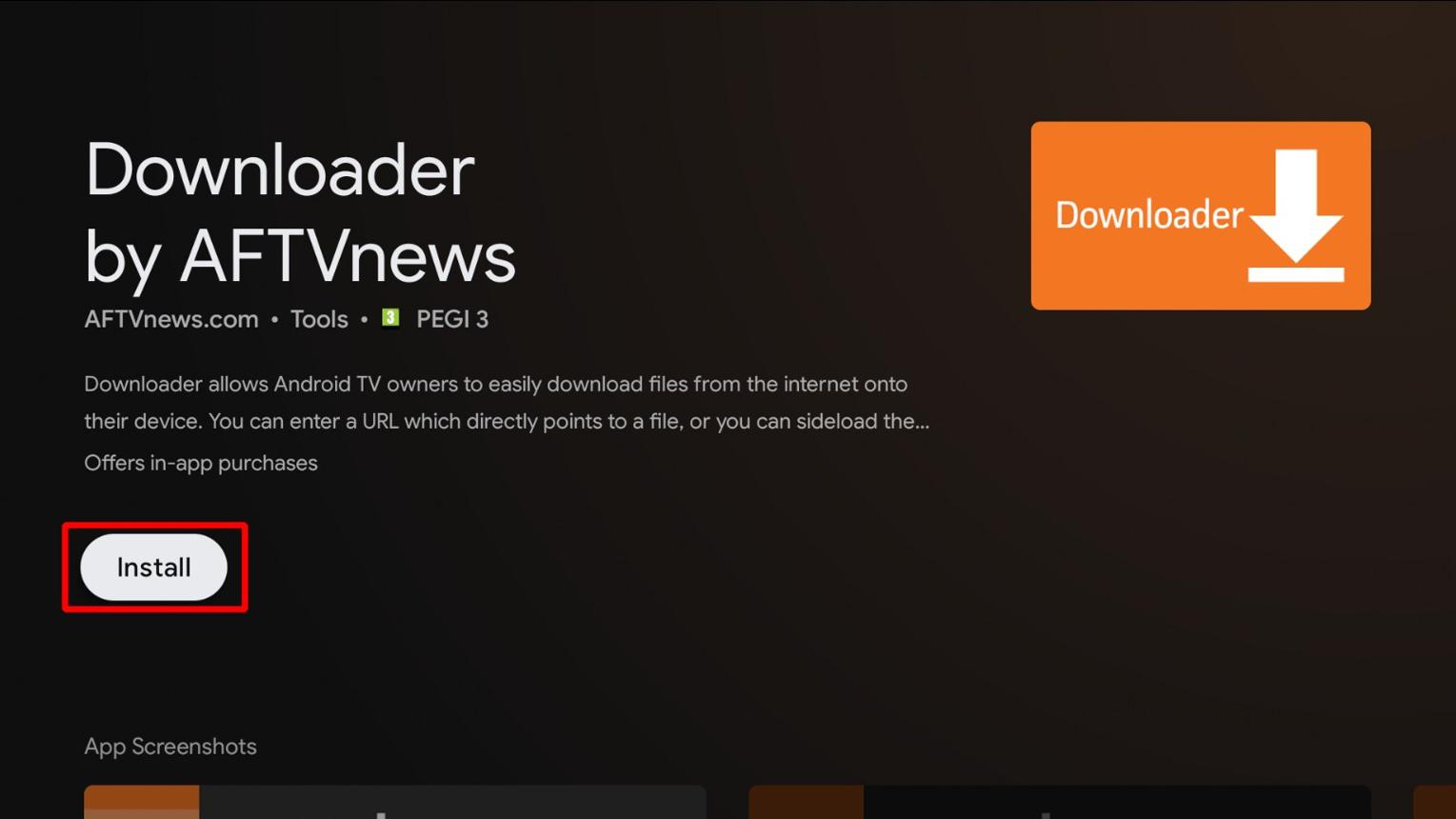
- Select the official app by AFTVnews and click the Install button.
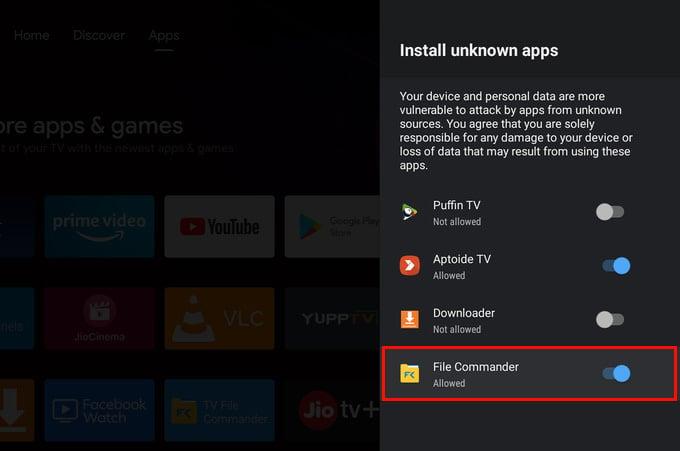
5 Open & Grant Permissions
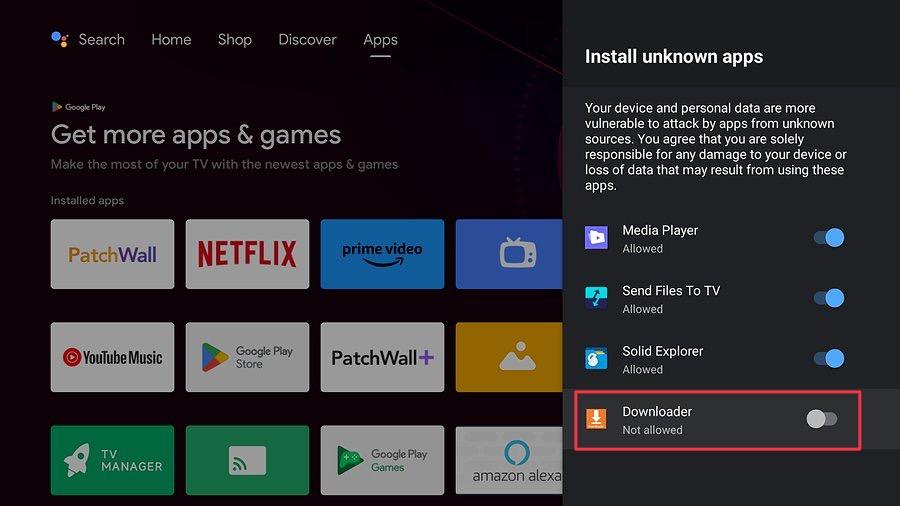
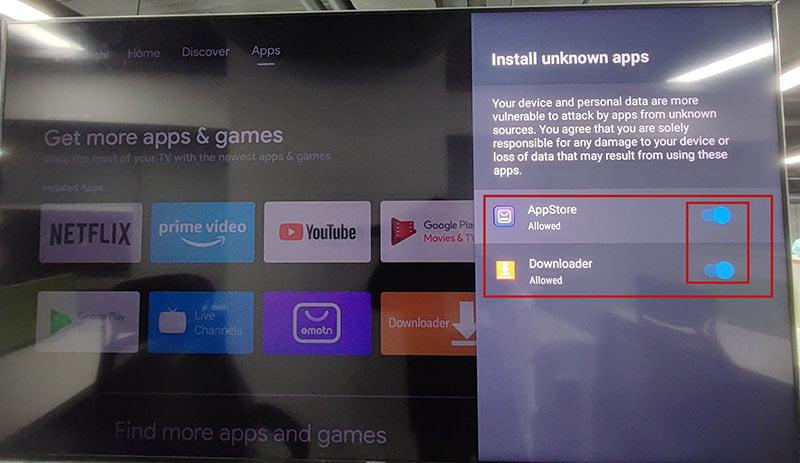
- Click to Open the Downloader application for the first time.
- Review permissions for media and files on your Mi Box and grant only access required.
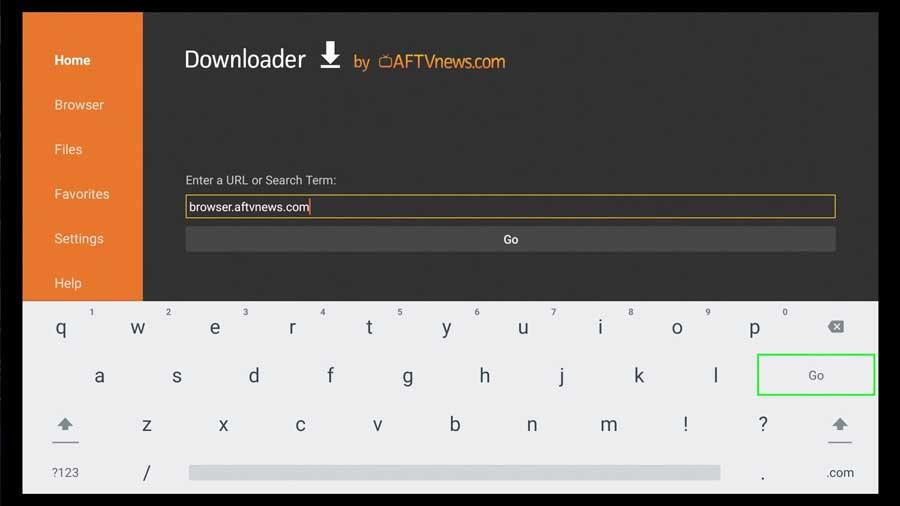
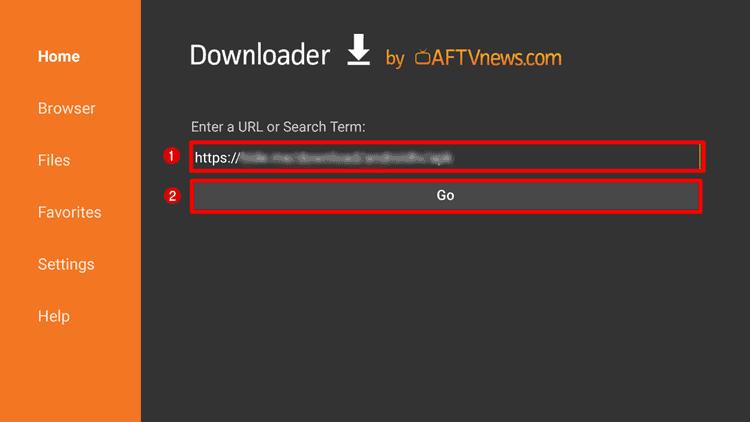
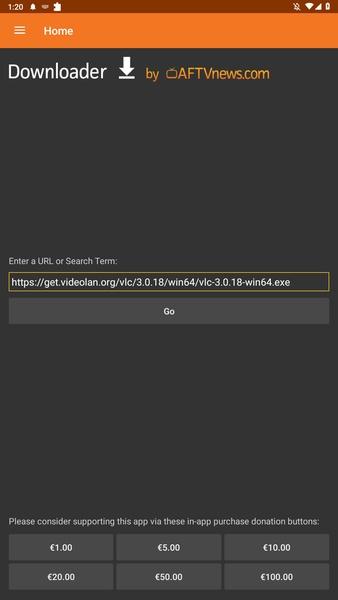
- Select the URL text box and enter your desired trusted APK URL or valid Downloader code.
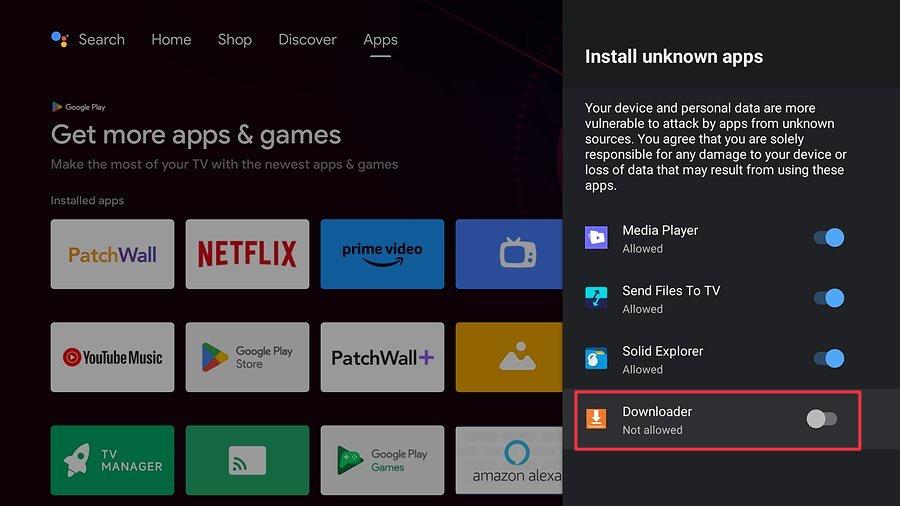
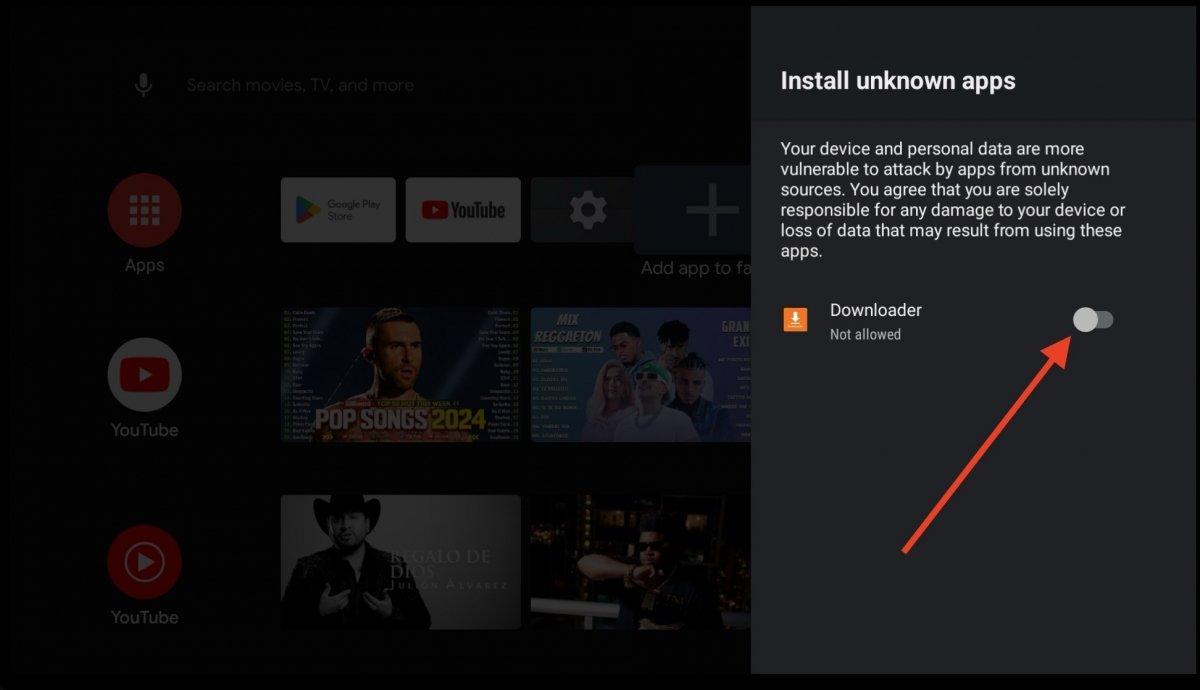
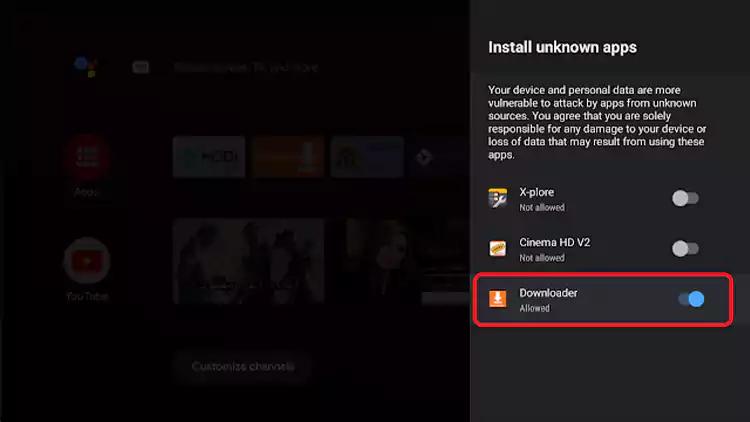
6 Download & Complete Setup
- Click Go and wait patiently while the application is downloading the file.
- When the installation prompt appears, navigate down and click Install.
- Once installed, your new app is successfully loaded onto your Xiaomi device and ready to use!
Hardware Architecture Overview
If you are looking for the absolute best Xiaomi Mi Box Downloader installation tutorial on the internet, you are in the right place. We cover every aspect of the setup process. Understanding how the system works is crucial for sideloading. By using this method, you can easily add external APKs. Be sure to follow all the steps carefully to avoid any system errors. Our guide is updated for all Android TV versions. You can also view our Media Players page for more tutorials.