Complete Guide:
Fire TV Stick 4K Max Downloader
🚀 Quick Setup Summary for Fire TV Stick 4K Max
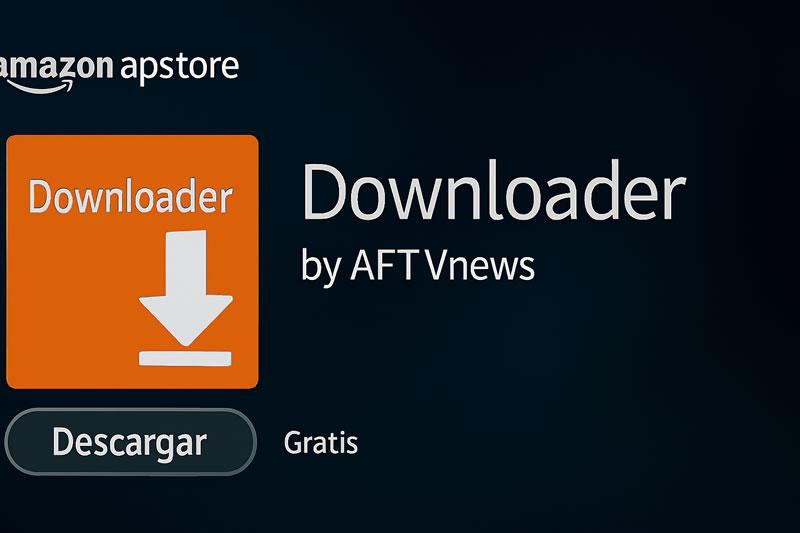
- Step 1: Find and install Downloader by AFTVnews from the Amazon Appstore, if available on your device.
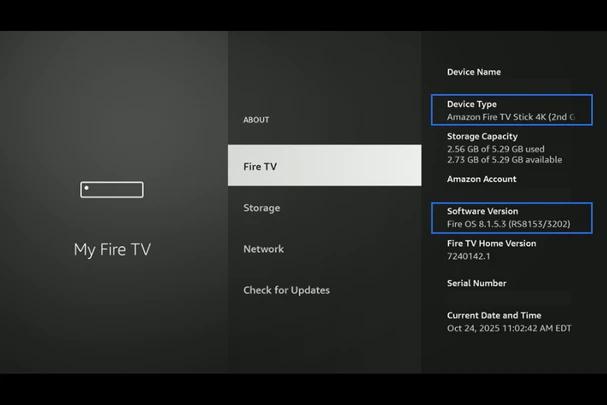
- Step 2: If Developer Options are hidden, open Settings > My Fire TV > About and press Select on the device name seven times.
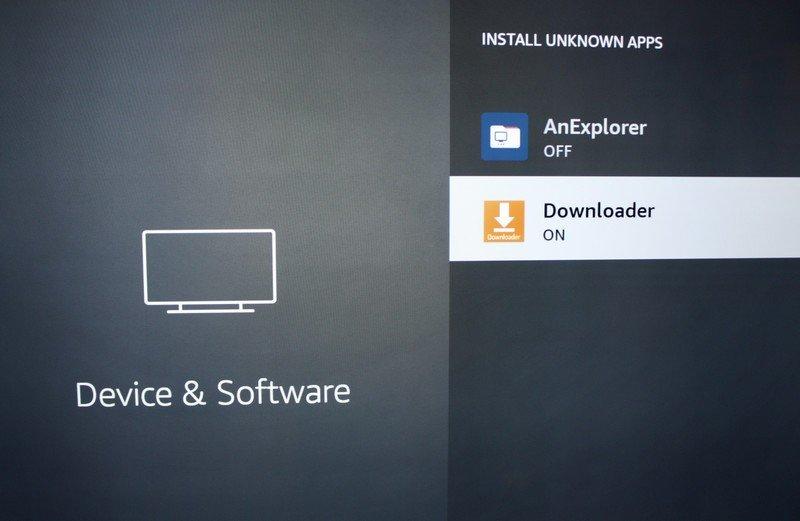
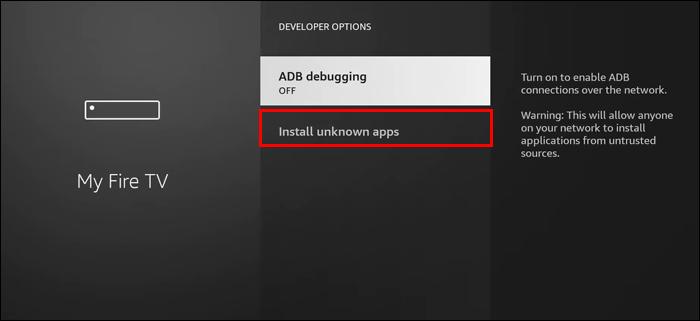
- Step 3: Under Developer Options > Install Unknown Apps, allow Downloader to request installations, if that option is supported.
- Step 4: Open Downloader, enter a verified publisher URL, inspect the destination and only install a compatible APK from a trusted source.
This Fire TV Stick 4K Max Downloader setup guide explains how to find the Downloader app, locate Developer Options when available, review installation permissions, and check APK sources before installing compatible apps. Menu names and sideloading support vary by Fire OS version and device; this guide does not guarantee that every installation method works on every update.
Fire TV Stick 4K Max Downloader Installation Steps
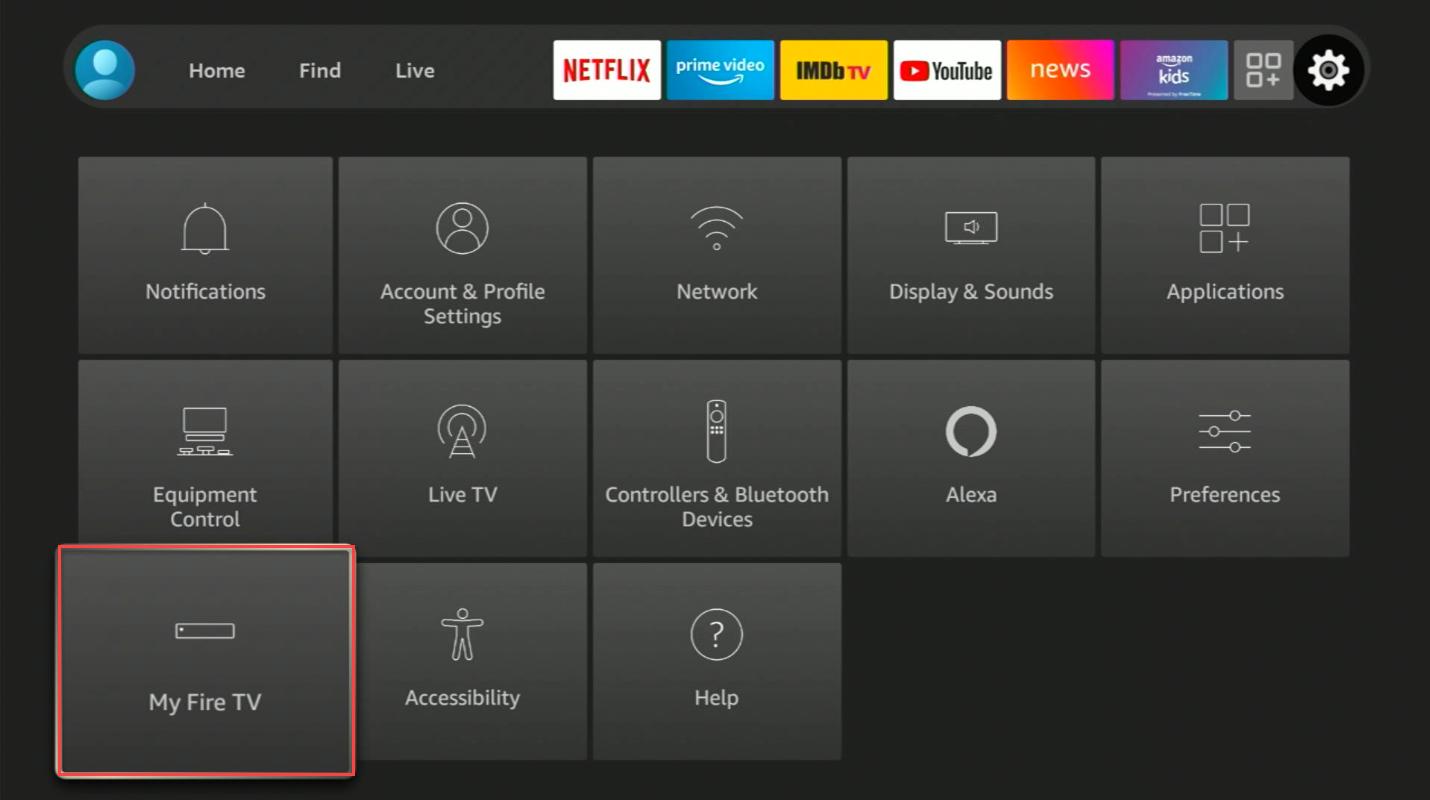
1 Go to Settings
- Press the Home button on your remote to begin the setup process.
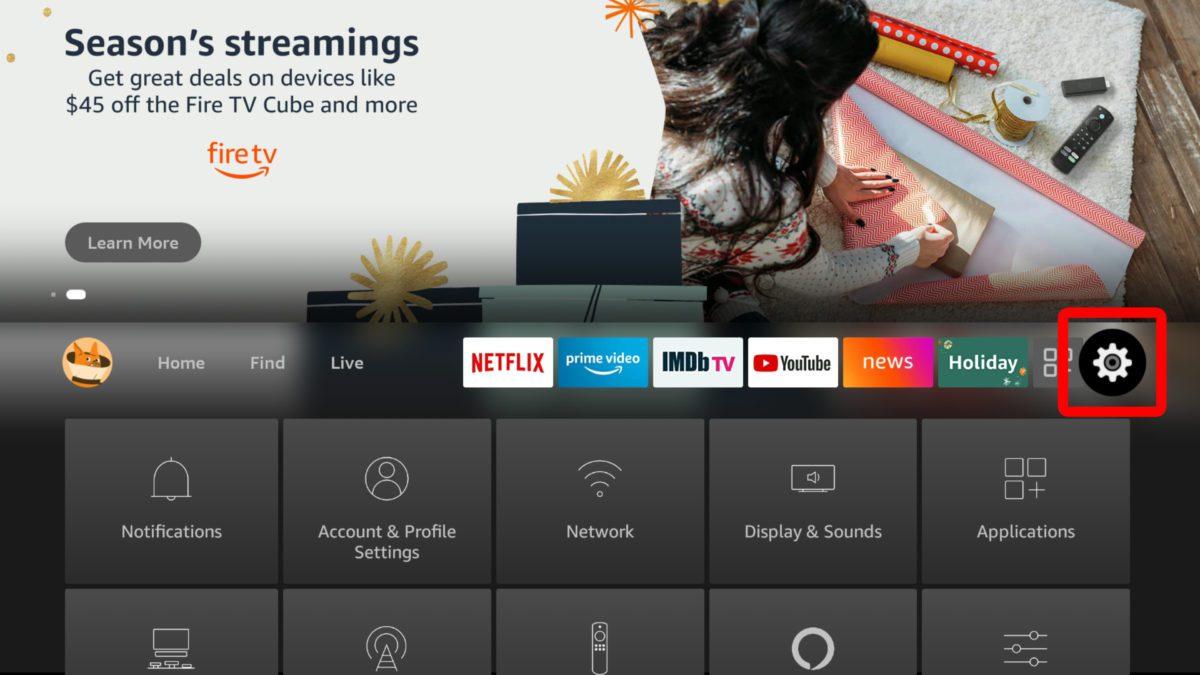
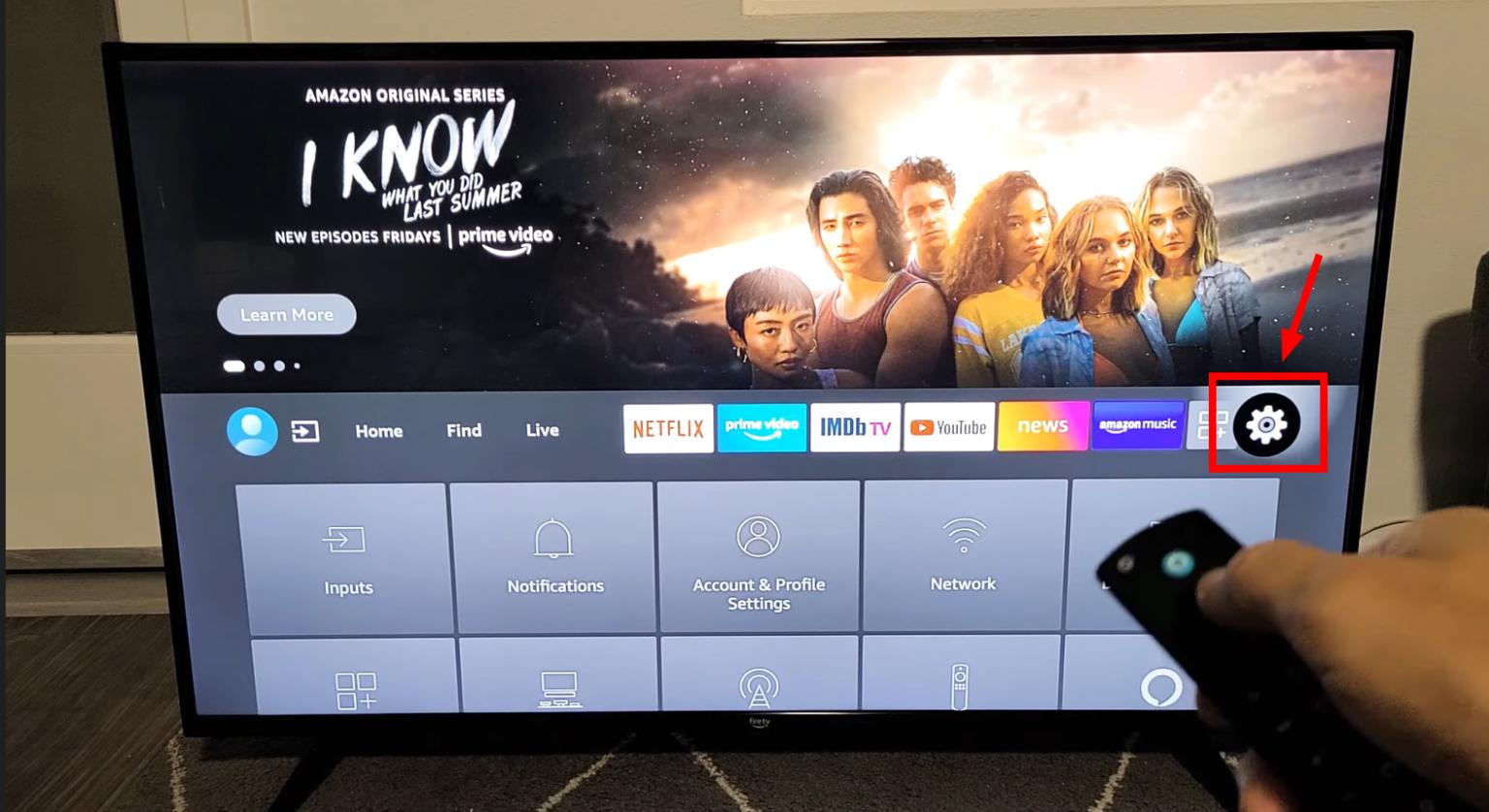
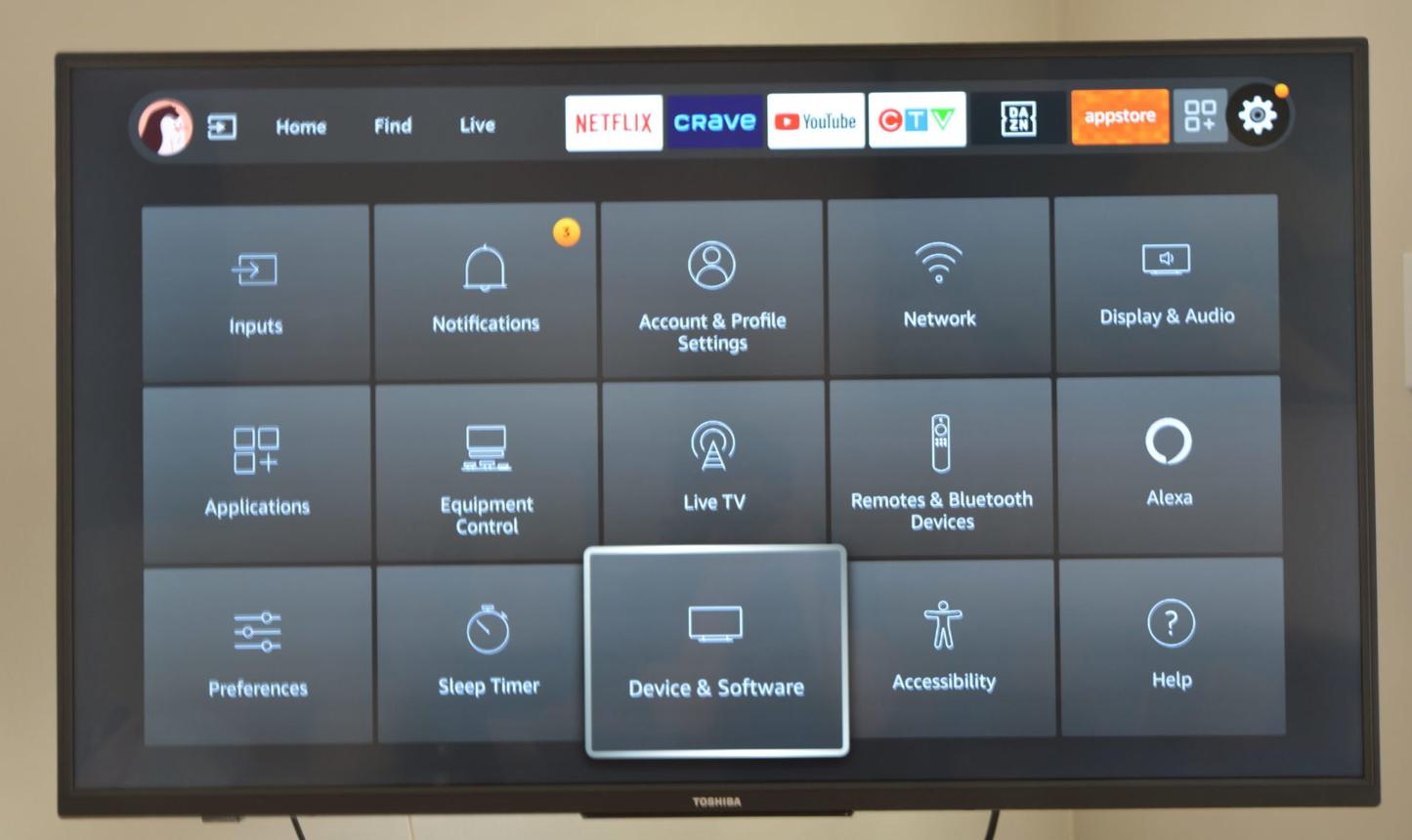
- Open the ⚙️ Settings icon in the top right corner.
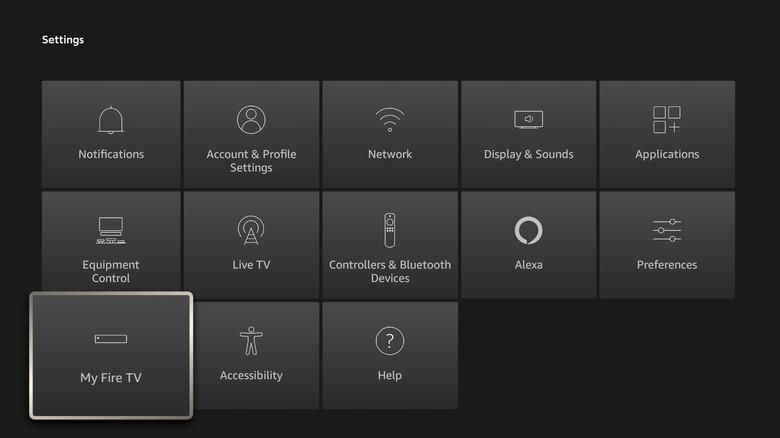
- Select the My Fire TV menu (On some OS versions, it may be called Device & Software).
2 Unlock Developer Options
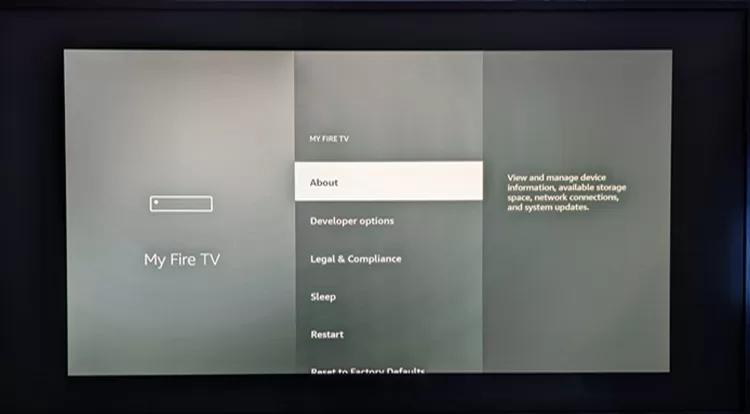
If Developer Options are not visible:
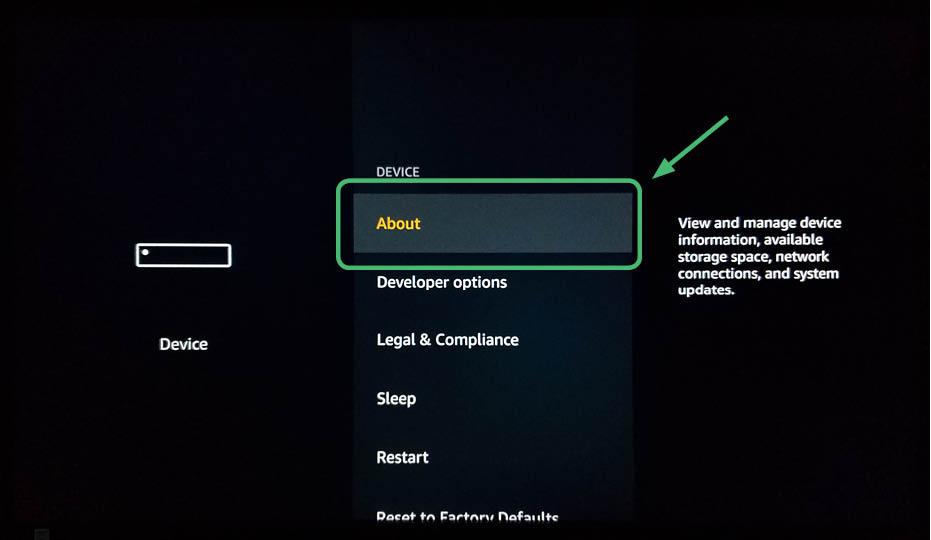
- Enter the About section.
- Hover over the Fire TV Stick 4K Max text.
- Press the Select (center) button on your remote seven times.
- A developer confirmation may appear if this method is supported by your Fire OS version.
3 Search & Install
- Return to the home screen.
- Go to the Find > Search section.
- Type Downloader.
- Select the Downloader by AFTVnews application.
- Click Download / Get to install it on your device.
4 Grant Fire TV Stick 4K Max Downloader Permissions
Follow this exact path again:
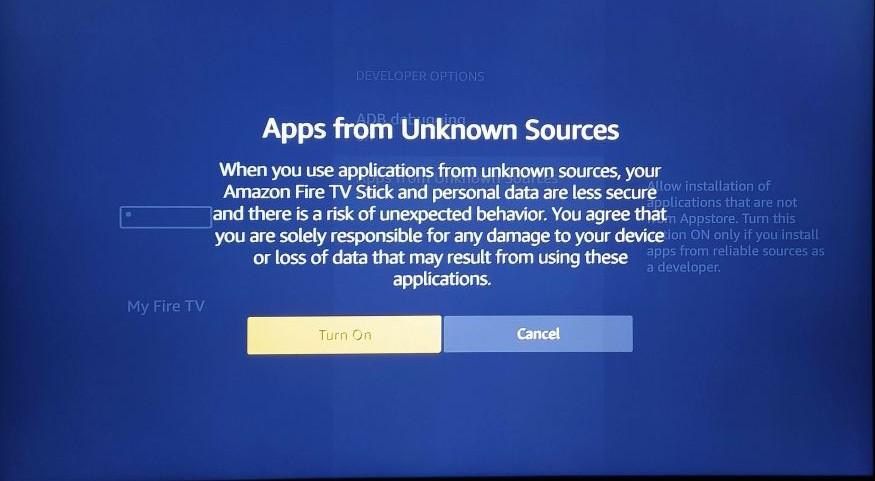
- Find the newly installed app and turn the permission ON.
- This allows the selected installer to request APK installation; Android security checks and app compatibility requirements still apply.
5 Open & Install App
When the application opens:
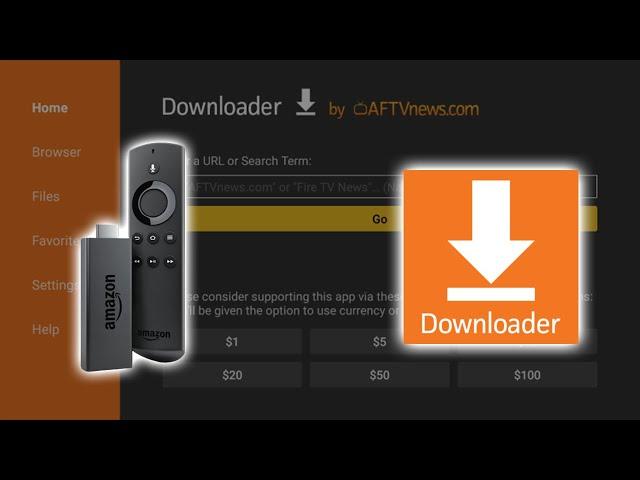
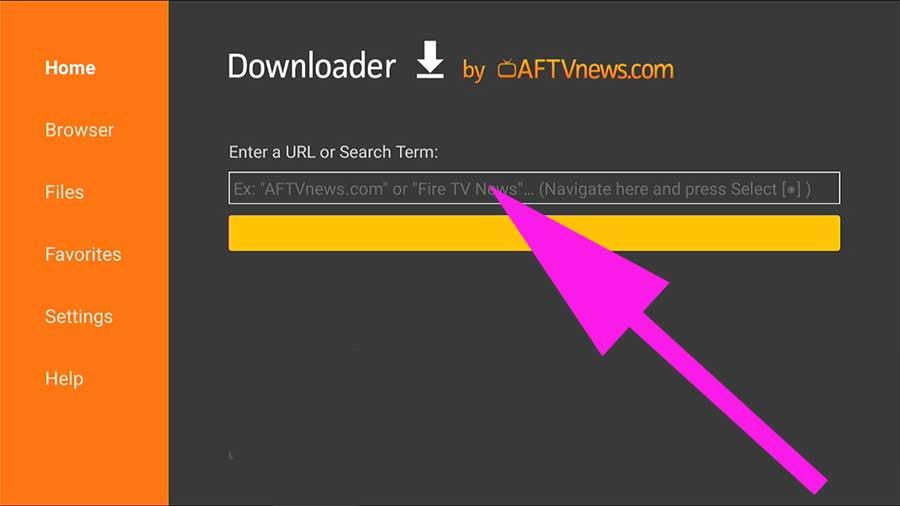
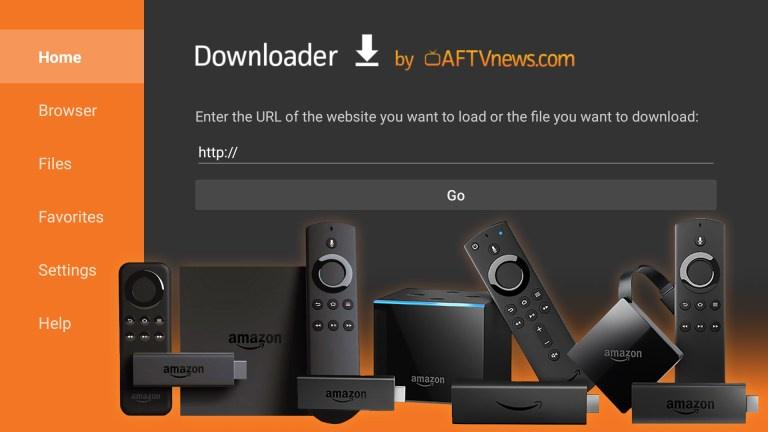
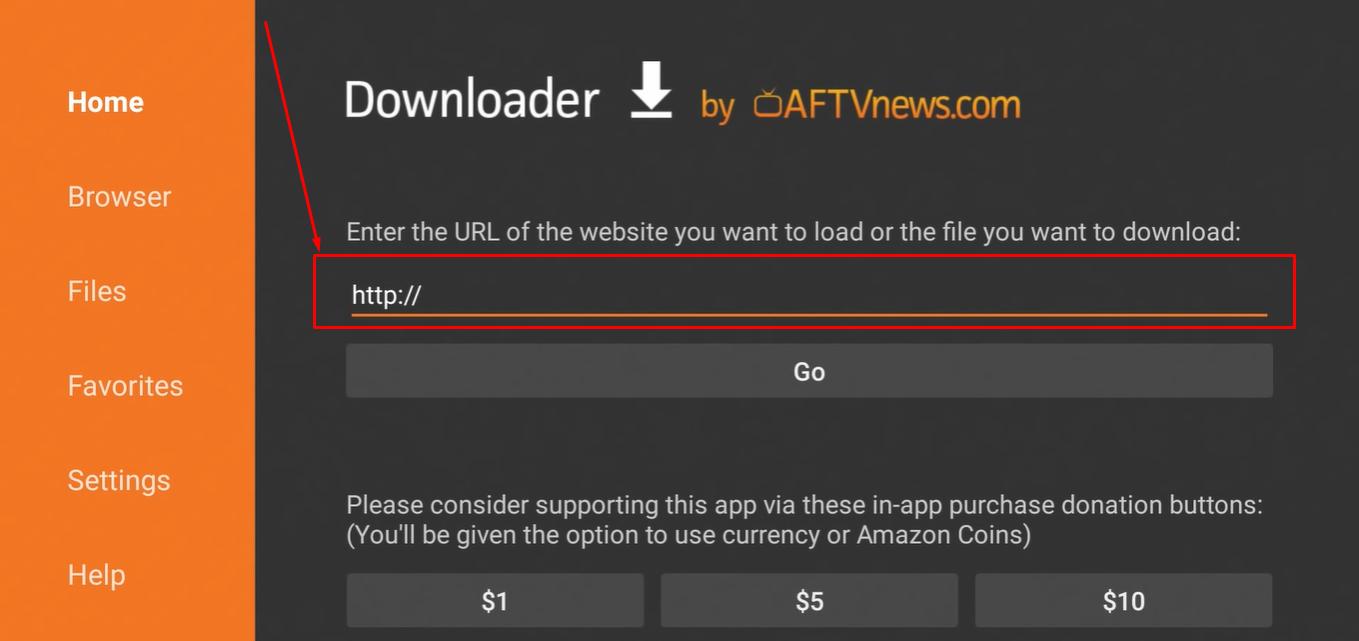
- Enter a direct URL or a Downloader short code only when you trust its destination. Short codes are redirects, not publisher verification.
- Press Go to open the destination; a download starts only if the target address actually provides a file.
- Check the website owner and APK publisher. If the device supports it and the file is trusted and compatible, follow the on-screen installation prompt.
6 Setup Complete & Maintenance
Setup is complete ✅
You can install compatible APKs from trusted sources using a valid download link, subject to device and operating-system restrictions.
If “Developer Options” is missing:
- Press the OK button 7 times on the device name.
- Return to My Fire TV to check for Developer Options. Availability and naming can vary by software version.
Frequently Asked Questions About Fire TV Stick 4K Max Setup
Why can’t I find Developer Options on my Fire TV Stick 4K Max?
Some Fire OS versions hide Developer Options by default. Check Settings > My Fire TV > About, highlight your device name and press Select seven times. If the menu does not appear, your device or software may use a different procedure or restrict sideloading.
How do I safely install third-party apps on Firestick 4K Max?
First, get Downloader from the Amazon Appstore if available. If your Fire OS version allows third-party installations, enable permission only for the installer you intend to use. A Downloader short code is a URL shortcut, not proof that its destination or APK is safe; verify the developer, domain and installation file before proceeding.
Why is my Downloader app saying “Browser Not Supported”?
If Downloader reports a browser error, first update the app and check connectivity. On supported devices, the developer’s browser component may be available at browser.aftvnews.com. Only use the publisher’s official instructions, and check whether your Fire OS version supports that component.
Why You Need This Setup
Fire OS provides an official app store and, on some versions, options for installing apps from other sources. This Fire TV Stick 4K Max Downloader guide explains how to check those options without assuming that sideloading is supported on every model or update. Explore our Media Players directory for app comparisons. Playback performance depends on the exact device generation, software version, network and chosen application.
This is the complete Fire TV Stick 4K Max Downloader installation and hardware optimization guide.